
Help centreCAM
Generate a toolpath and G-code
The Machining page turns your part into a milling program: add an operation to a setup and its toolpath is computed straight away from the part as it stands, then post it as G-code for your machine's control.
-
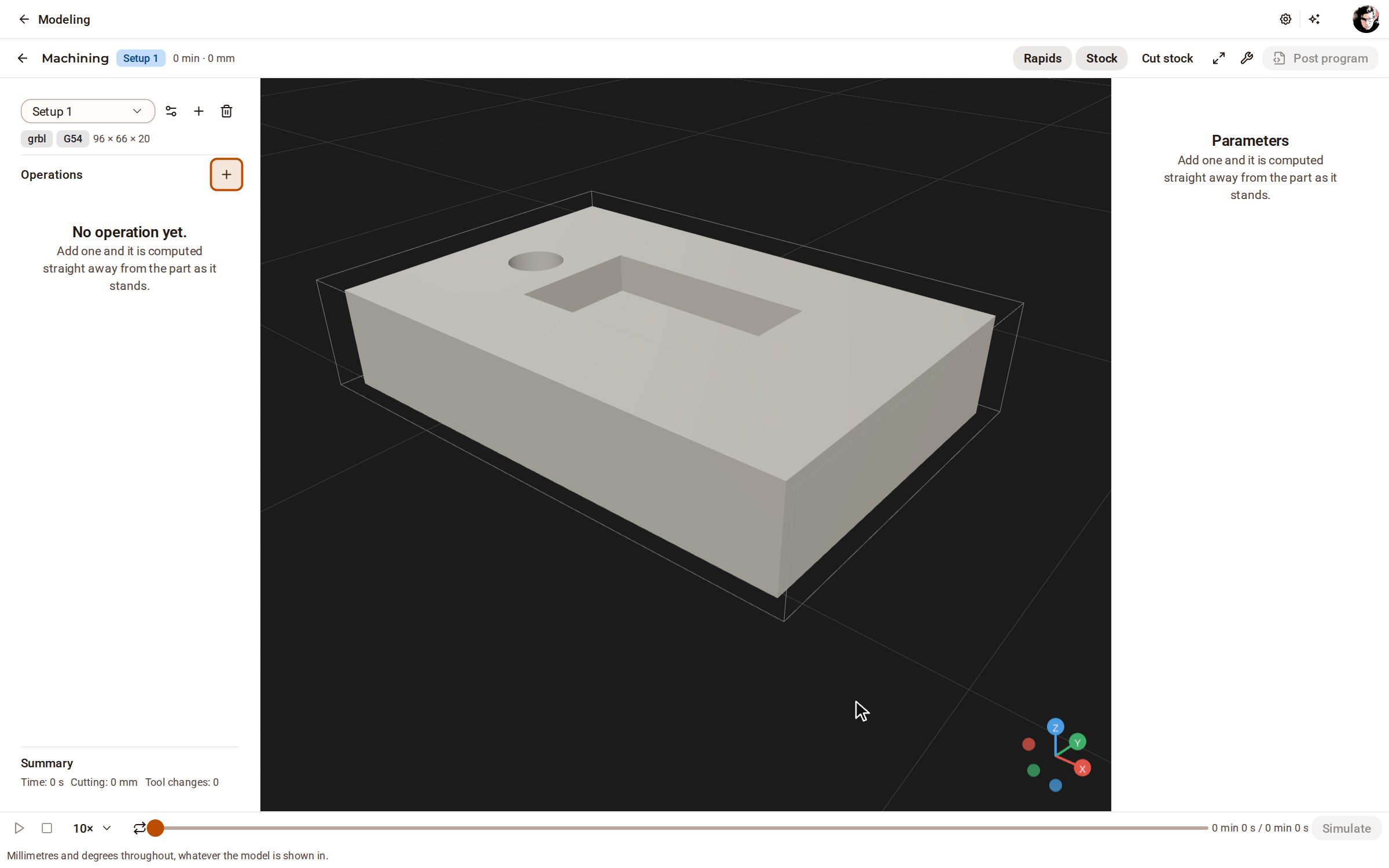
With the model open, pick Machining on the top bar. The page opens on the model's setup — its stock, work origin and post-processor — with no operation yet.
-
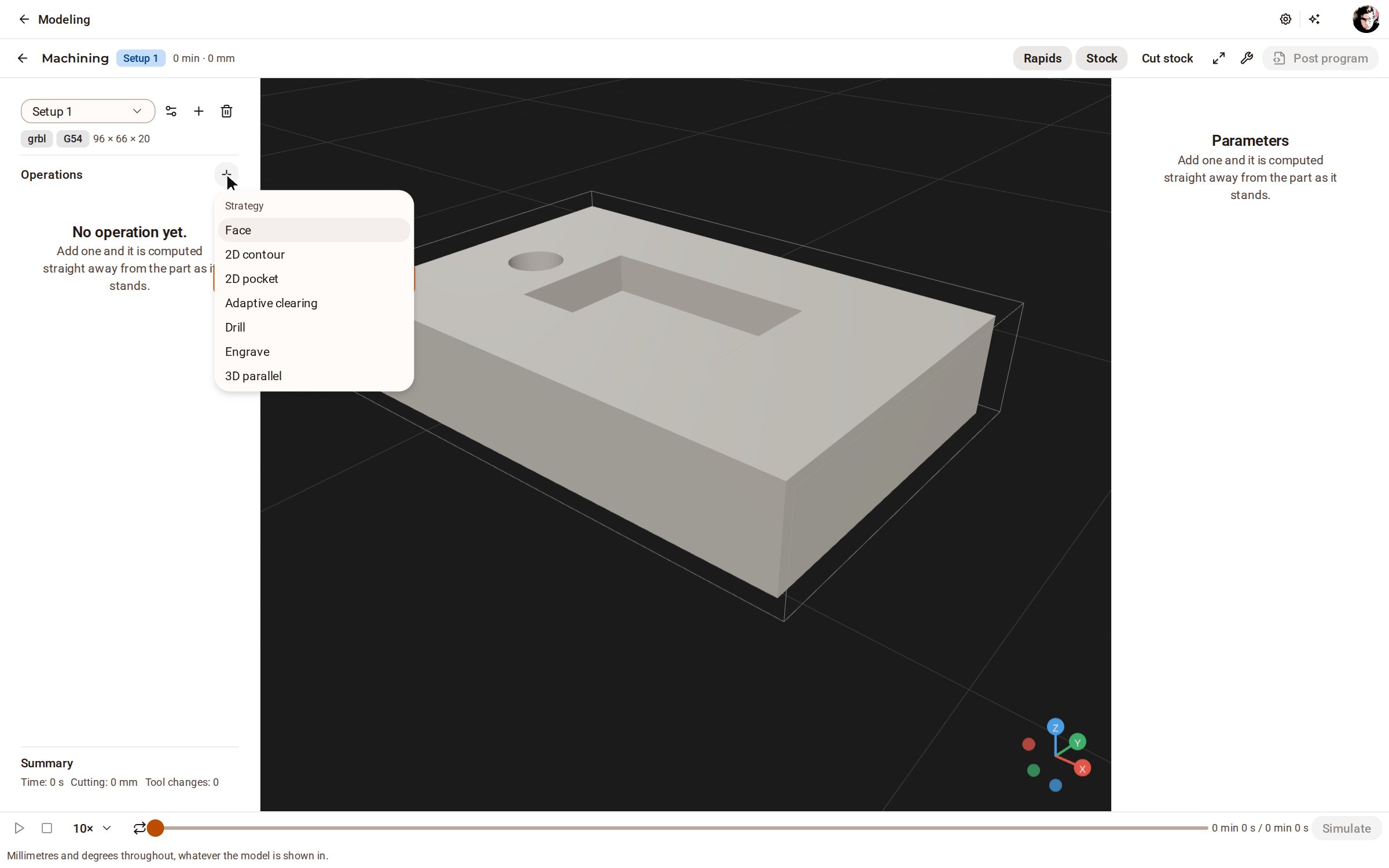
Click Add operation (+) beside Operations. The menu lists the strategies, each with a line on what it cuts.
-
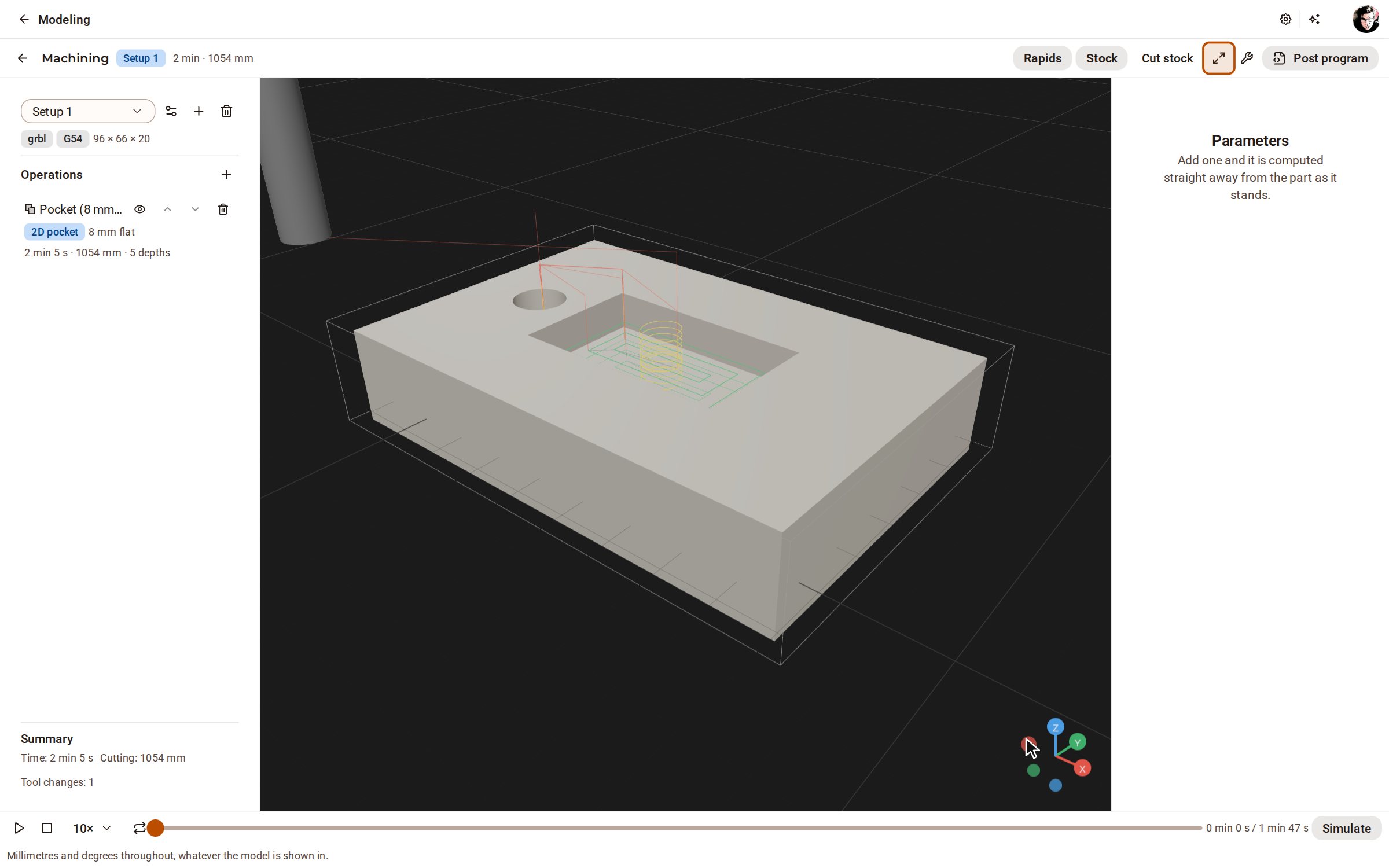
Choose 2D pocket. The toolpath is computed at once and drawn on the part, and the operation shows its tool, time, length and depths.
-
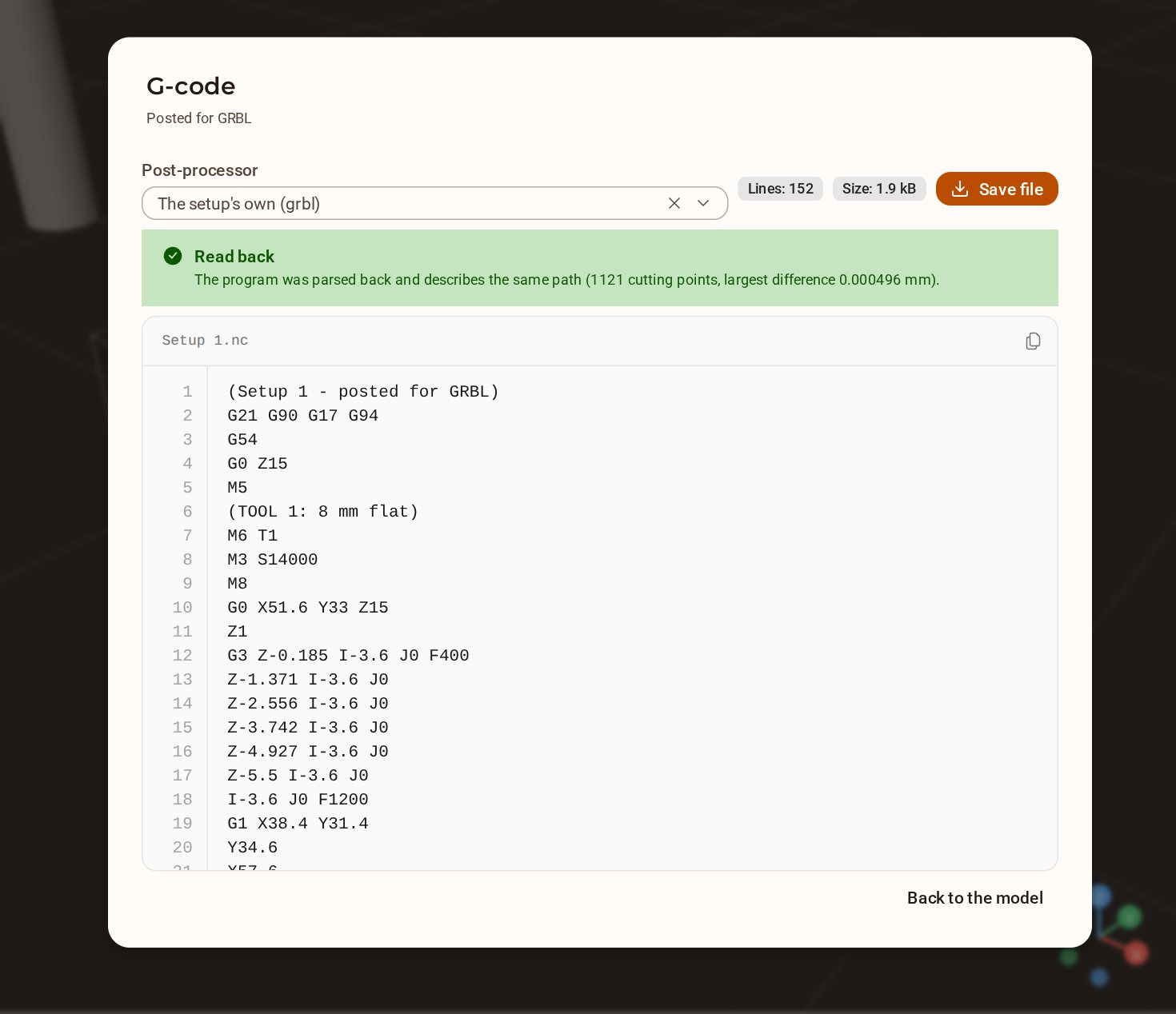
Click Post program. The G-code is written for the setup's post-processor, read back and checked against the toolpath; Save file downloads it.
Good to know
- Simulate, at the bottom right, cuts the program into a model of the stock and checks it for gouges and collisions; Cut stock then shows the result.
- The Post-processor list in the G-code dialog posts the same program for another control.
- Operations are computed from the model whenever they are read, so a program can never be out of date.
- Tool library, on the bar above the view, holds the tools the operations cut with: their geometry decides the paths, their feeds and speeds the time.
Related
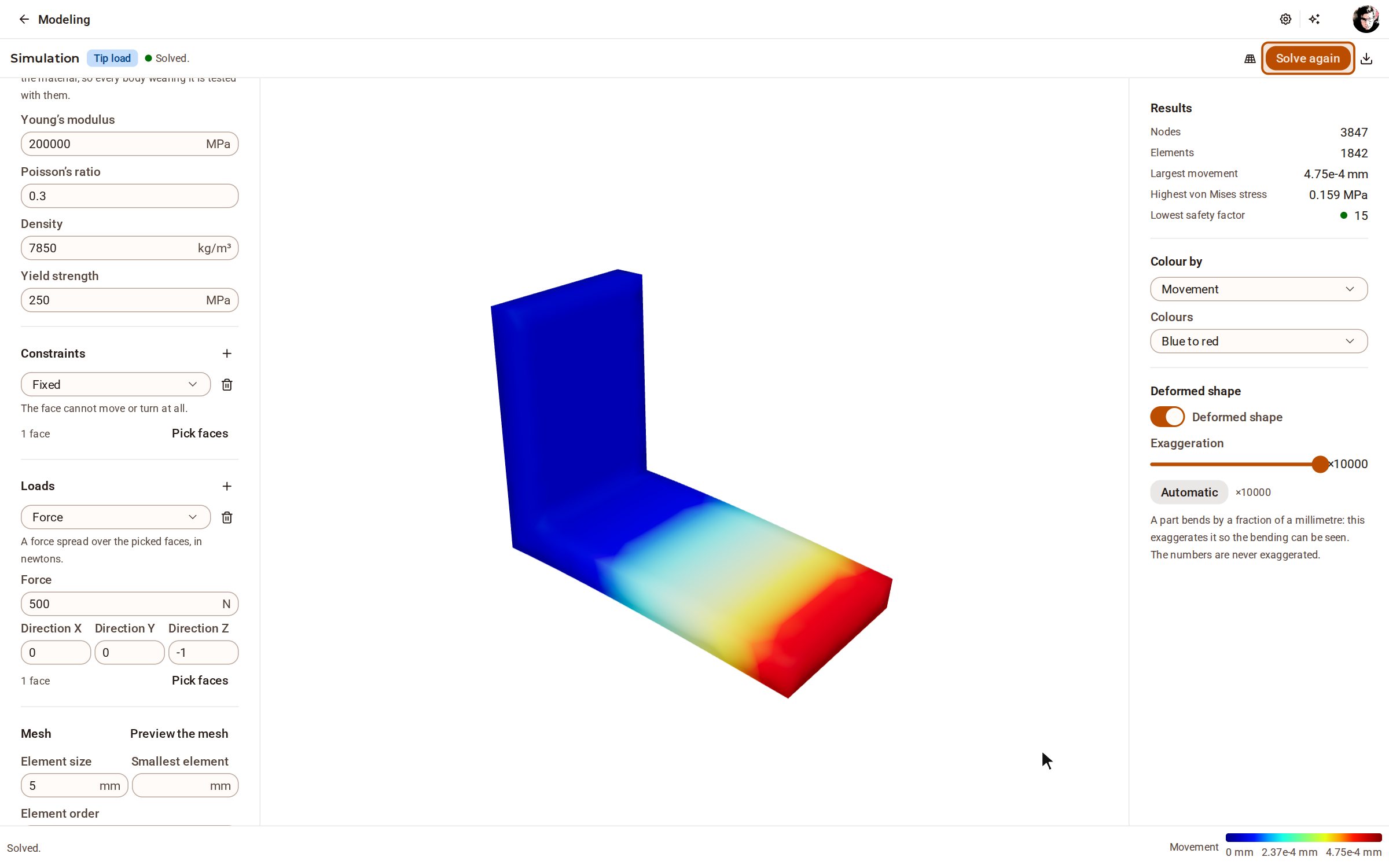 Run a static stress studyA static stress study tells you how far a part moves under a steady load and where it is worked hardest. Give it a material, hold it somewhere, push on it, and solve.
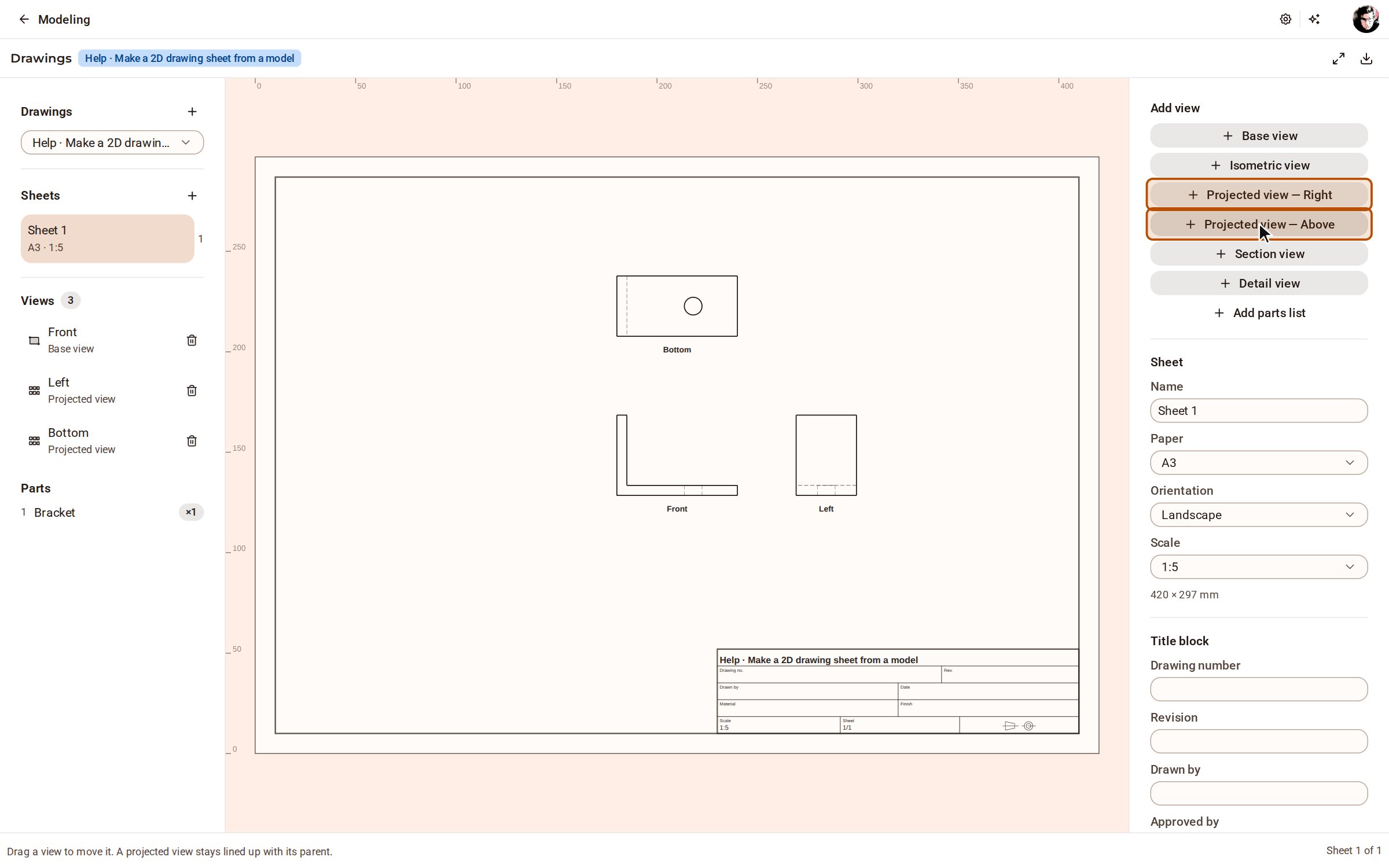 Make a 2D drawing sheet from a modelA drawing is a sheet of paper with views of your model on it — a base view, views projected from it, an isometric — and it follows the model, so it is never out of date. Export it as PDF, SVG or DXF.
Recorded in Kozorosa by the help recorder.