
Built in
The assistant
Models with you in the workspace — or for you, in AI mode — reads what is selected, attaches files you give it, and finishes the job before it hands the turn back.
Product
ModelingAssemblies & motionDrawingsSimulationCAMMaterials & renderingAI agentsDevelopersModules
TimberTimber frameCLTStructural steelLight-gauge steelStairsRoofingUse cases
Mechanical designMakers & 3D printingWoodworking & furnitureArchitecture & housingKozorosa
HelpPricingDownloadFoundryAI agents
There is no "AI feature" bolted on: the interface is a client of one action catalogue, and so is the agent. Whatever you can do with the mouse, it can do through the same actions — and you see each change before it lands.
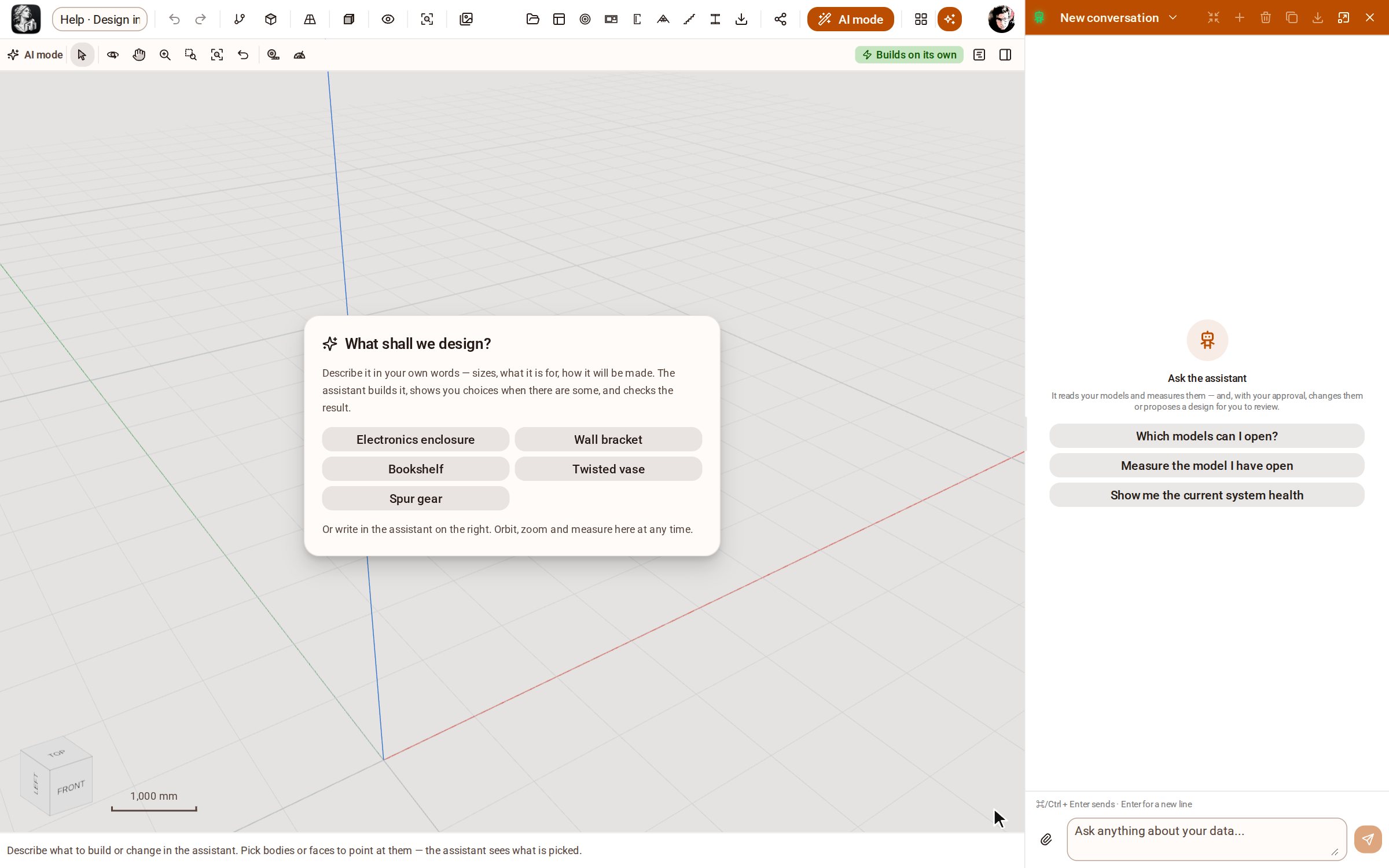
AI mode
AI mode is a switch at the top of the workspace. The modelling tools are put away and the assistant opens beside the view: you describe the part — its sizes, what it is for, how it will be made — and it plans the work, asks you about the design when there is a choice to make, builds it stage by stage and looks at the result to check it.
You keep the camera and the tape measure, and you point: click a face or a body, and "this" in your next message means what you picked. Every edit is one undo step, and the tools come back with one click.
How AI mode works| The assistant | AI mode | |
|---|---|---|
| Who models | You, with every tool; the assistant helps when you ask. | The assistant; you describe, point and check. |
| Where | A panel you open on any page. | The workspace, with the rail put away. |
| Your tools | All of them. | Select, the camera and the measuring tools. |
| Its changes | Applied or proposed as you have set it — a proposal is drawn over the model for you to approve. | It offers to build on its own, asking only about the design; or each stage waits for your approval. |
| Best for | Questions, measurements and a hand with a change while you model. | Starting a part from a description, or reworking one by conversation. |
Built in
Models with you in the workspace — or for you, in AI mode — reads what is selected, attaches files you give it, and finishes the job before it hands the turn back.
Review
A proposed change appears as a ghost in the viewport. Approve it and it applies as one edit, in one timeline group; reject it and nothing happened.
Teach
Ship your way of working as skills — mechanical part design, 3D printing, drawings, building massing — for yourself or your whole organisation.
Connect
Ready-made configurations for Claude Code, Claude Desktop, Codex, Cursor, VS Code, Gemini and Windsurf, with scoped tokens.
Remember
Decisions and an agent's memory kept on the model itself — never drawn, never exported, there next time.
Script
The whole catalogue bound to one name, in an isolated process. One script is one edit and one undo step; a failing script changes nothing.
Your provider
The assistant calls the provider you configure, on the model you choose, only when you ask. Your geometry is never used to train anything. A run budget set by an administrator keeps an agent's spending in bounds.
The API and Python# Claude Code, connected to Kozorosa over MCP > Add four Ø6.6 holes 12 mm from each corner of the base plate, then fillet the outer edges at 2 mm. list_models → "Mounting bracket" describe_body base_plate → 120 × 80 × 8 mm propose_changes → 4 holes, 1 fillet (ghost shown) ✓ approved — one edit, one timeline group
Import a STEP file, push a face, put a dimension on it. 5 days, every tool, nothing to pay until you decide.