
Help centreDrawings
Make a 2D drawing sheet from a model
A drawing is a sheet of paper with views of your model on it — a base view, views projected from it, an isometric — and it follows the model, so it is never out of date. Export it as PDF, SVG or DXF.
-
With the model open, pick Drawings on the top bar.
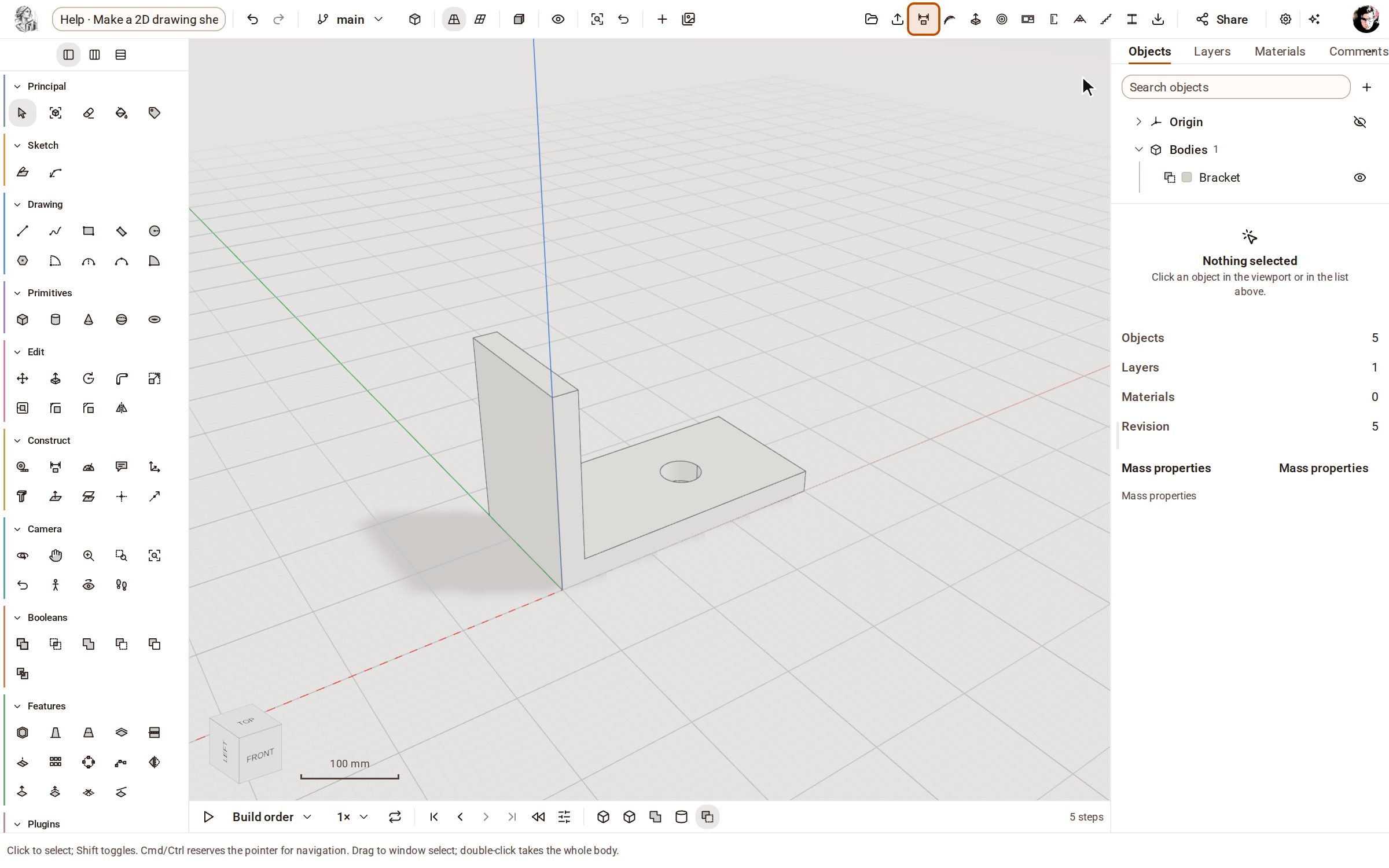
-
Click New drawing. You get an A3 sheet with a title block, and the panel on the right lists the views you can add and the sheet's settings. This part is 300 mm long, so set Scale to 1:5.
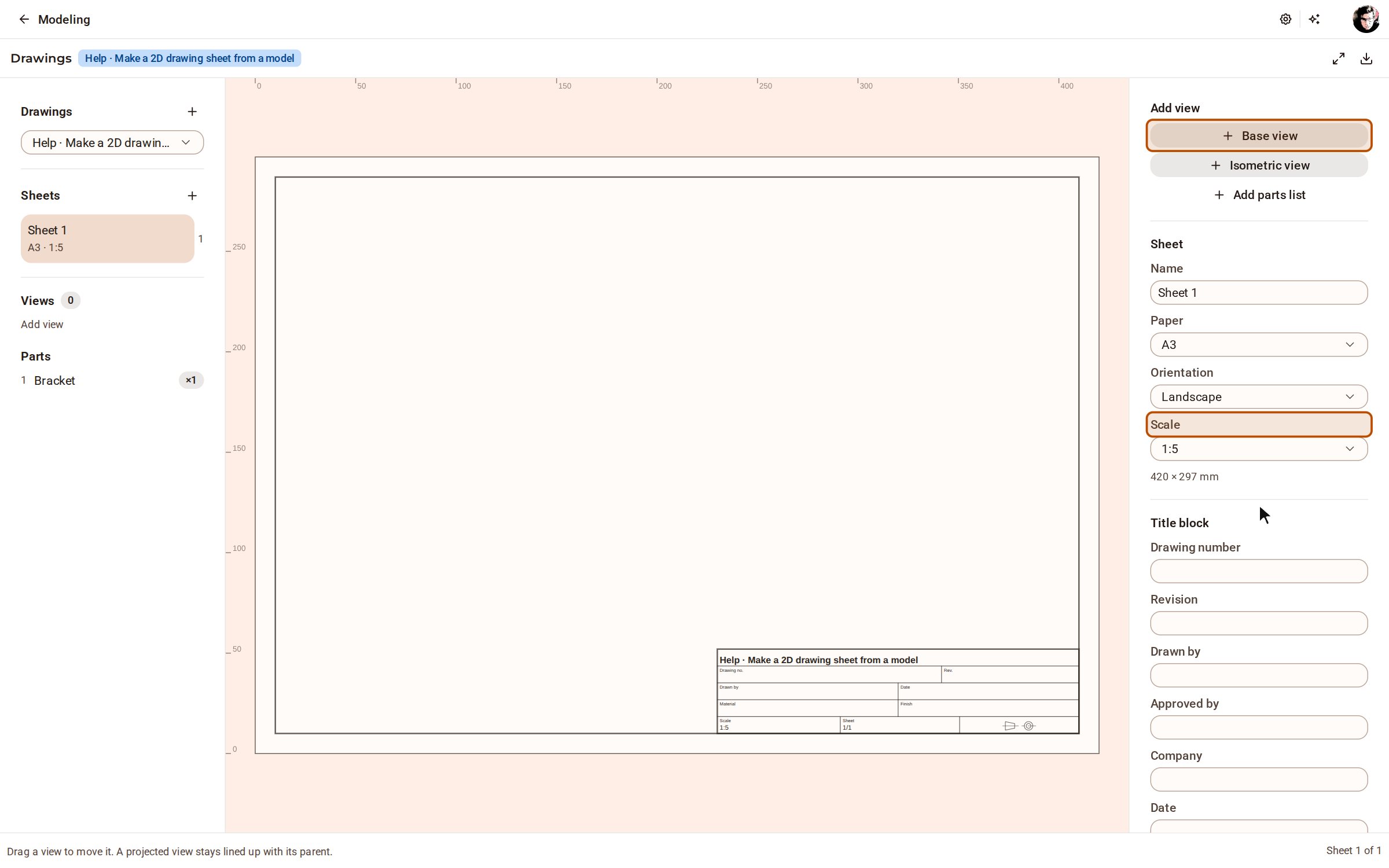
-
Under Add view, click Base view: the part seen square on from the front. Then add Projected view — Right and Projected view — Above; each stays lined up with the view it comes from.
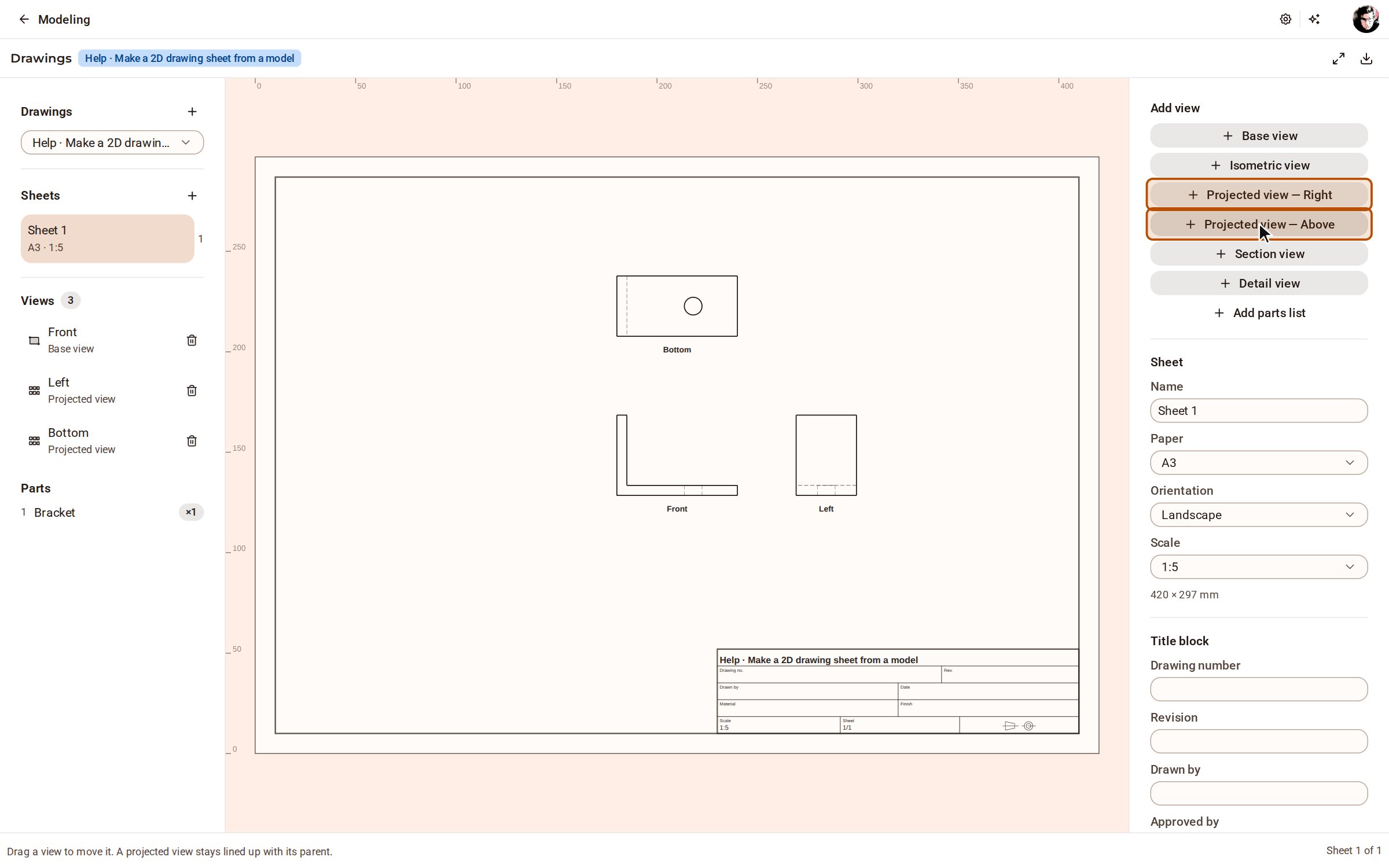
-
Open Export at the top right and choose PDF, SVG or DXF. PDF writes every sheet; SVG and DXF write the sheet on screen.
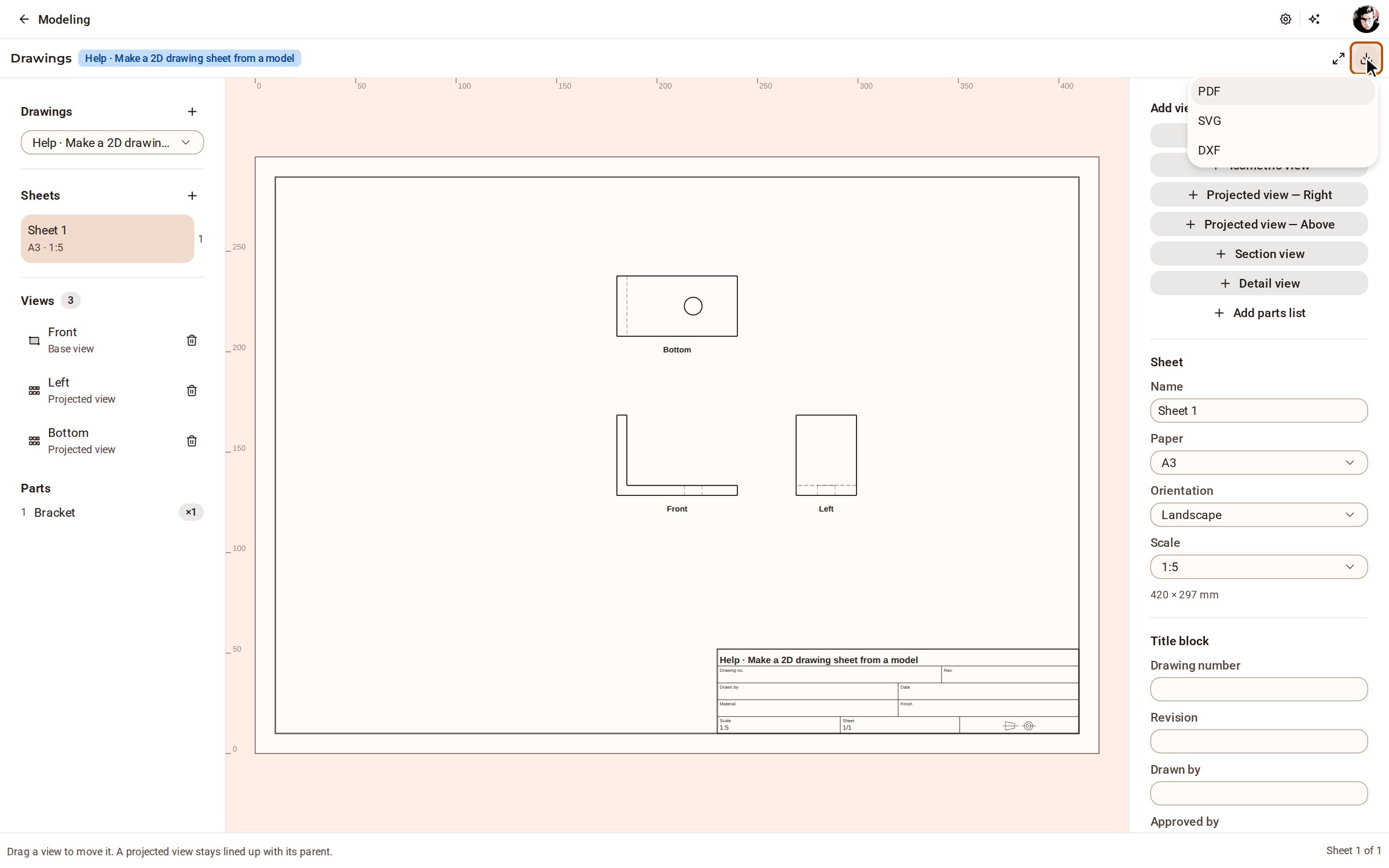
Good to know
- Projection is first angle (ISO) by default, so the view placed to the right of the front view shows the part from its left and is named Left, and the one above is named Bottom.
- Isometric view adds the part seen from a corner, so three faces show at once. Drag any view to move it to a free place on the sheet.
- Section view and Detail view appear in Add view once the sheet has a view to cut or enlarge.
- The sheet's Paper, Orientation and Scale, and the title block's fields, are in the panel on the right, under Sheet and Title block.
- The drawing follows the model: change the model and the views are projected again.
Recorded in Kozorosa by the help recorder.