
Help centreAutomation
Design in AI mode — and how it differs from the assistant
AI mode turns the workspace into a conversation: the modelling tools are put away and the assistant builds the model from what you describe, while you point, orbit and measure. The assistant on its own is a helper beside the tools; AI mode makes it the one who models.
-
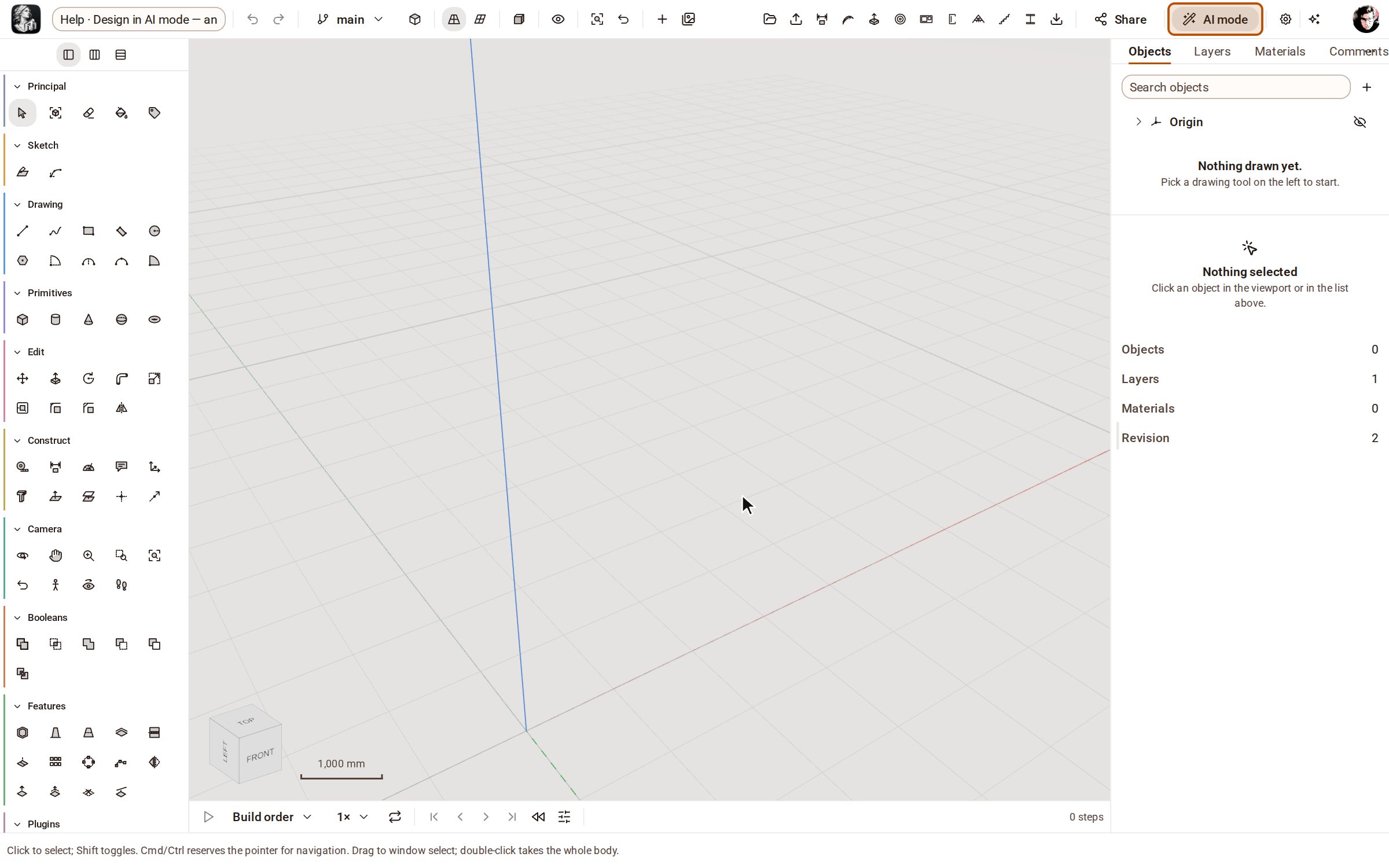
AI mode is a switch at the right of the top bar. Until you pick it, the workspace is the usual one: the rail of modelling tools on the left, the inspector on the right — you model, and the assistant helps when you open it.
-
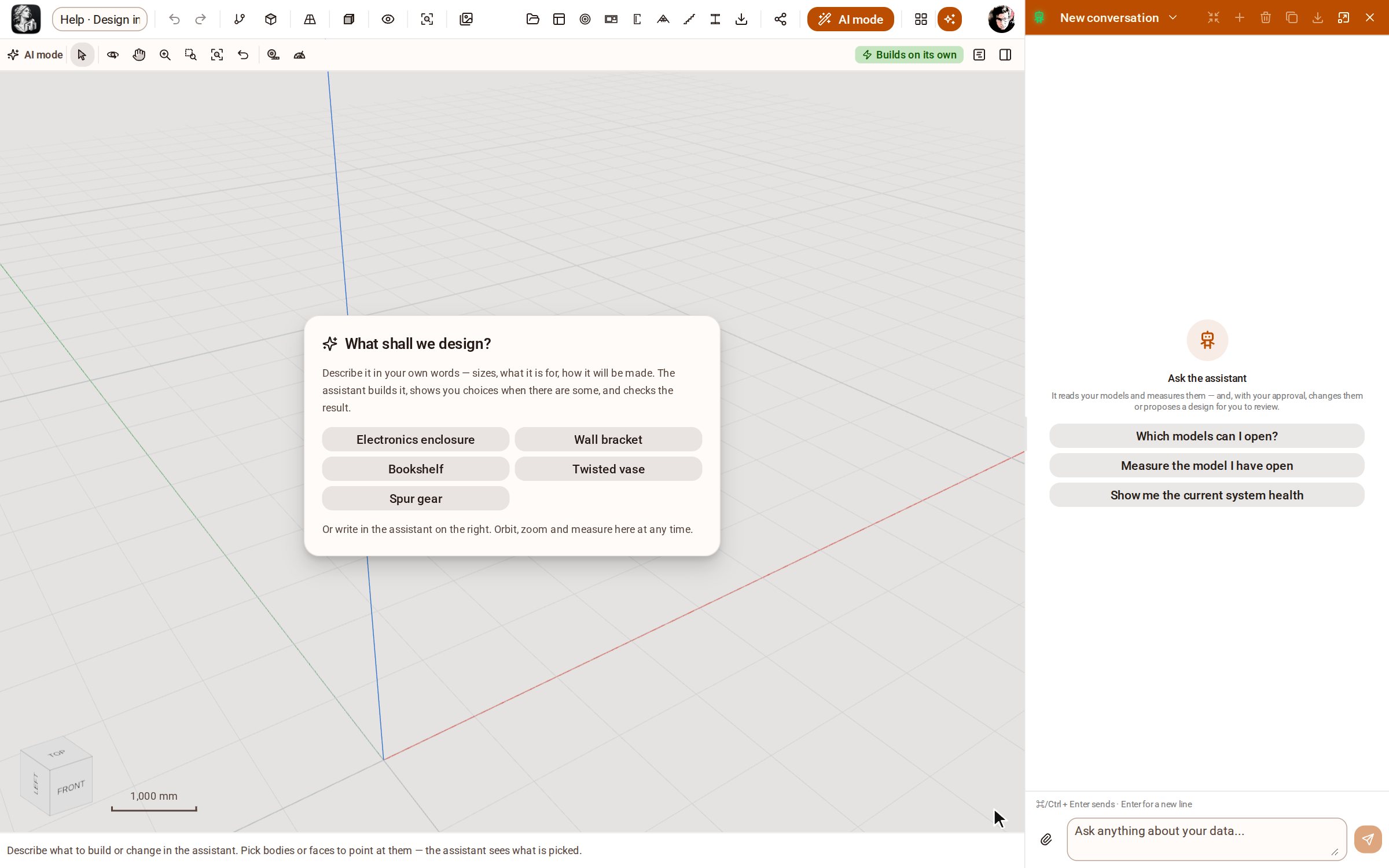
Pick AI mode. The rail goes away; a thin bar keeps Select, the camera tools and the measuring tools, and the assistant opens docked beside the view. On an empty model, a card asks what you want to design and offers a few starters.
-
Describe the part in your own words — its sizes, what it is for, how it will be made — or pick a starter. The assistant keeps a plan of steps in the conversation, asks you about the design when there is a choice to make (option cards, a form of sizes), builds stage by stage, looks at the model to check each stage, and ends with a summary and a few suggestions for what to ask next.
-
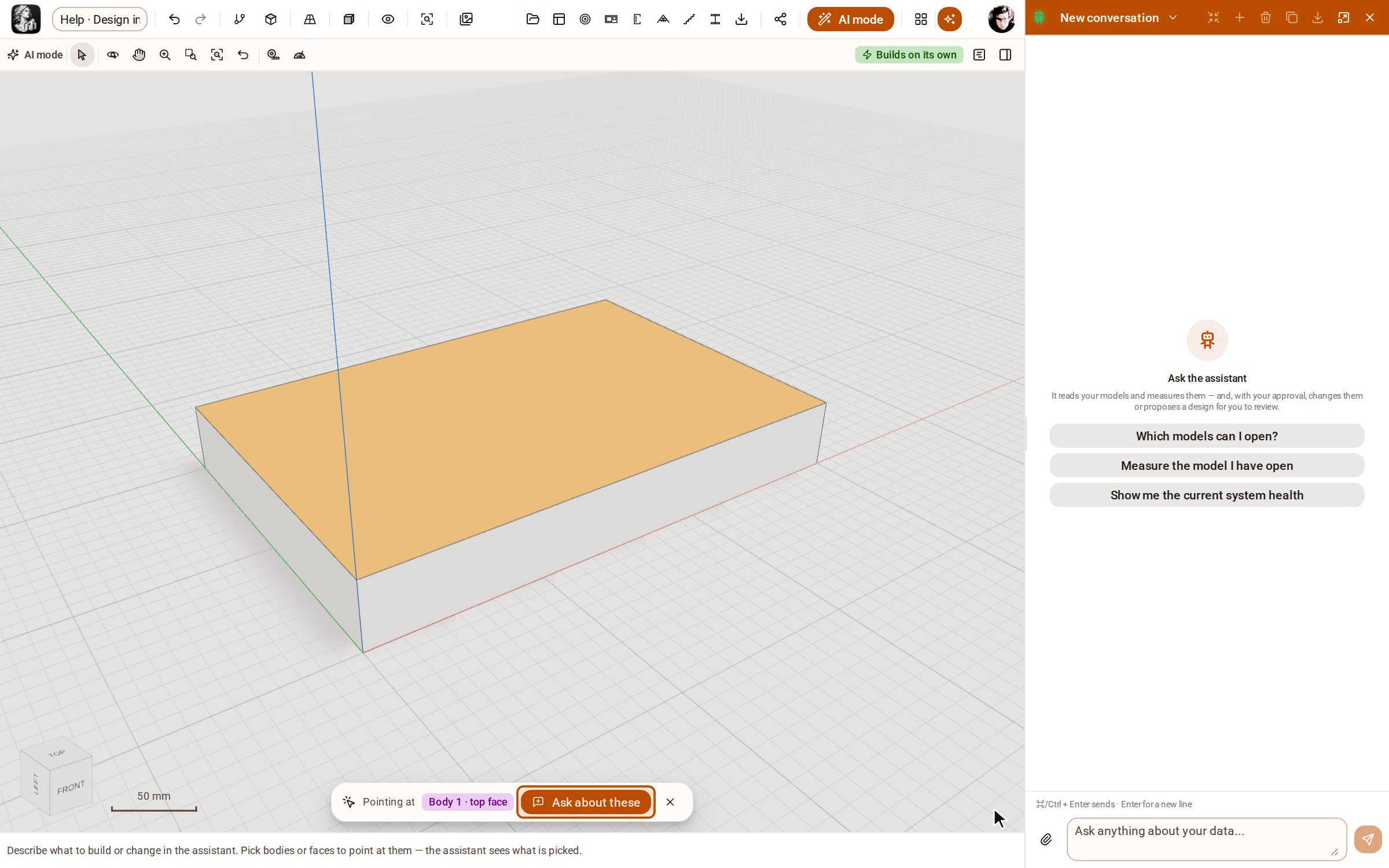
Once there is a model, point at it: click a face or a body, and the strip under the view shows what you are pointing at. In your message, “this” and “these” mean what is picked; Ask about these starts the message for you.
-
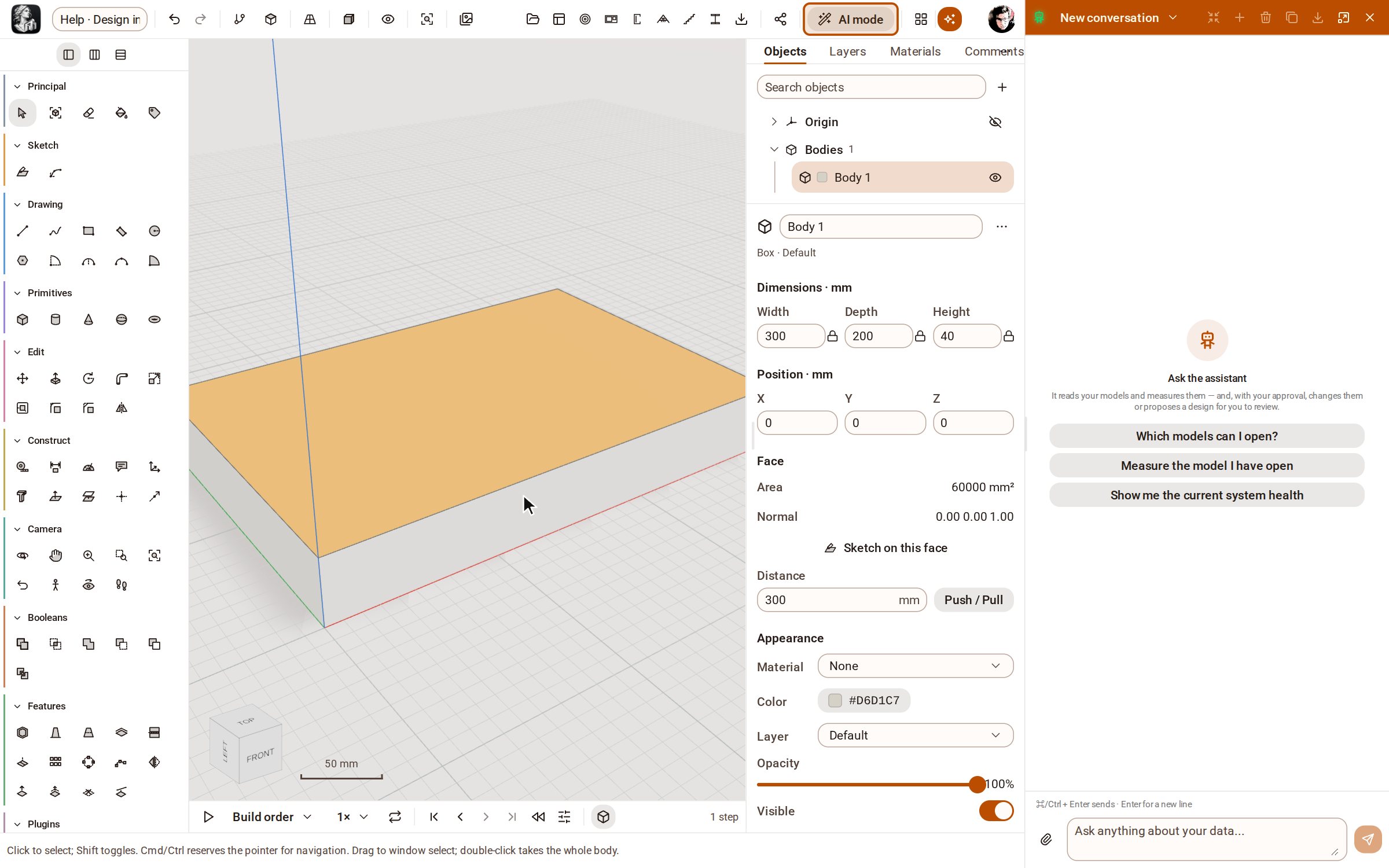
Pick AI mode again to have the tools back. The assistant stays open: it is the same assistant you can open on any page with the Assistant button — beside the tools, you model and it helps; in AI mode, it models and you direct.
Good to know
- When your assistant asks before each edit, switching AI mode on offers to let it build on its own. Keep asking me leaves it as it is: each stage is then drawn over the model as a proposal for you to approve.
- That choice is your assistant's autonomy setting, the same as in Configuration → Assistant, and it applies outside AI mode too. Every edit stays one undo away.
- AI mode is remembered by your browser, not by the model: two people on one model can each work their own way.
- Right-click a body in AI mode and choose Ask the assistant about this.
Related
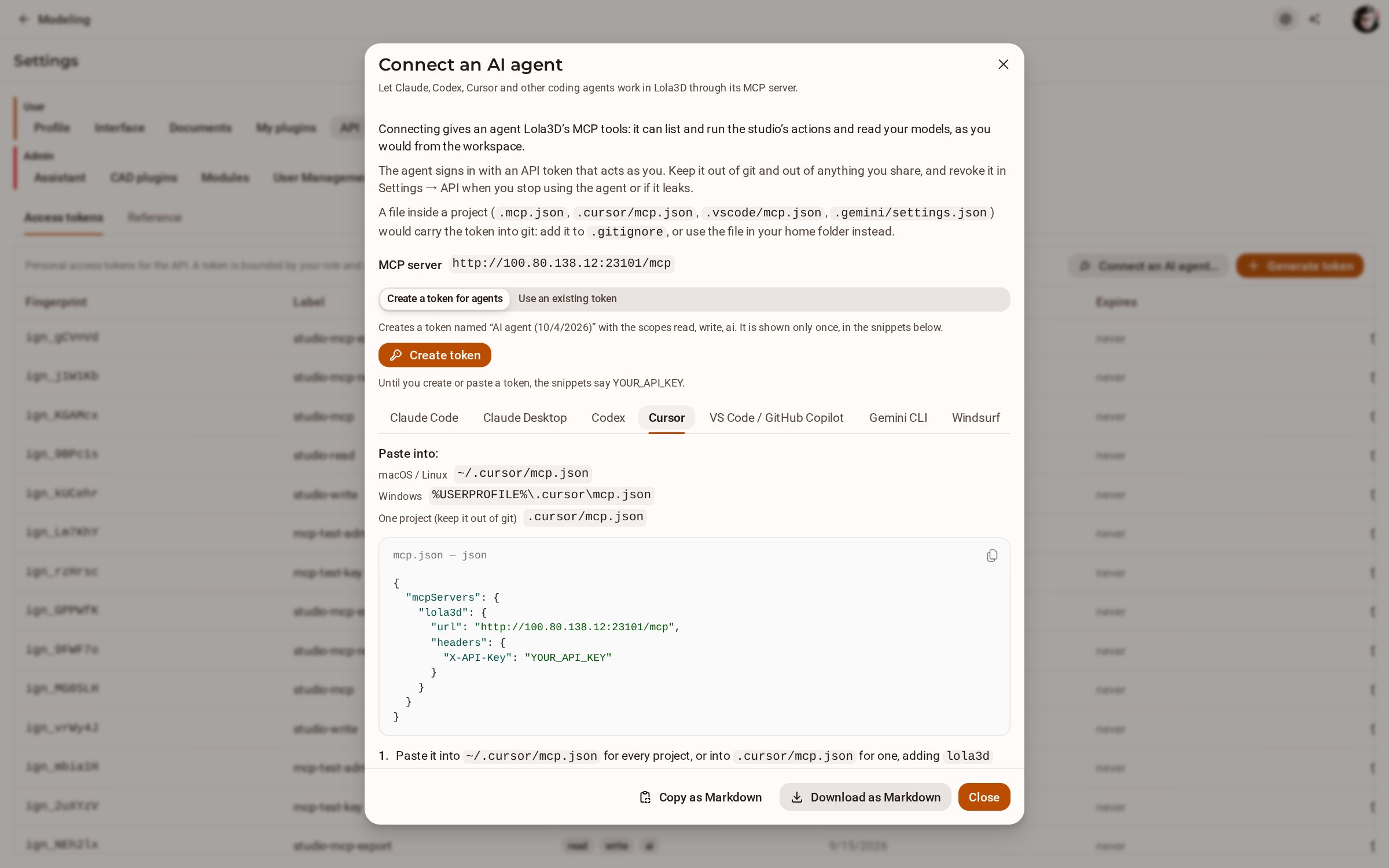 Connect an AI agent (Claude Code, Cursor…) over MCPKozorosa has an MCP server, so a coding agent such as Claude Code, Codex or Cursor can list and run the studio's actions and read your models. The Connect an AI agent dialog gives you a token and the exact snippet to paste for each agent.
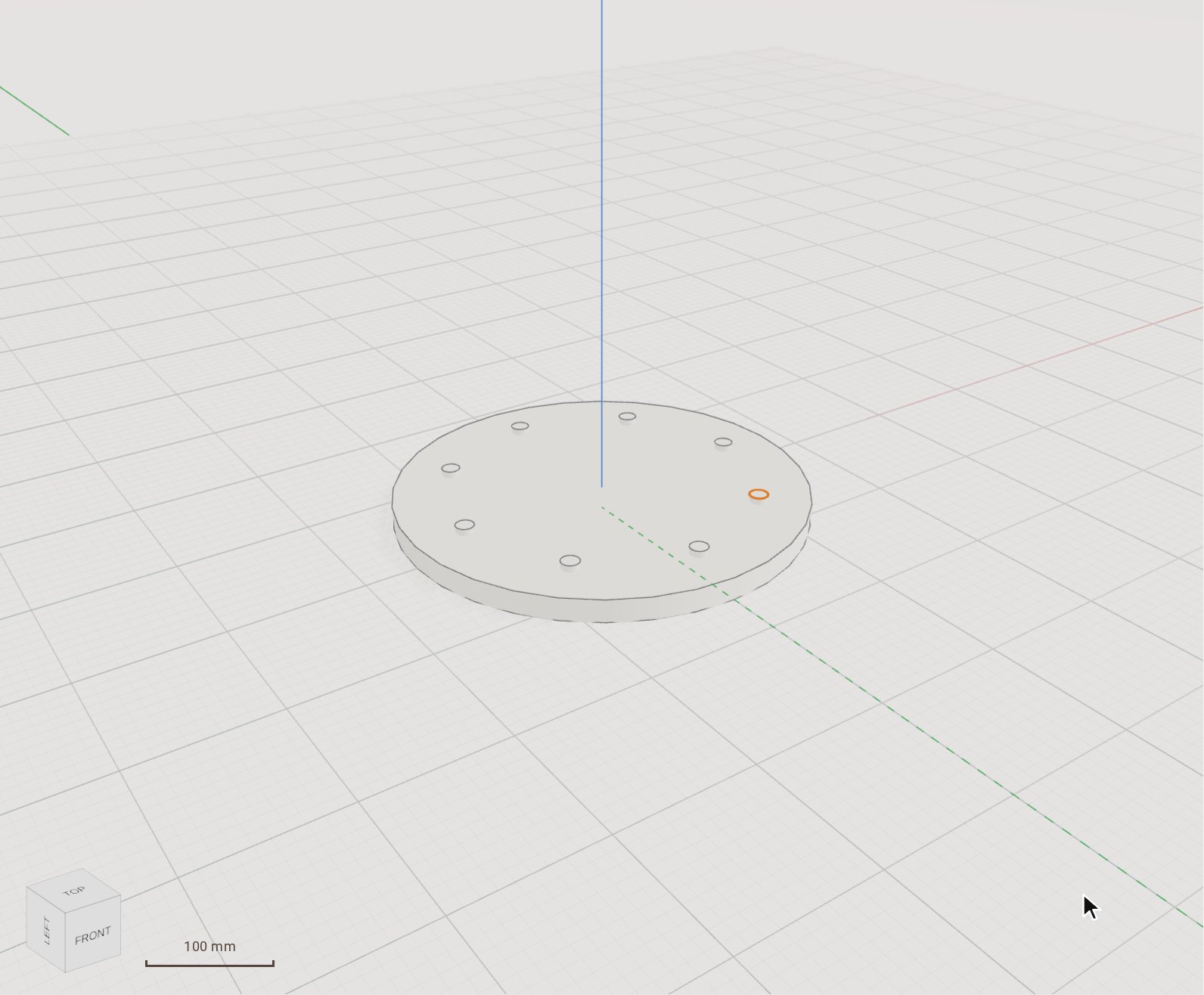 Run a Python script on the modelThe Python console runs a script against your model through the same actions as the API — loops, arithmetic and tables of sizes that would take hundreds of clicks. A whole script is one edit and one undo step.
Recorded in Kozorosa by the help recorder, which checked that the result is in the model.