
Help centreSketch
Create a sketch and constrain it
A sketch is a 2D drawing on a plane whose shape is held by dimensions and constraints, not by where you happened to click. Change a dimension later and the sketch, and every solid built from it, follows.
-
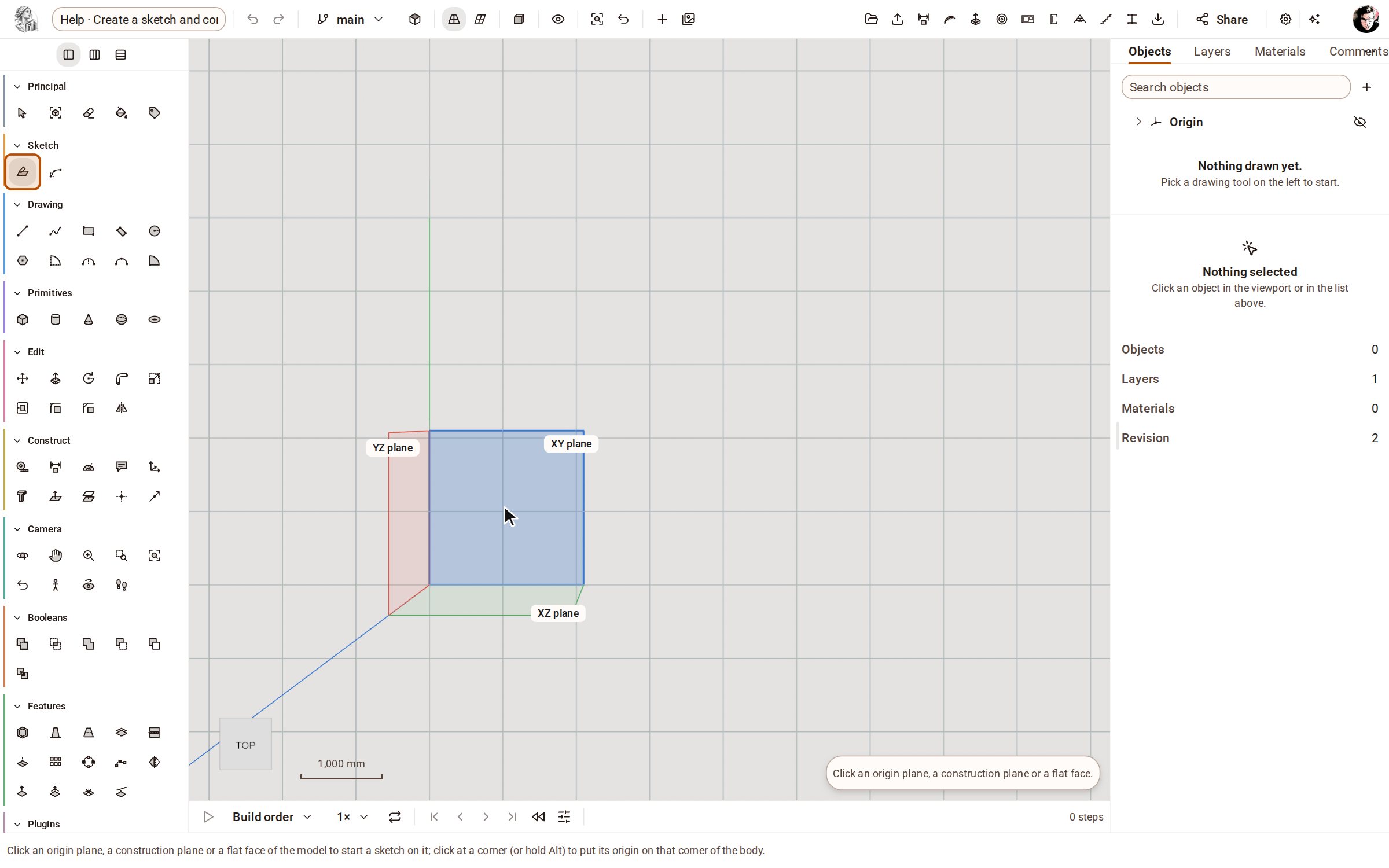
Pick Create Sketch on the rail, or press K. The three origin planes appear; the one under the pointer lights up.
-
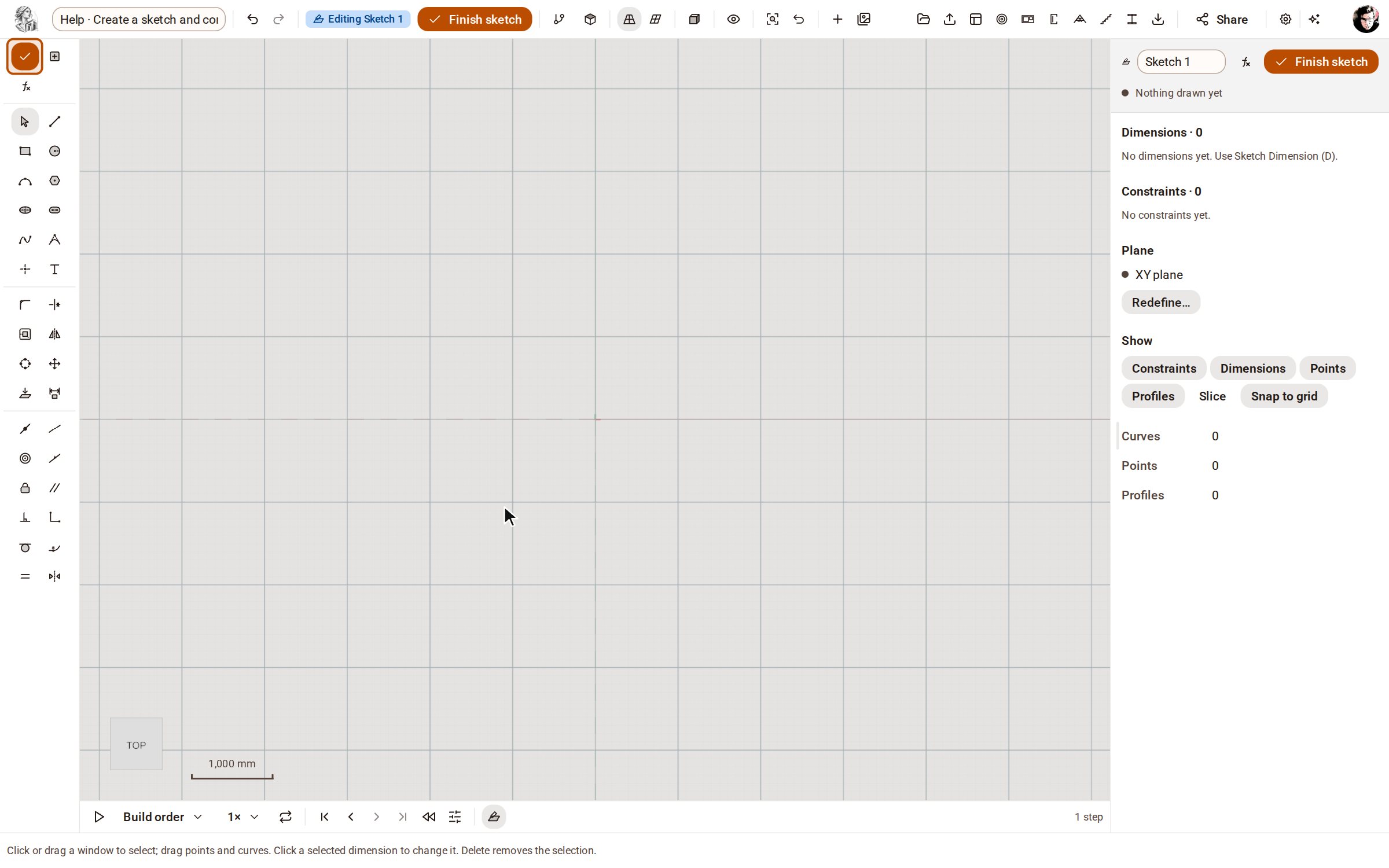
Click the XY plane. The sketch opens: the rail changes to the sketch tools, and the panel on the right lists the sketch's dimensions and constraints.
-
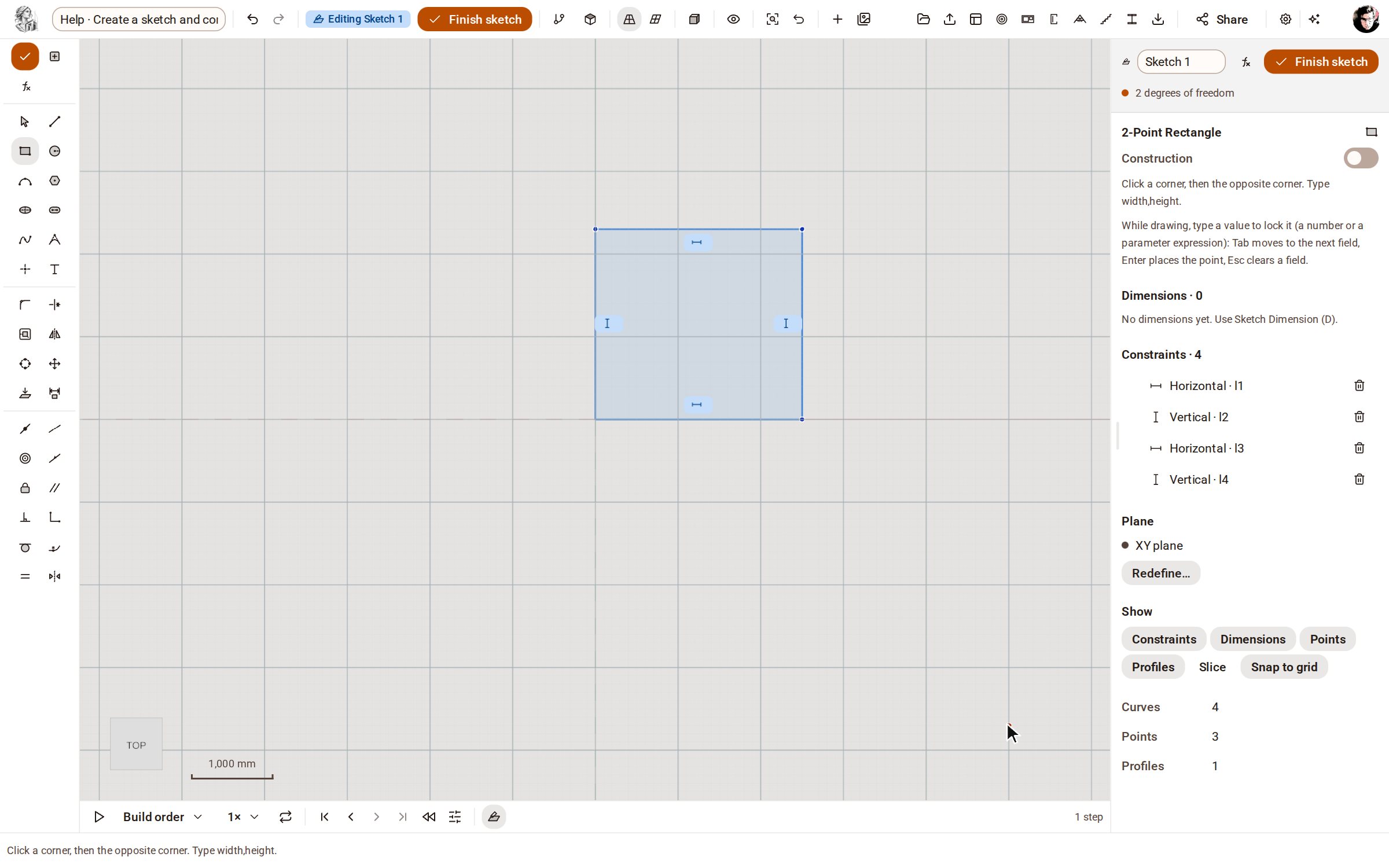
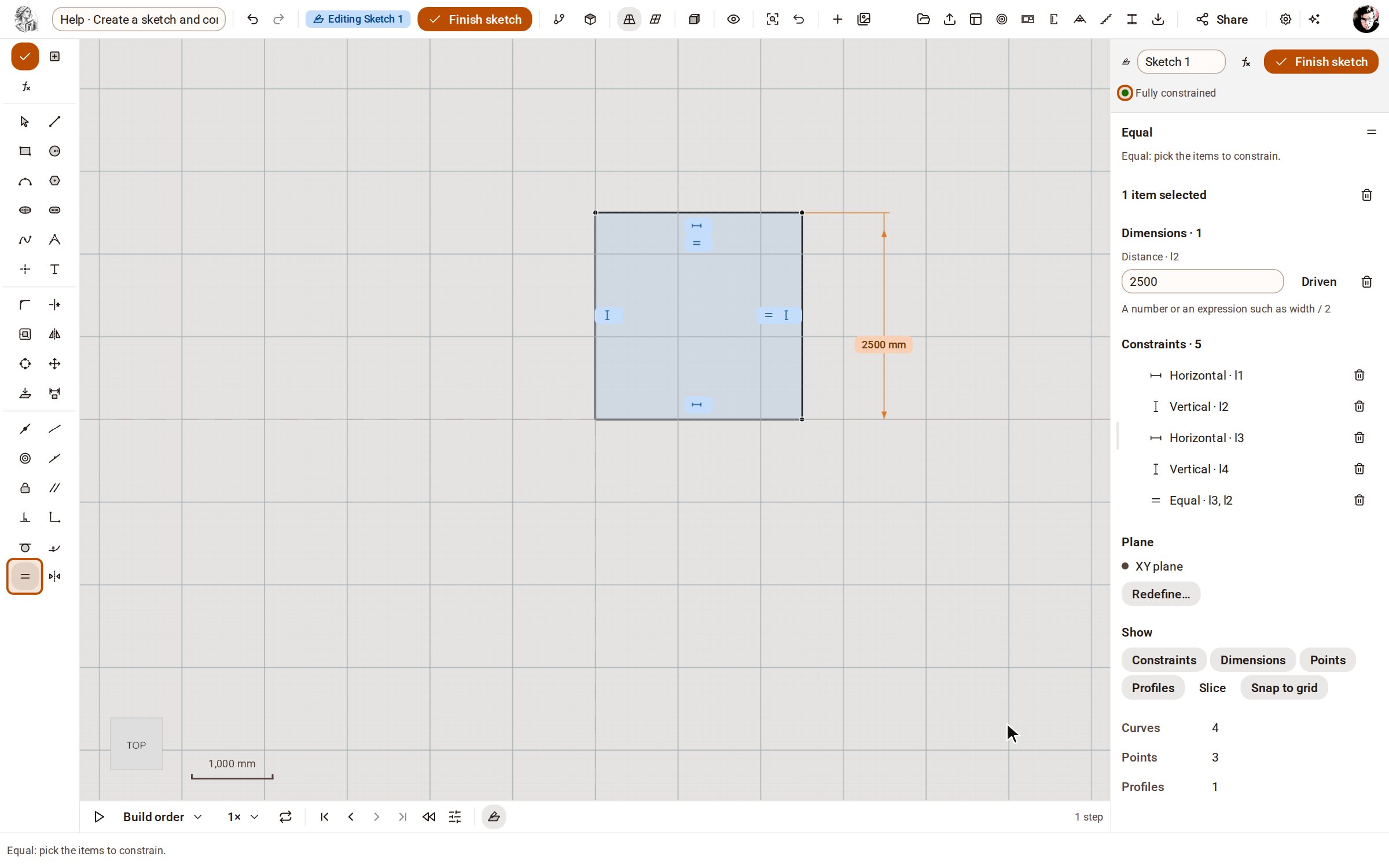
Press R for 2-Point Rectangle, click the origin for the first corner, then click the opposite corner. The rectangle arrives with its own Horizontal and Vertical constraints.
-
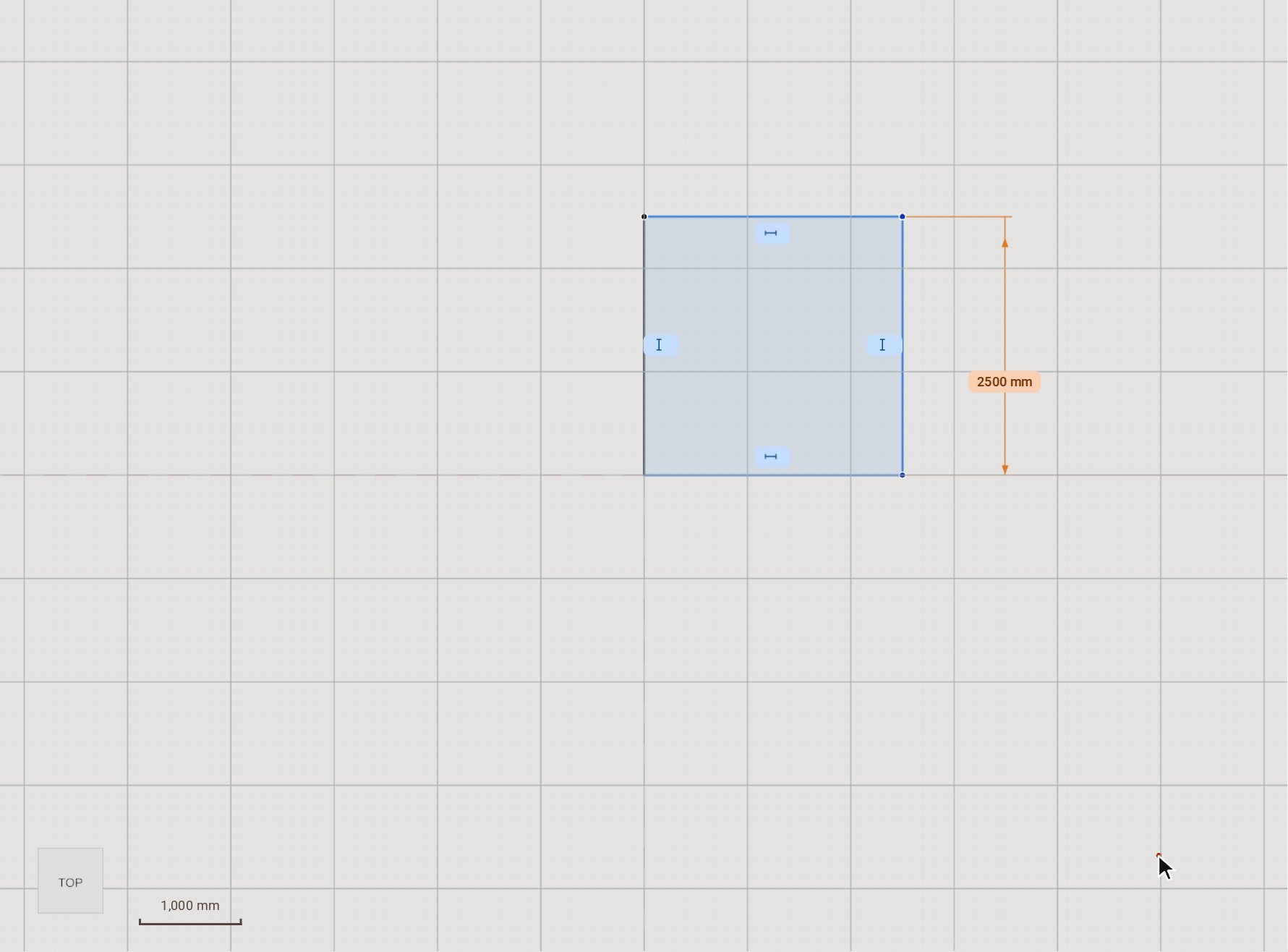
Press D for Sketch Dimension, click the right side, then click beside it to place the dimension. Type 2500 and press Enter: the side takes exactly that length.
-
Pick Equal on the rail, then click the top side and the right side. The rectangle becomes a square, and the panel reads Fully constrained: nothing in it can move any more.
Good to know
- While drawing, type a value to lock it: Tab moves to the next field, Enter places the point, Esc clears a field.
- A dimension takes a number or an expression over parameters, such as width / 2.
- Click a selected dimension to change its value.
- Finish sketch, at the top of the window, closes the sketch and gives you the model back.
Related
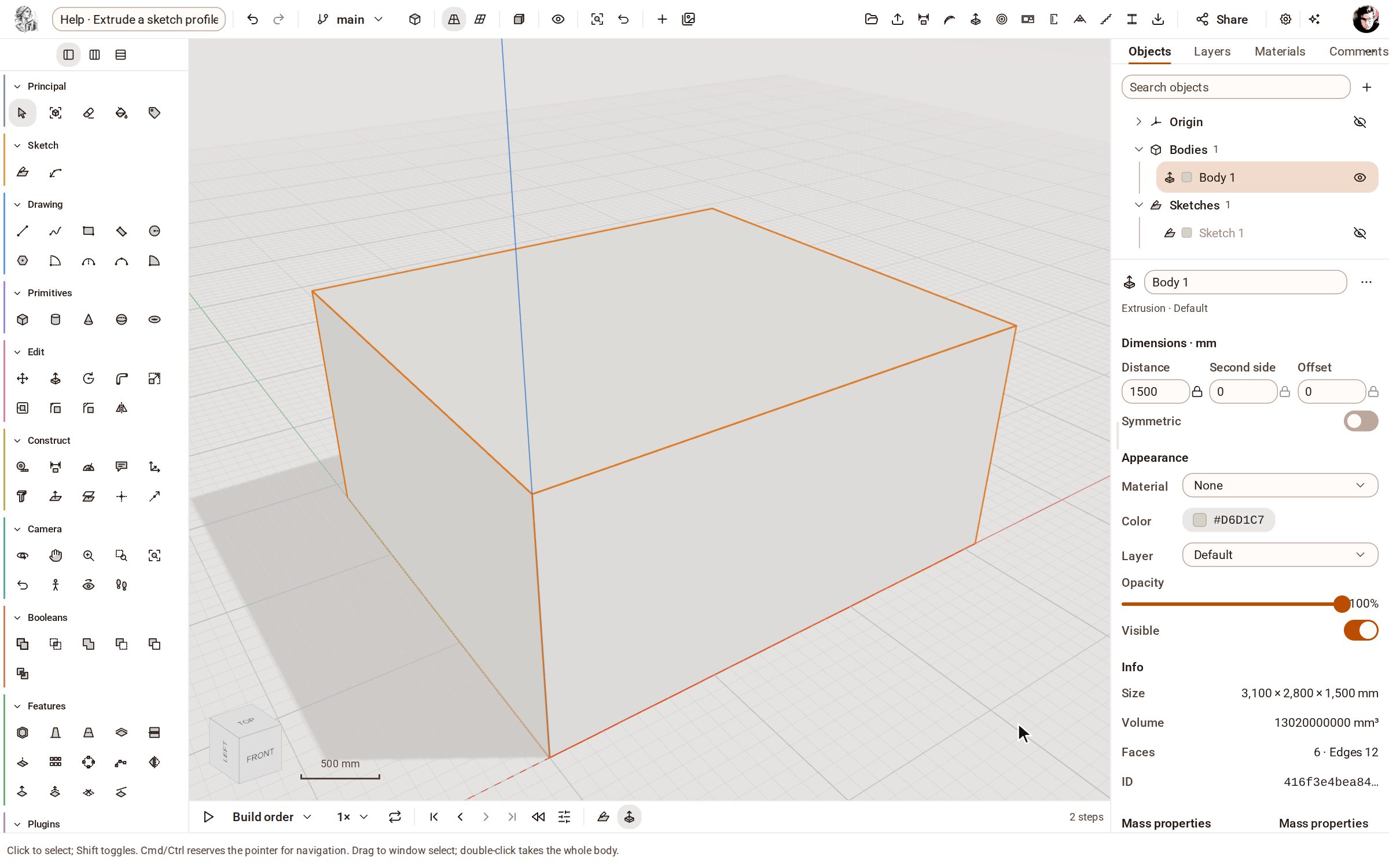 Extrude a sketch profile into a solidExtrude turns the closed outlines of a finished sketch into a solid of the depth you give it. The solid stays tied to the sketch: change a dimension and it rebuilds.
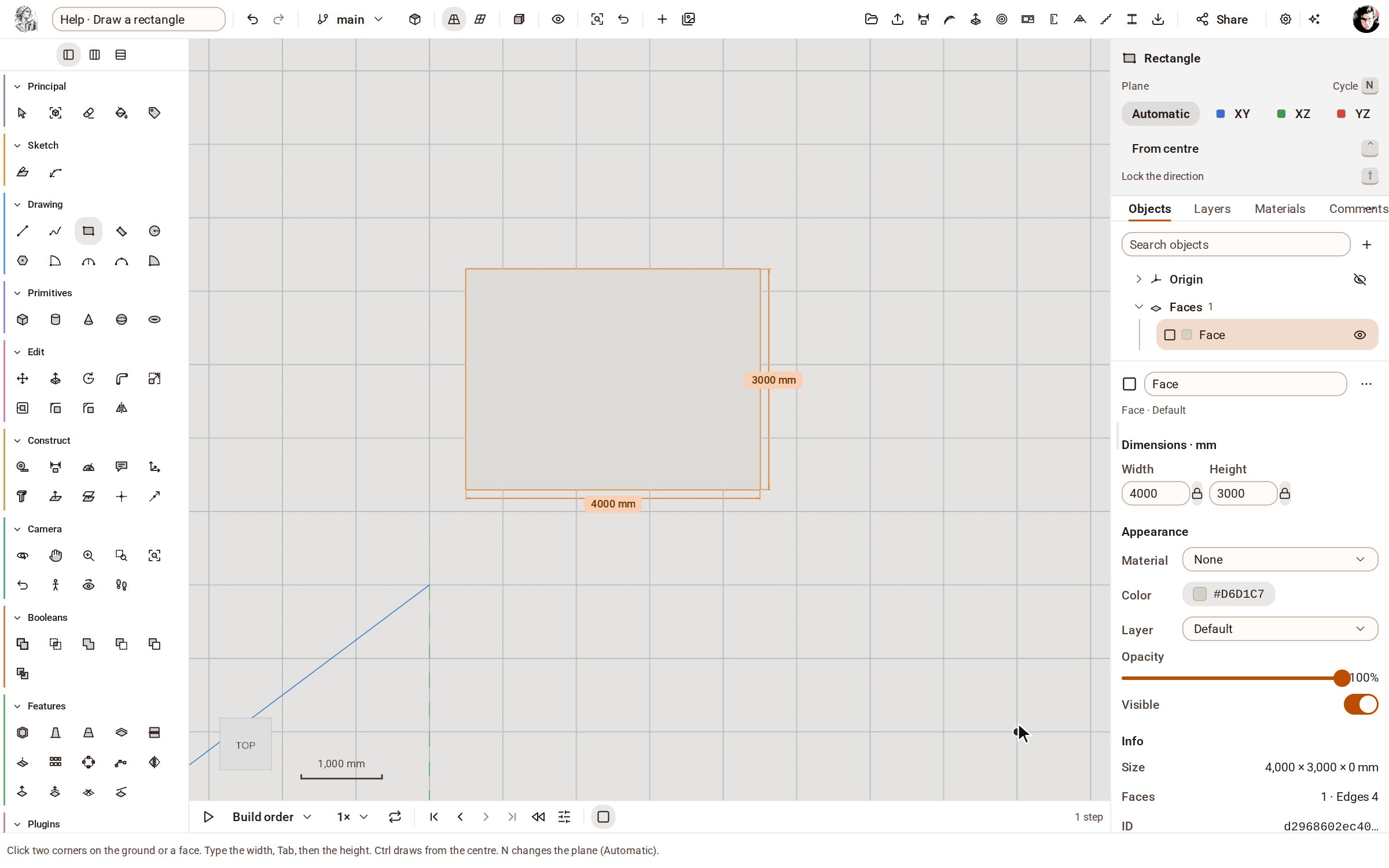 Draw a rectangleRectangle draws a four-sided face from two opposite corners, on the ground or on any flat face. Type the width and height to make it an exact size.
Recorded in Kozorosa by the help recorder, which checked that the result is in the model.