
Help centreFeatures
Loft between two profiles
Loft builds a solid that blends smoothly from one face to the next — a square base into a round top, for example.
-
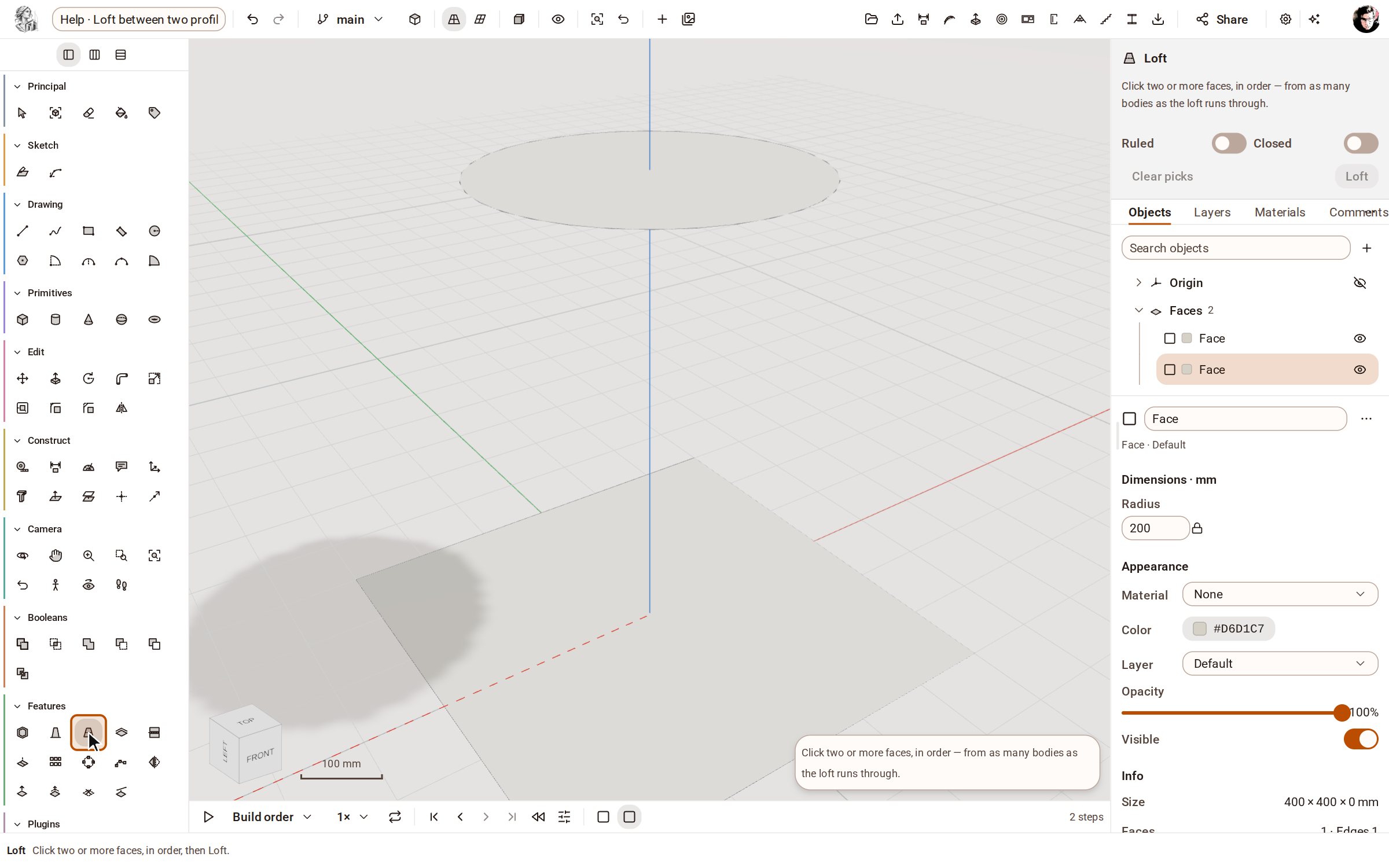
Draw the profiles first — here a square on the ground and a circle above it. Pick Loft in the Features group of the rail.
-
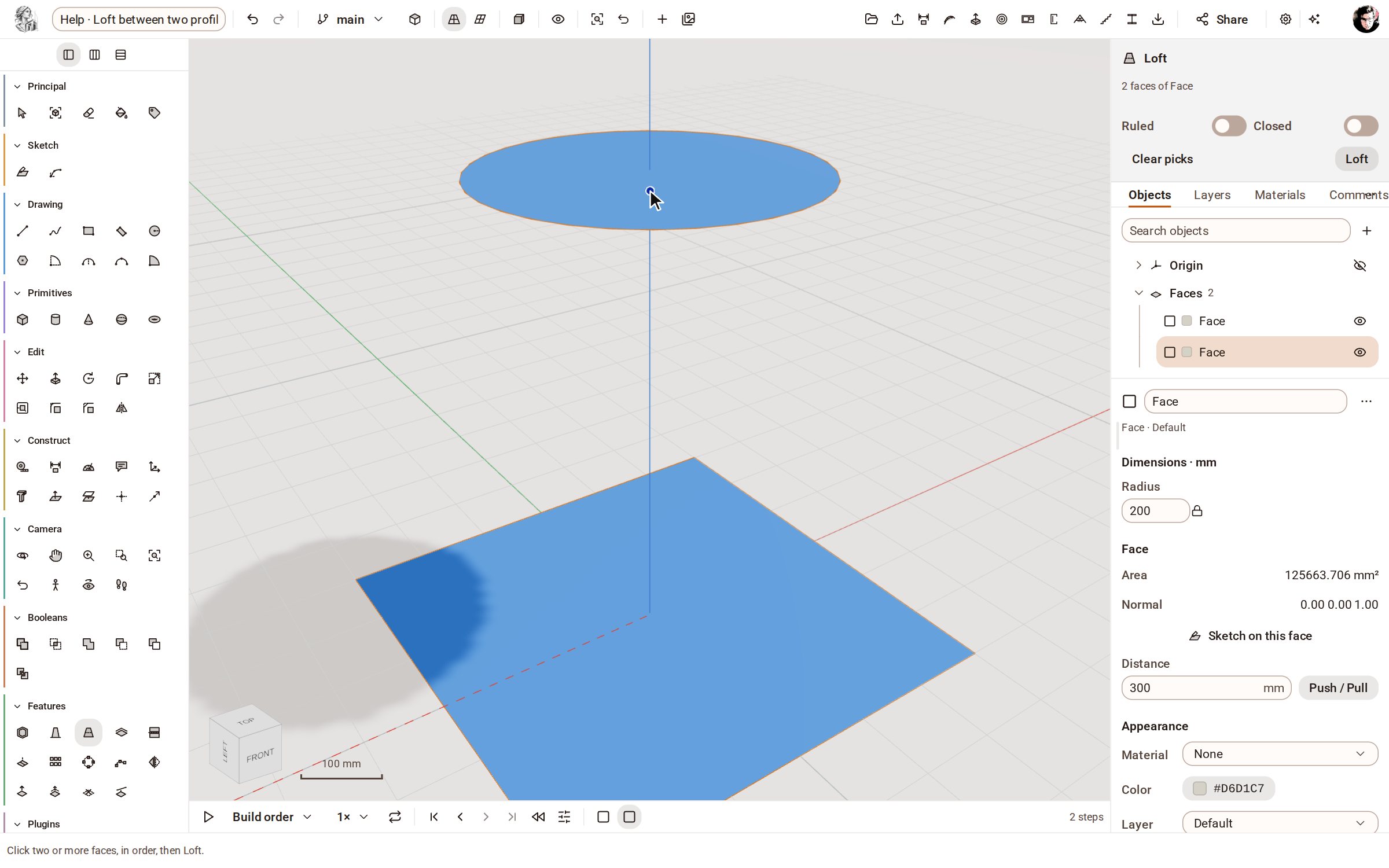
Click the faces in order: the square, then the circle. The tray lists them as the loft's sections.
-
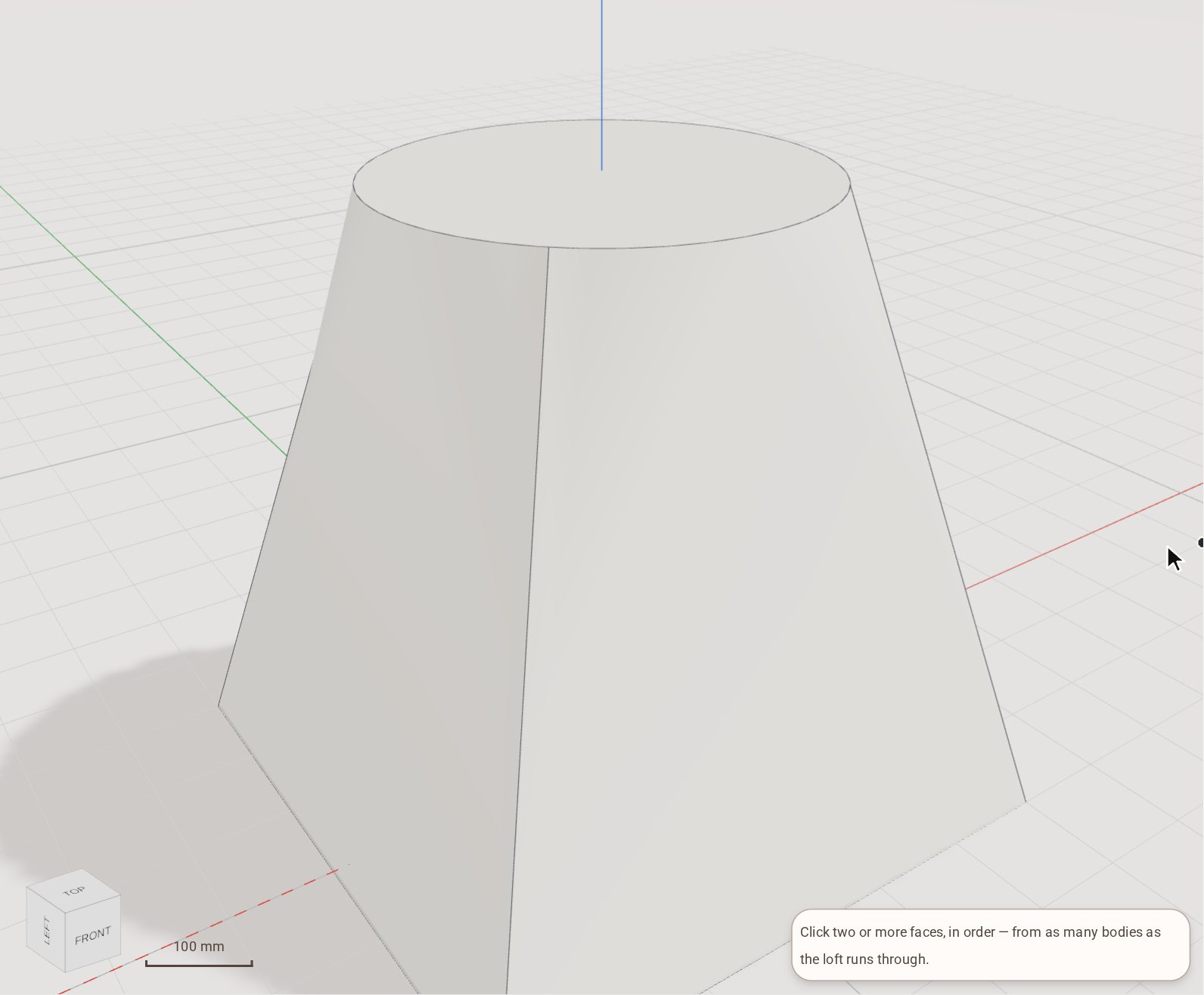
Click Loft at the foot of the tray. The solid blends from the square into the circle, and a Loft step joins the timeline.
Good to know
- Click more than two faces to loft through each of them in turn; clicking a picked face again drops it.
- Ruled joins the sections with straight sides, and Closed joins the last section back to the first.
Related
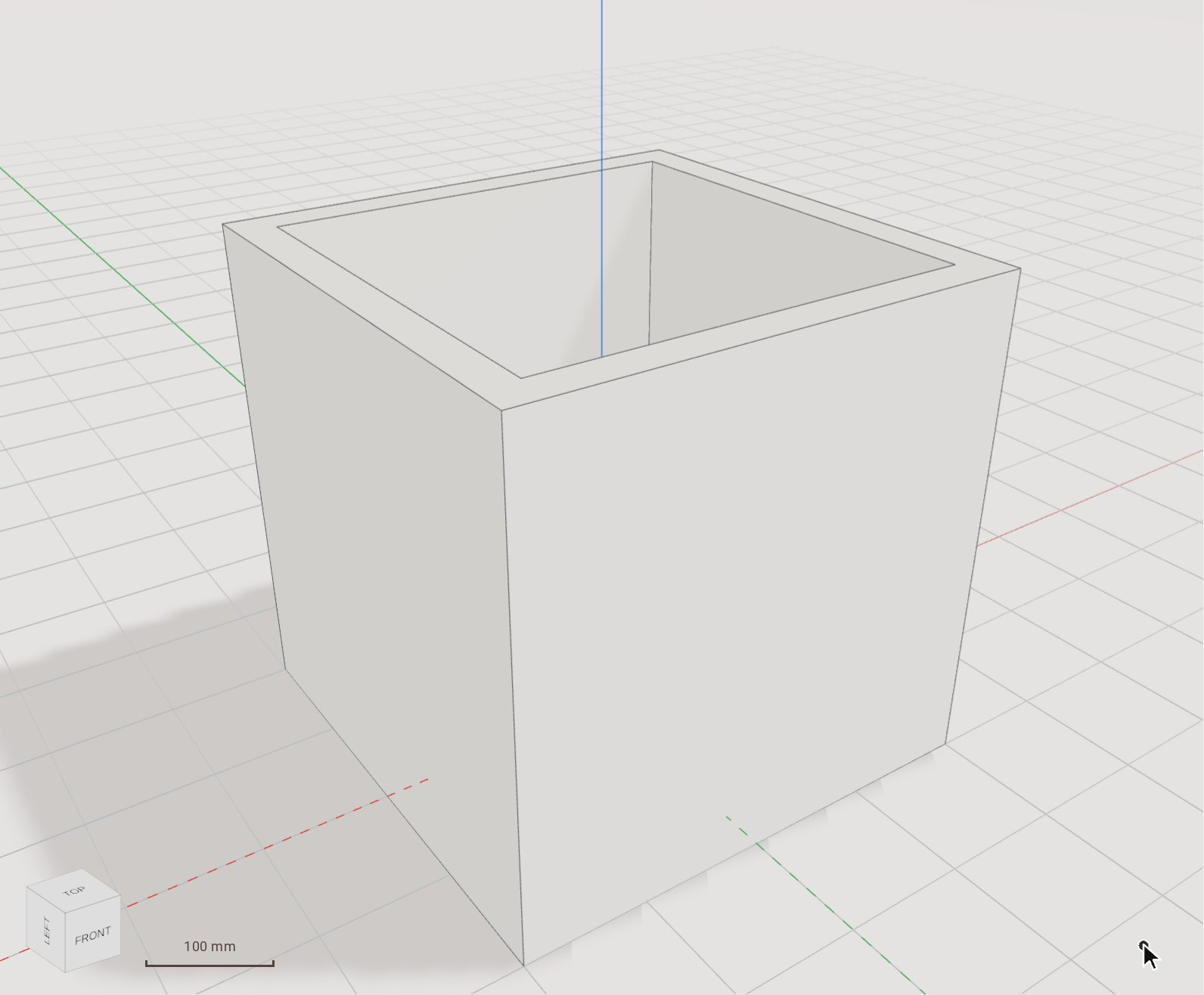 Hollow a solid with ShellShell hollows a solid out to an even wall thickness, leaving open the faces you pick — a box becomes a tray, a block becomes a casing.
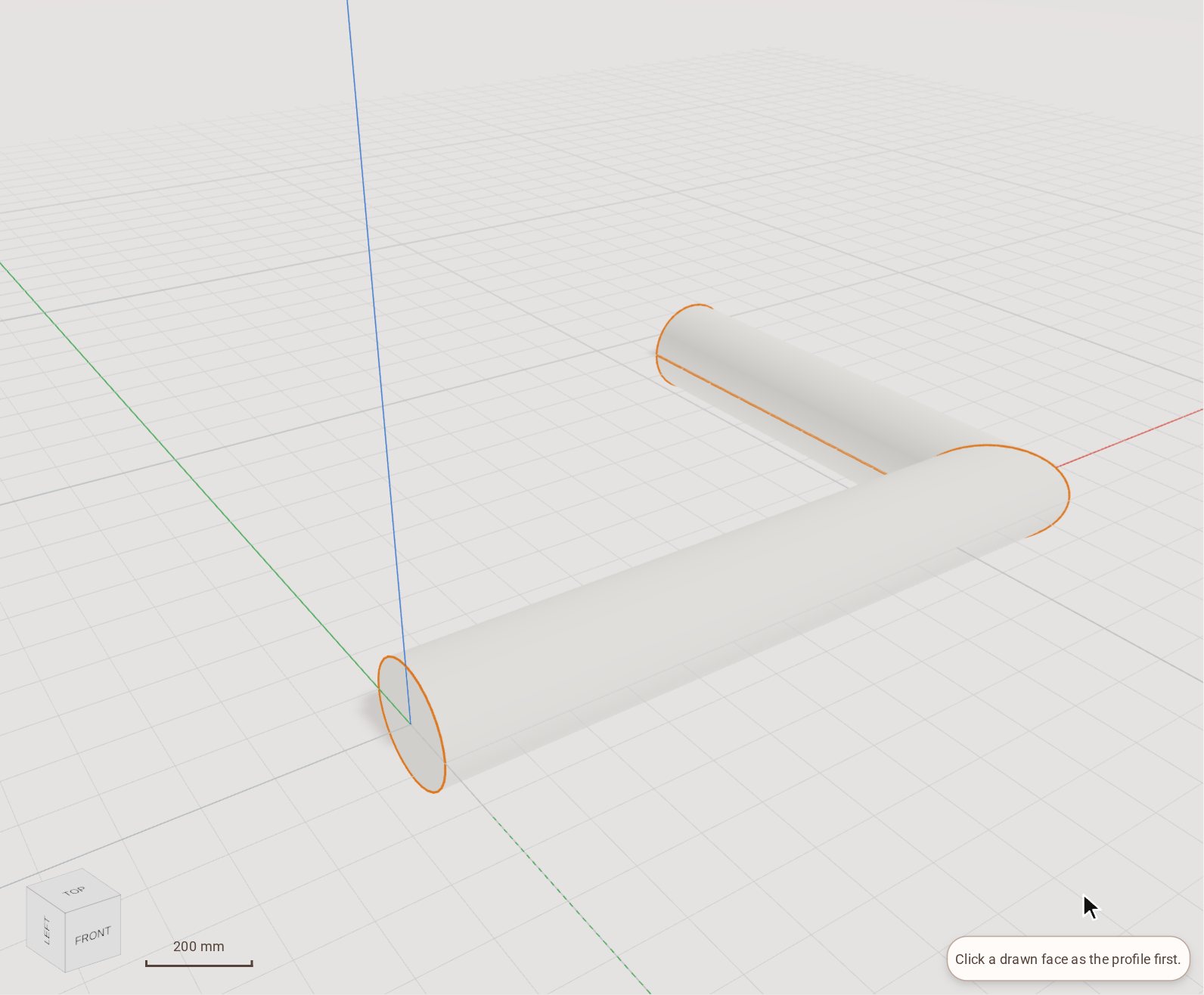 Sweep a profile along a path with Follow MeFollow Me drives a flat face along a path of lines or curves and leaves the solid it sweeps out: a pipe from a circle, a handrail, a moulding round a corner.
Recorded in Kozorosa by the help recorder, which checked that the result is in the model.