
Help centreWorkspace
Orbit, pan, zoom and standard views
Turn, slide and zoom the camera around your model with the Camera tools, and jump to a standard view (Top, Front, Iso…) from the bar above the view.
-
Pick Orbit on the rail, or press O, and drag in the view. The camera turns around the model.
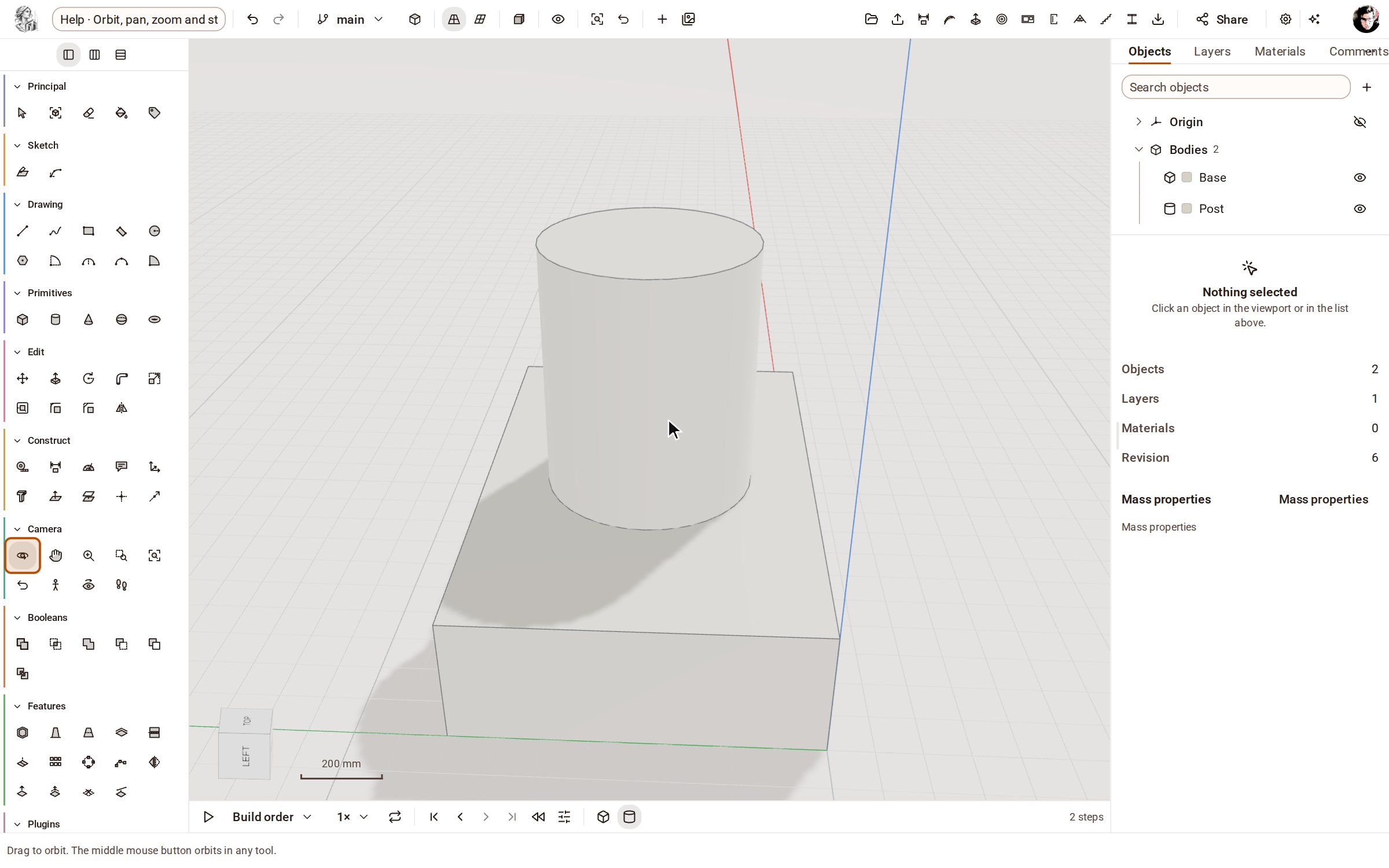
-
Pick Pan, or press H, and drag to slide the view sideways without turning it.
-
Pick Zoom, or press Z, and drag up or down to move closer or further away. The mouse wheel zooms too, towards whatever is under the pointer.
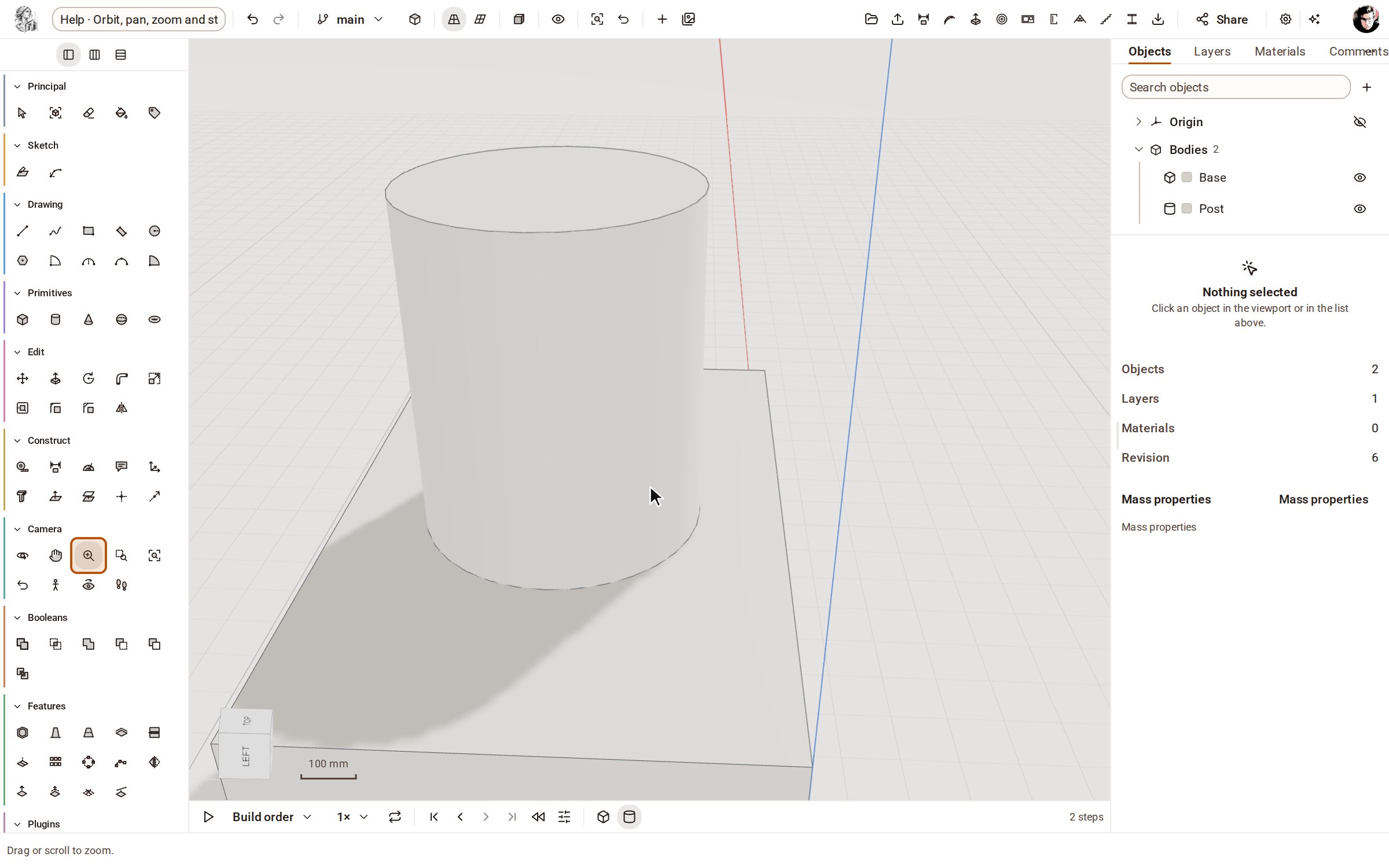
-
For a standard view, open View on the top bar (the cube). It lists Top, Front, Right, Back, Left, Bottom and Iso.
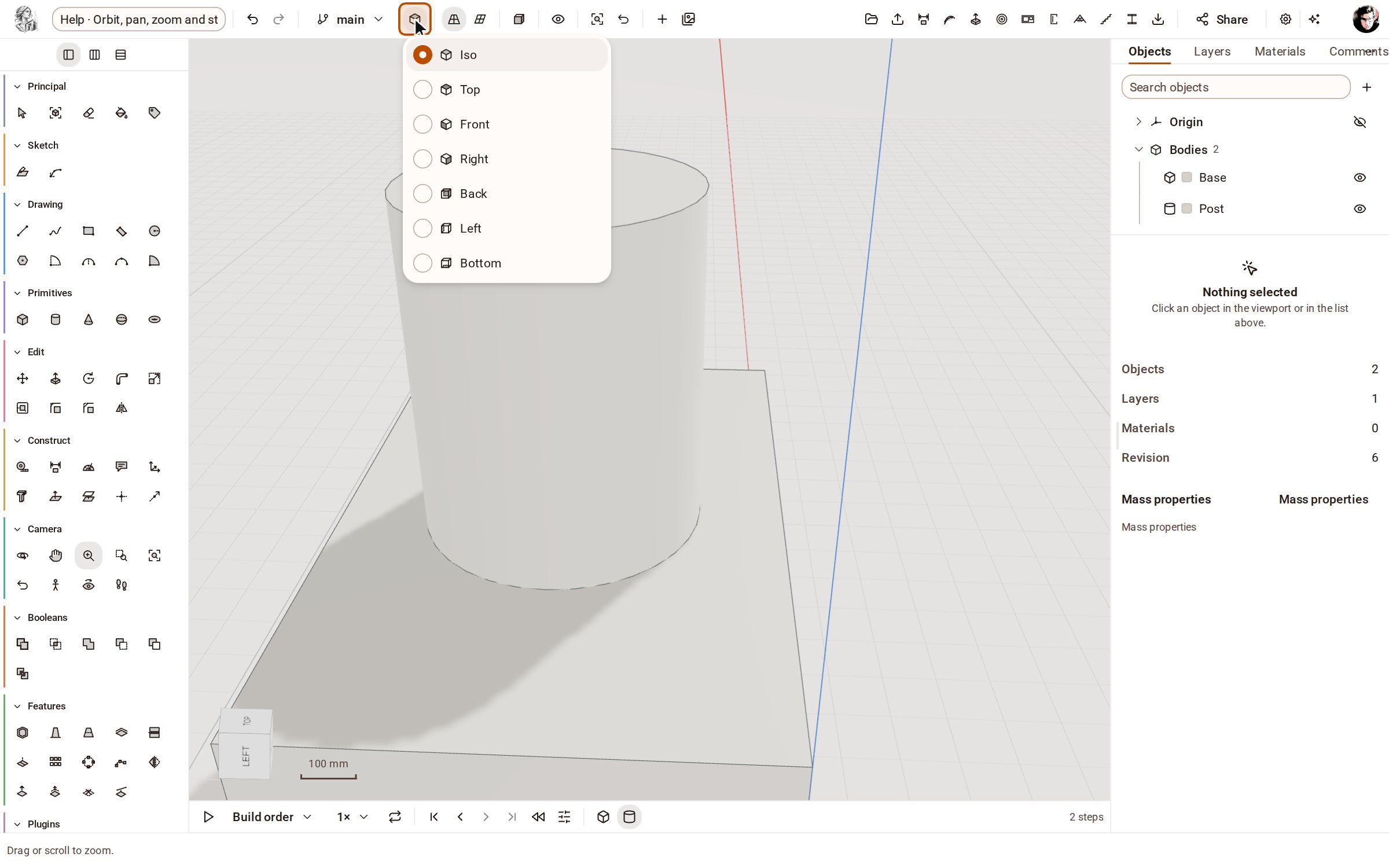
-
Pick Front to look straight at one side of the model.
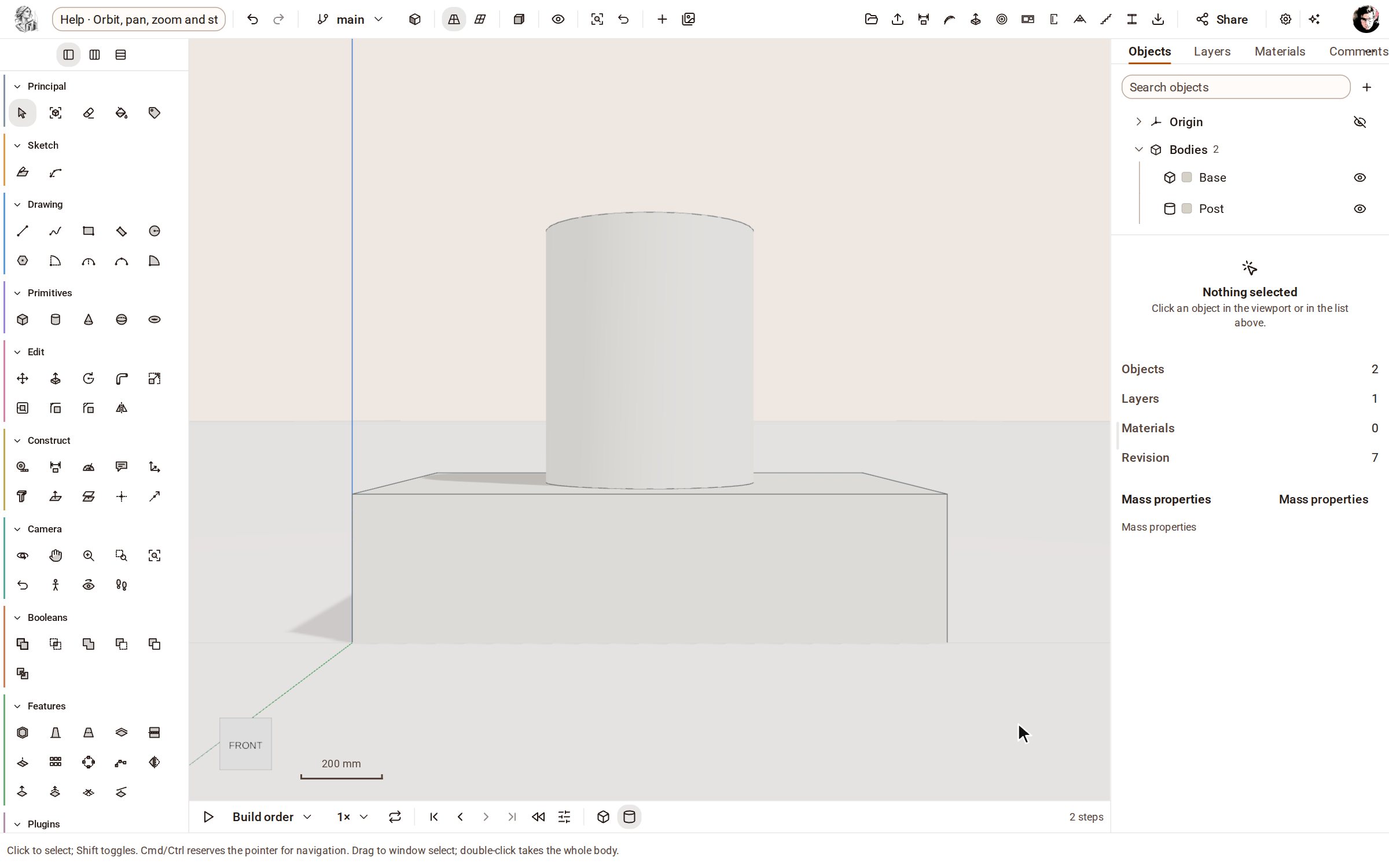
-
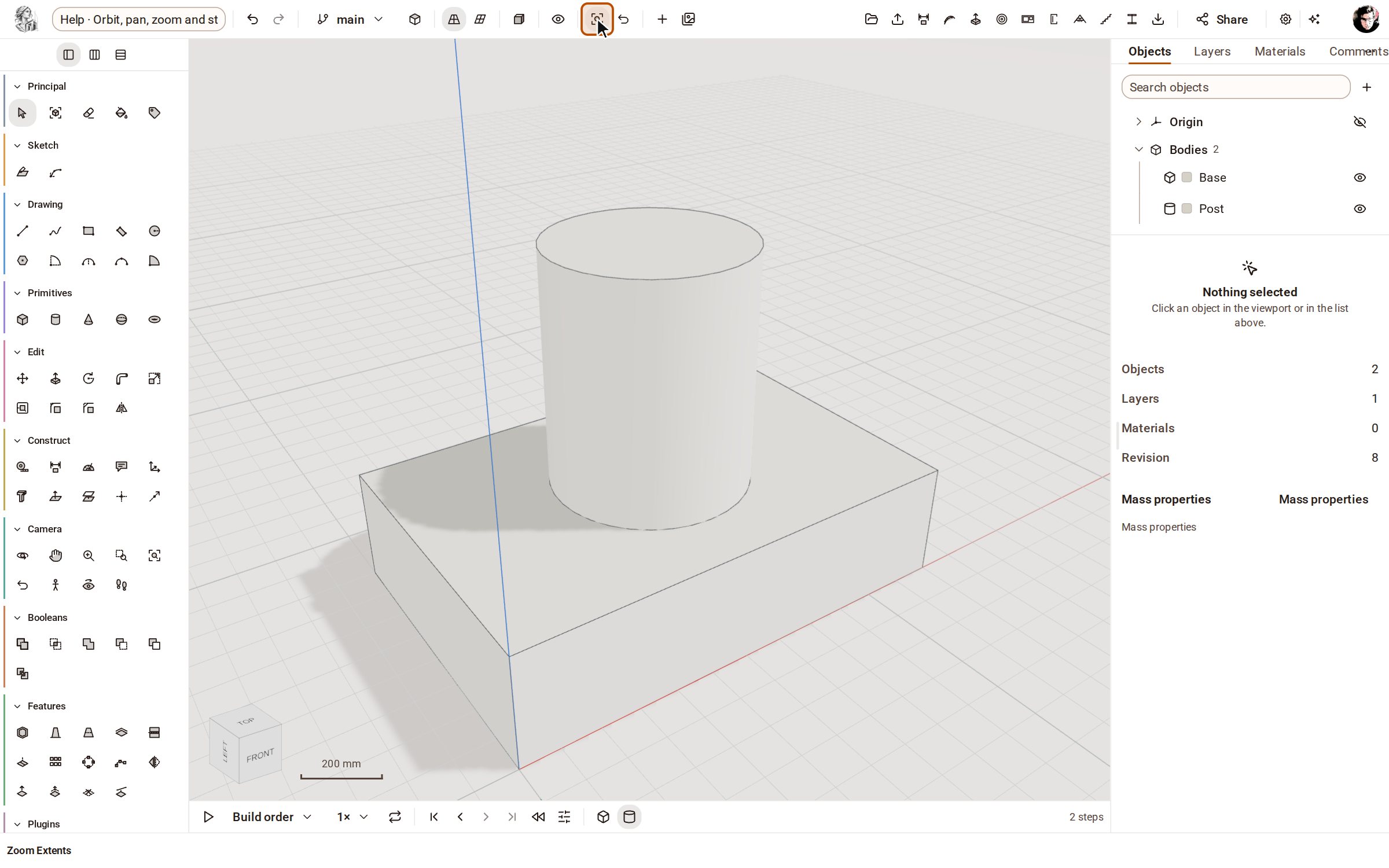
Pick Iso to return to the three-quarter view, then Zoom Extents (Shift+Z) to frame the whole model.
Good to know
- You don't need to change tools to move around: the middle mouse button orbits and the right mouse button pans in any tool.
- Previous View, on the Camera rail, goes back to where the camera was before.
- Zoom Window zooms into a rectangle you drag in the view.
Recorded in Kozorosa by the help recorder.