
Help centreWorkspace
Roll back, edit and suppress steps on the timeline
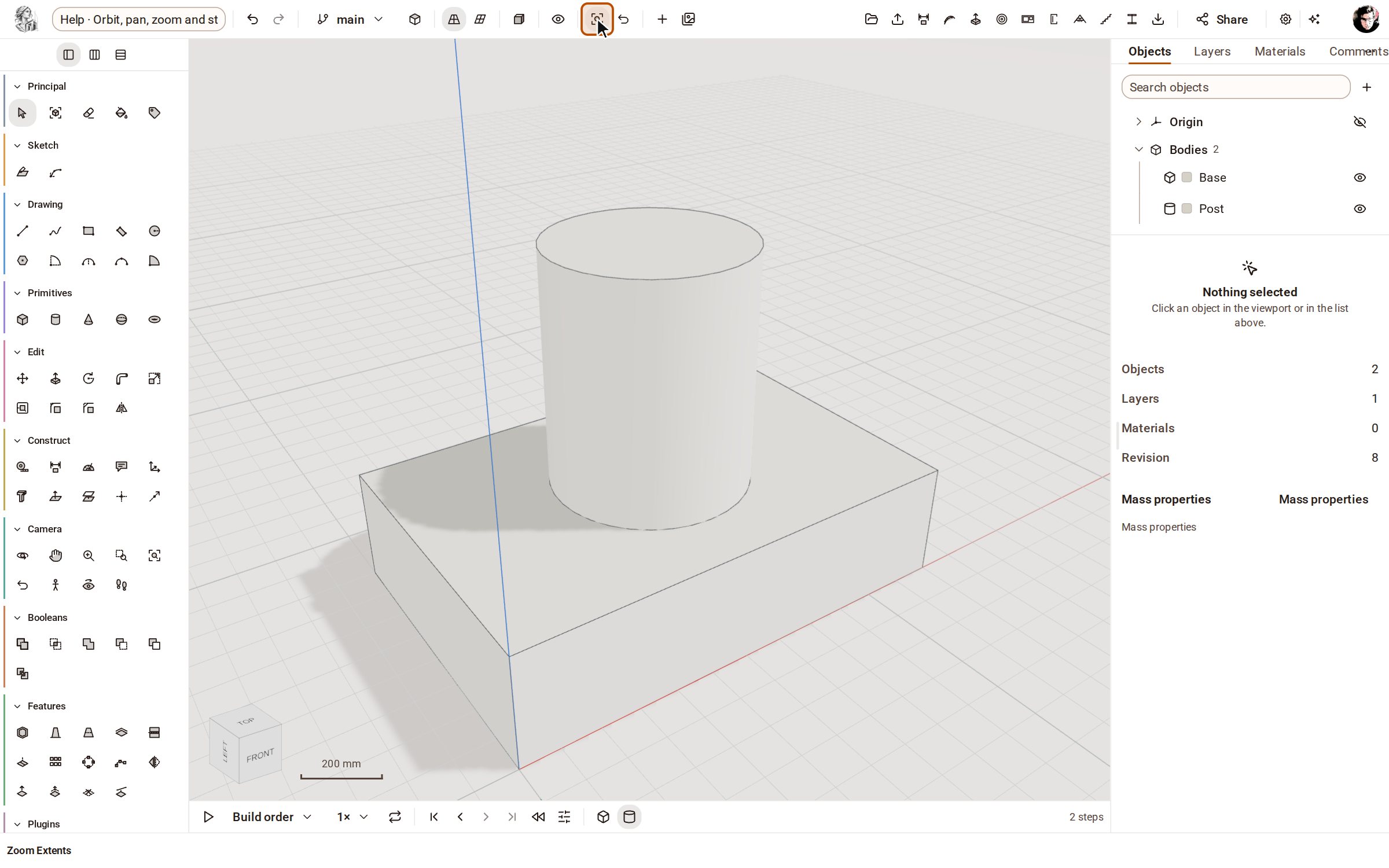
The timeline under the view lists every step that built your model, in order. Click a step to see the model as it was then, change a step's numbers and everything after it rebuilds, or suppress a step to try the model without it.
-
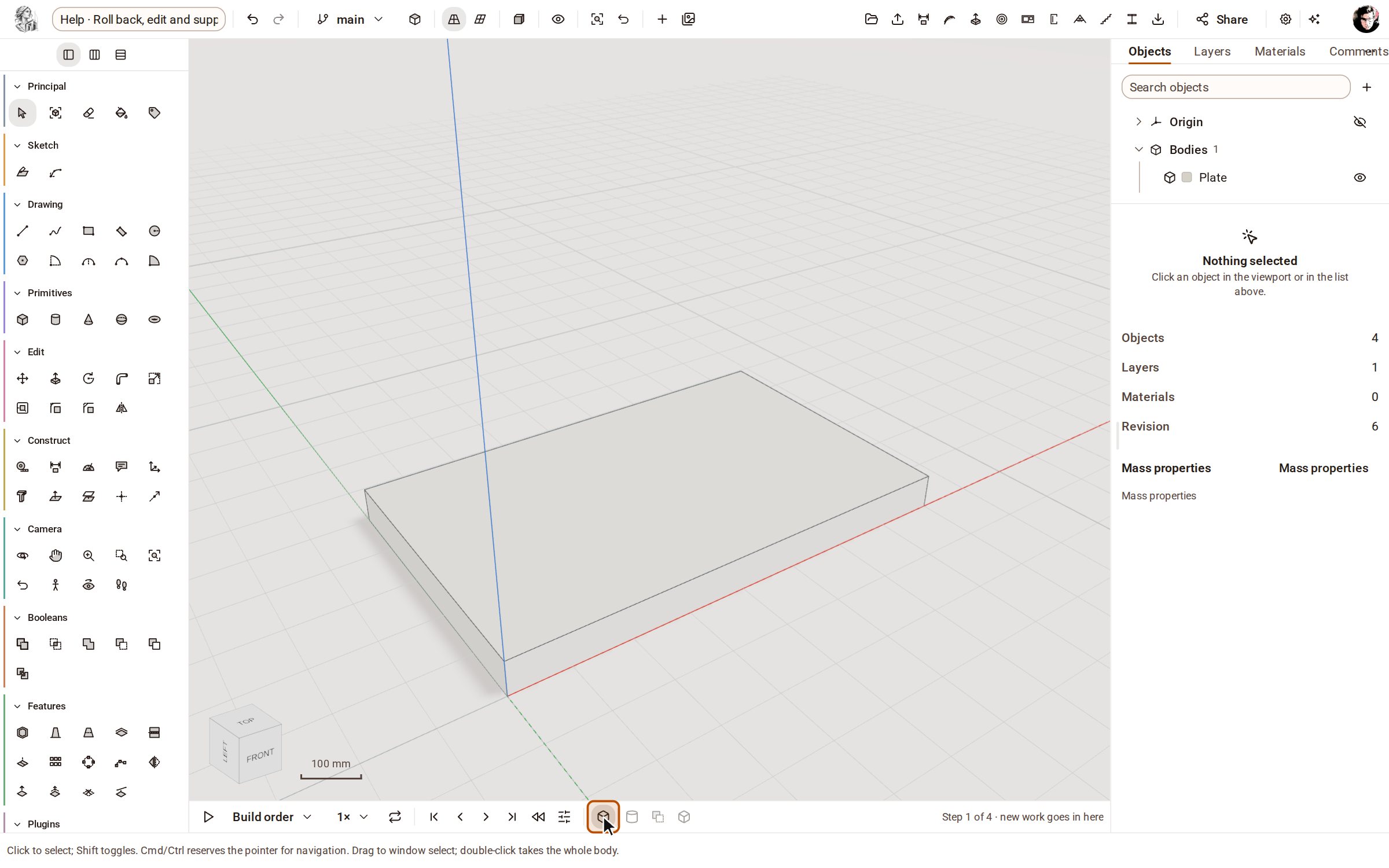
Each button on the timeline is one step, oldest on the left. Click a step — here 1. Plate — to roll the model back to it. Later steps fade, and anything you make now goes in at that point.
-
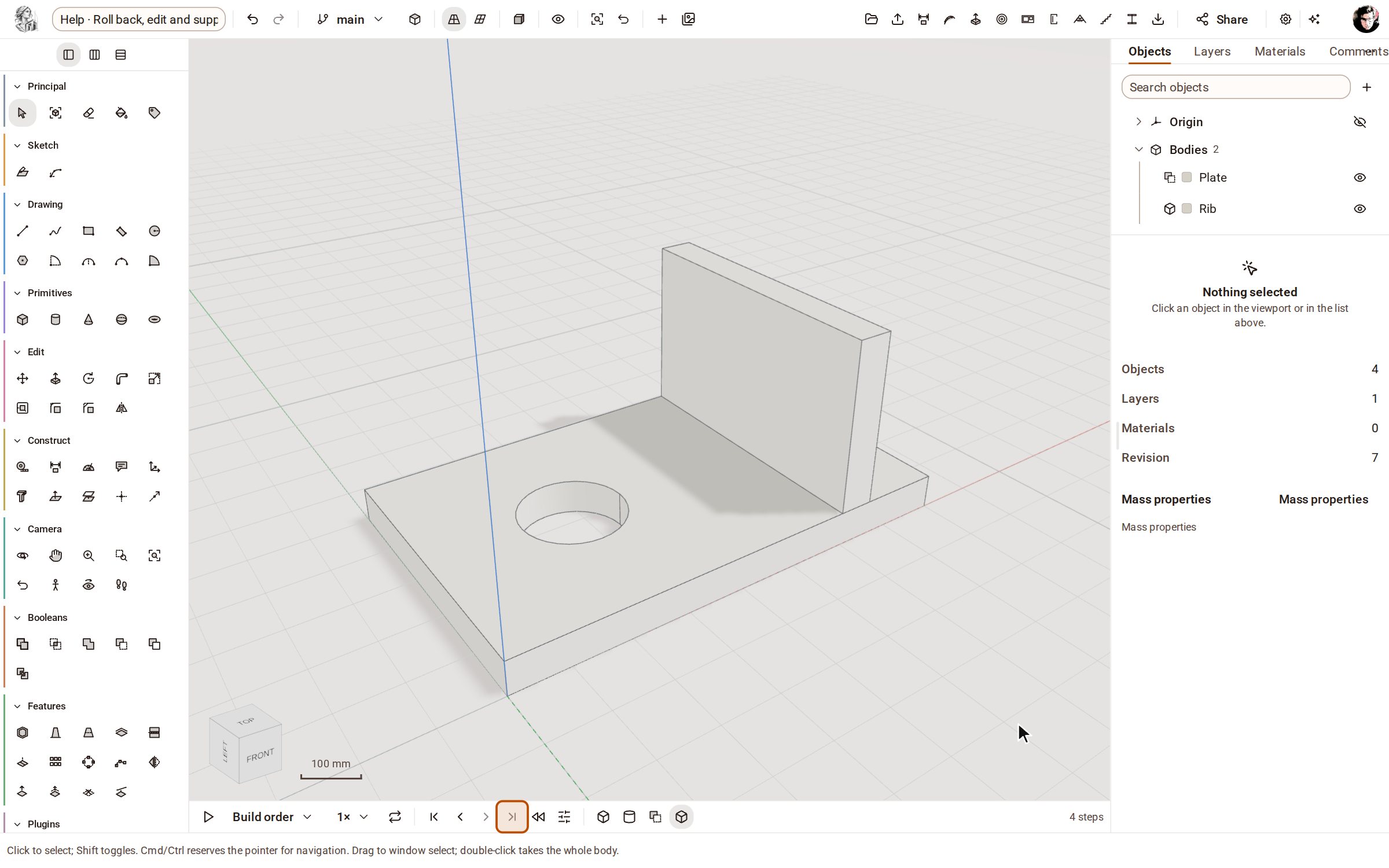
Click Show every step, at the end of the arrows beside the timeline, to bring the whole model back.
-
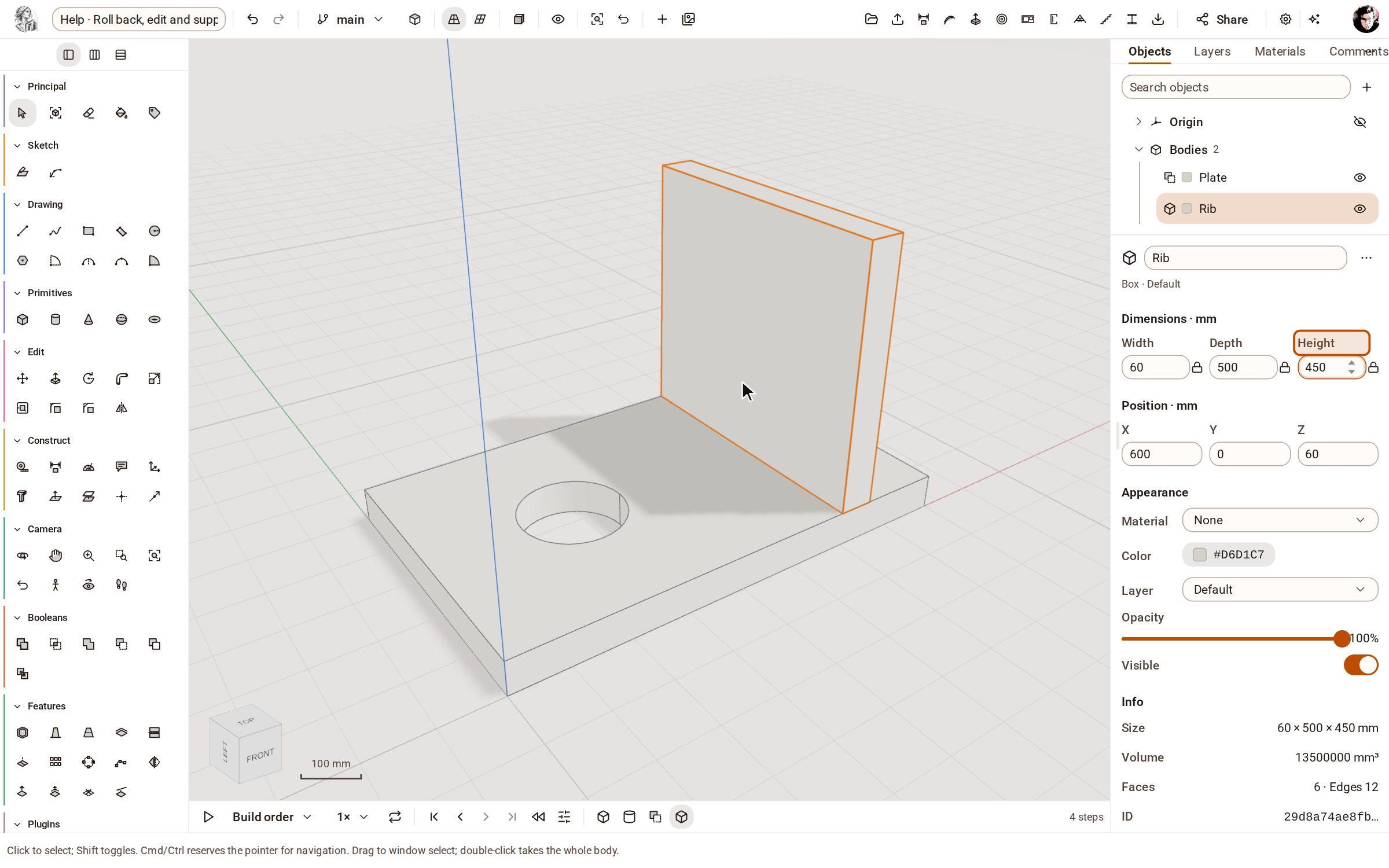
To edit a step, select its body — here the rib — and change a value in the inspector. Type 450 for the Height and press Enter: the step is rebuilt, and so is everything after it.
-
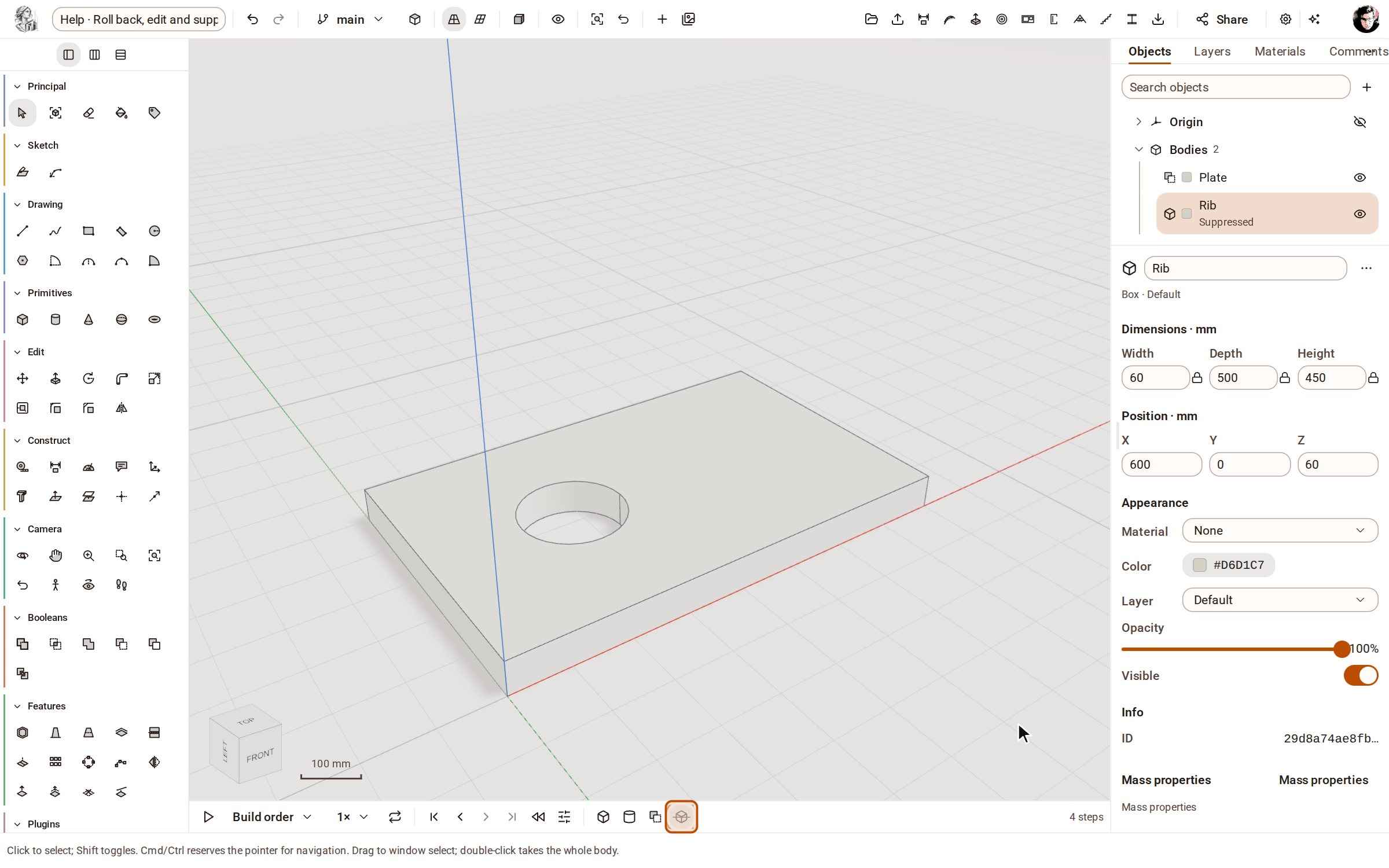
To try the model without a step, right-click it on the timeline (or focus it and press Shift+F10) and choose Suppress. The step stays in the timeline, struck through, and its body disappears until you Unsuppress it.
Good to know
- Drag a step along the timeline to build it at another point; the timeline refuses a move that would put a step before what it is built from.
- The step's menu also groups steps, and moves a step earlier, later or to the start.
- Turn on Roll back for me only to roll back without changing what other people working on the model see.
Recorded in Kozorosa by the help recorder, which checked that the result is in the model.