
Help centreWorkspace
Cut the model with a section plane
A section plane slices the view of your model so you can see inside it — holes, pockets and wall thicknesses — without changing the geometry.
-
Pick Section Plane on the rail. The tray at the top of the right-hand panel offers to cut along an origin plane, and the status line reminds you that you can also click a face.
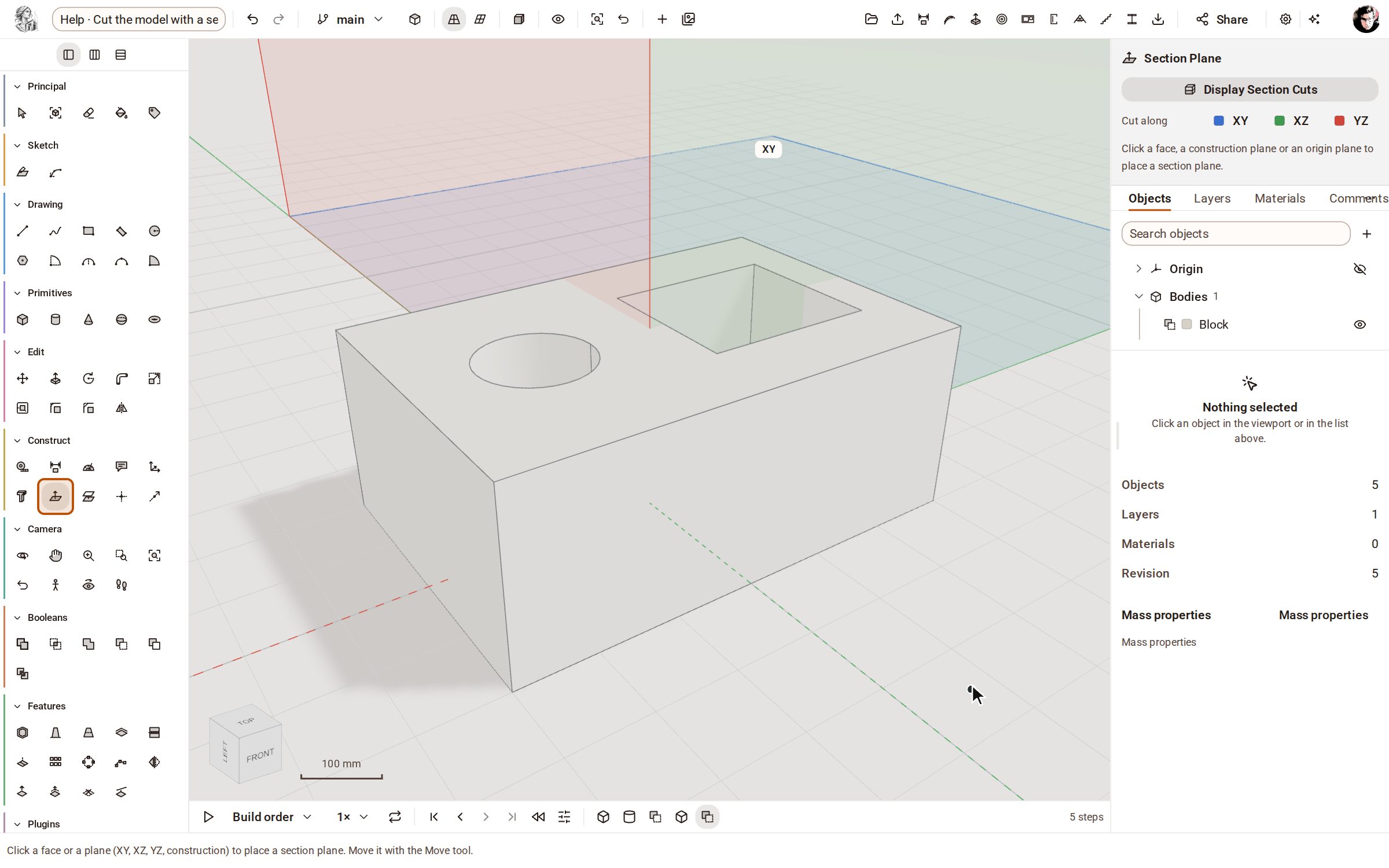
-
Under Cut along, pick XZ. The model is cut along that plane, you look straight into the hole and the pocket, and the new Section Plane XZ is listed in the tray and under Analyses.
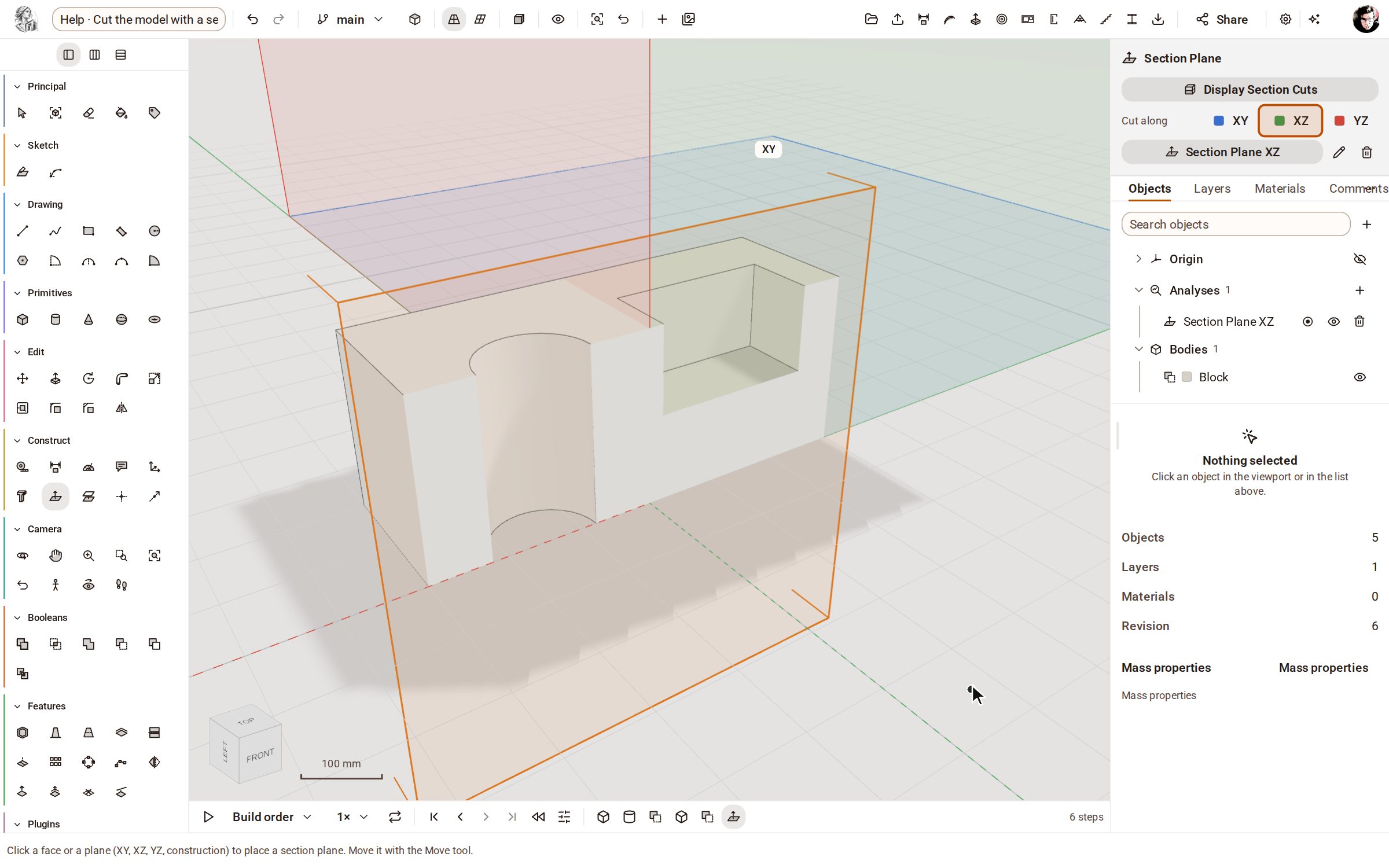
-
Turn Display Section Cuts off to see the whole model again. The section stays in the tray's list, ready to switch back on.
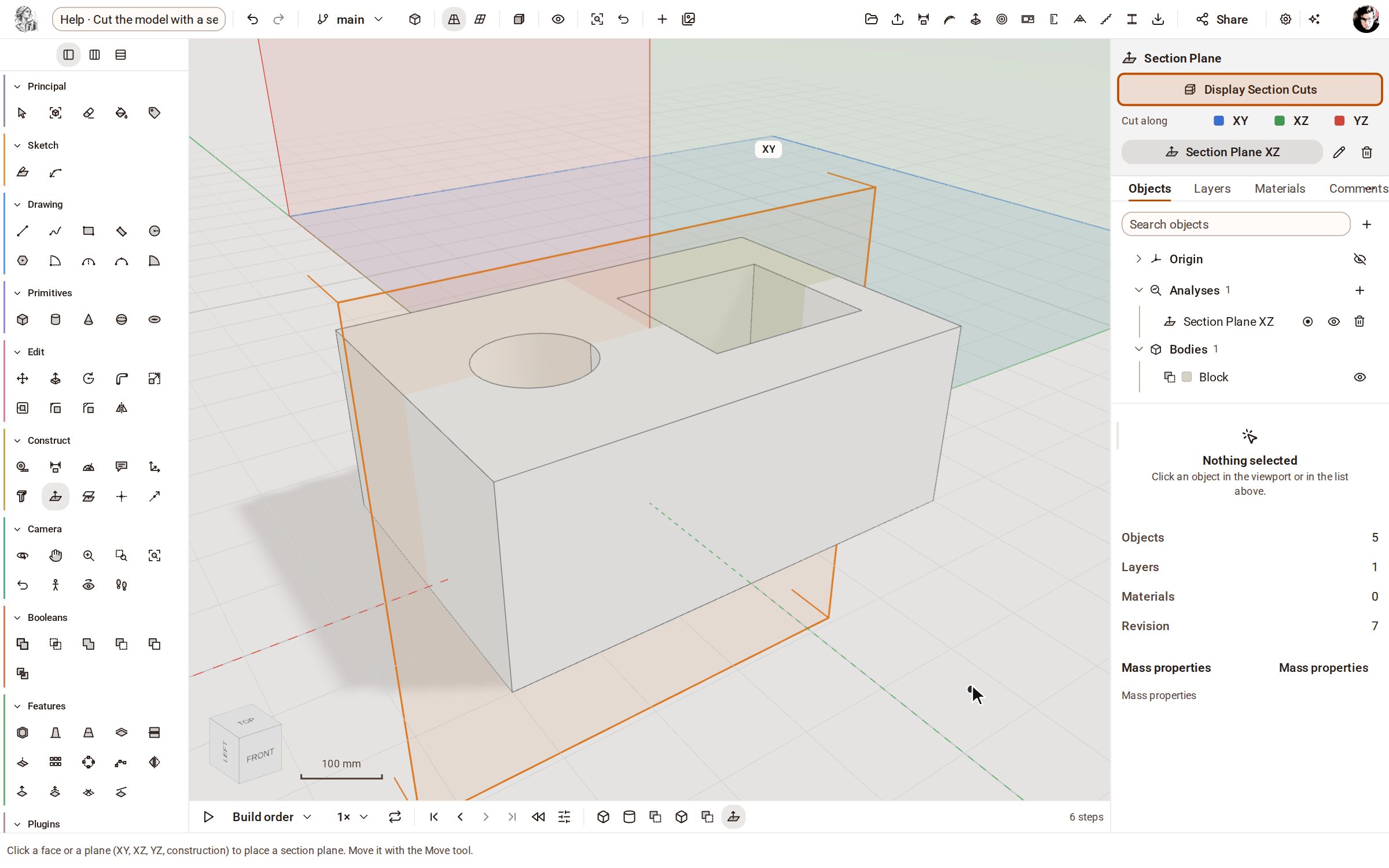
Good to know
- Click a face, a construction plane or an origin plane with the tool to put a section plane there, then move it with the Move tool.
- Each section in the tray can be renamed or deleted; click its name to switch that cut on or off.
- A section plane only changes what you see — the bodies keep their full shape.
Recorded in Kozorosa by the help recorder.