
Help centreModeling
Push/Pull a face
Push/Pull extrudes any flat face of a solid by a distance: raise a slab into a block, sink a pocket, or thicken a wall — and the solid stays a clean B-rep.
-
Pick Push / Pull on the rail, or press P.
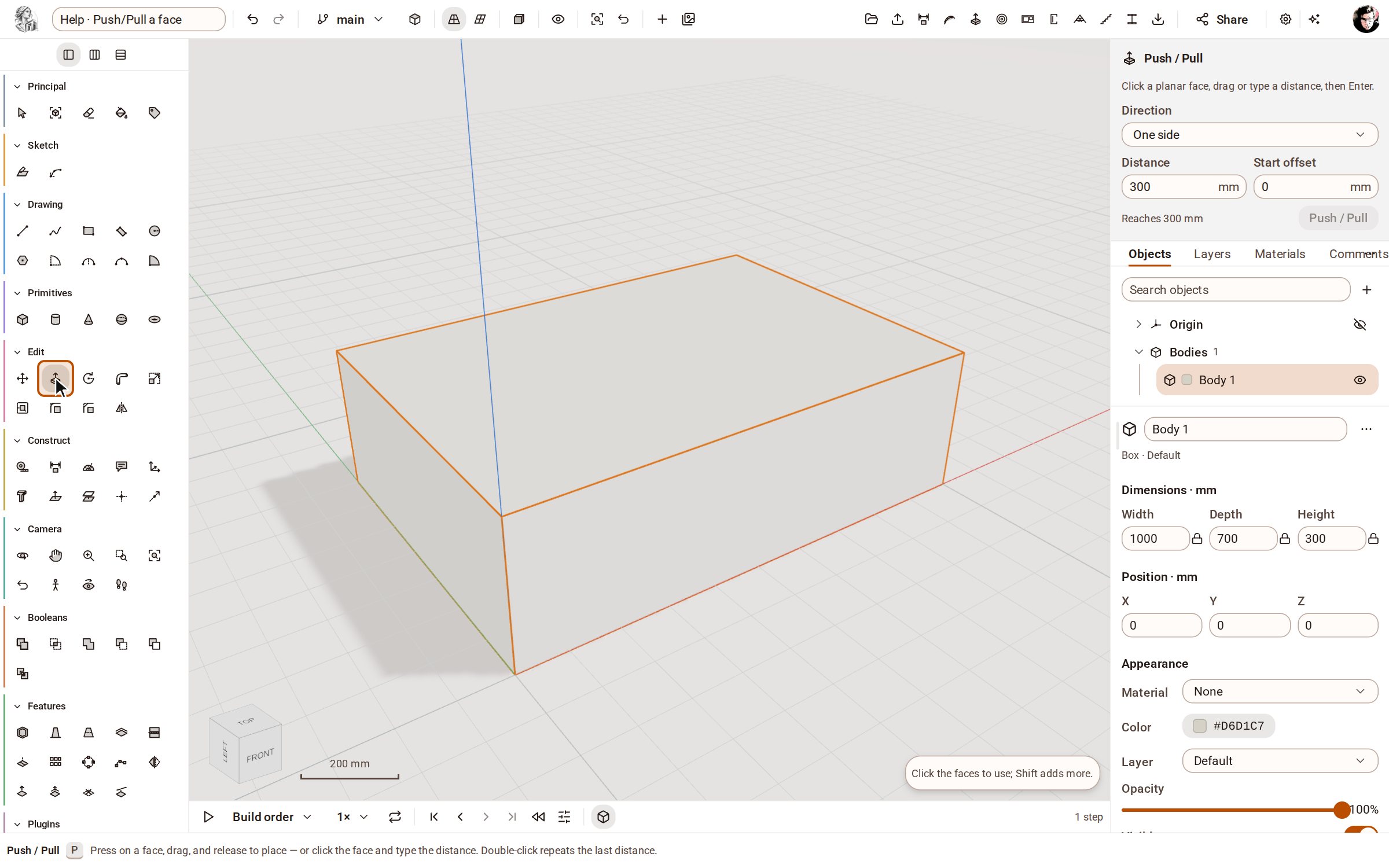
-
Click the face to push or pull — here the top of the slab. It lights up, and the tool waits for a distance.
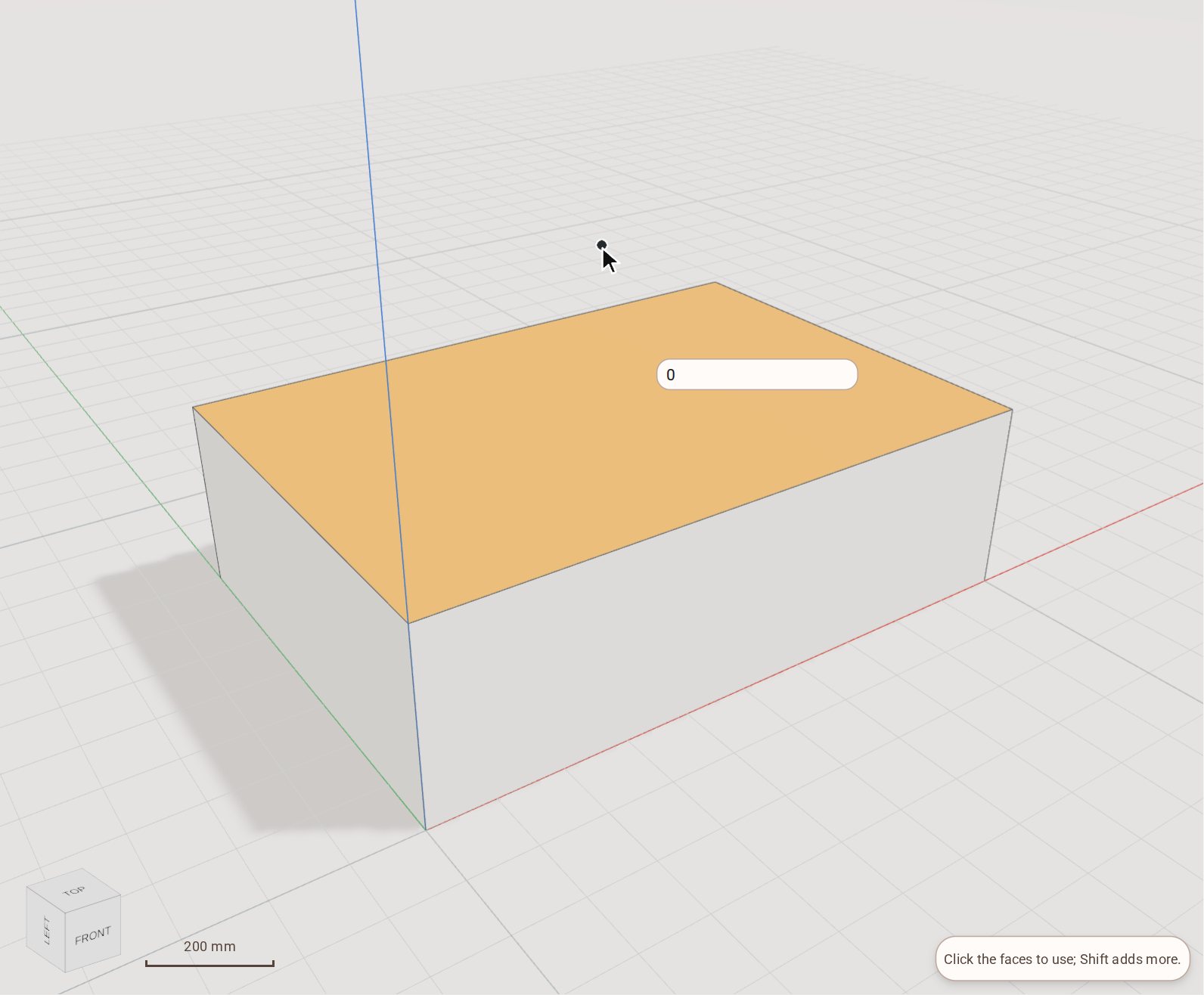
-
Type the distance, 400, and press Enter. The face rises by exactly that much and a Push/Pull step joins the timeline.
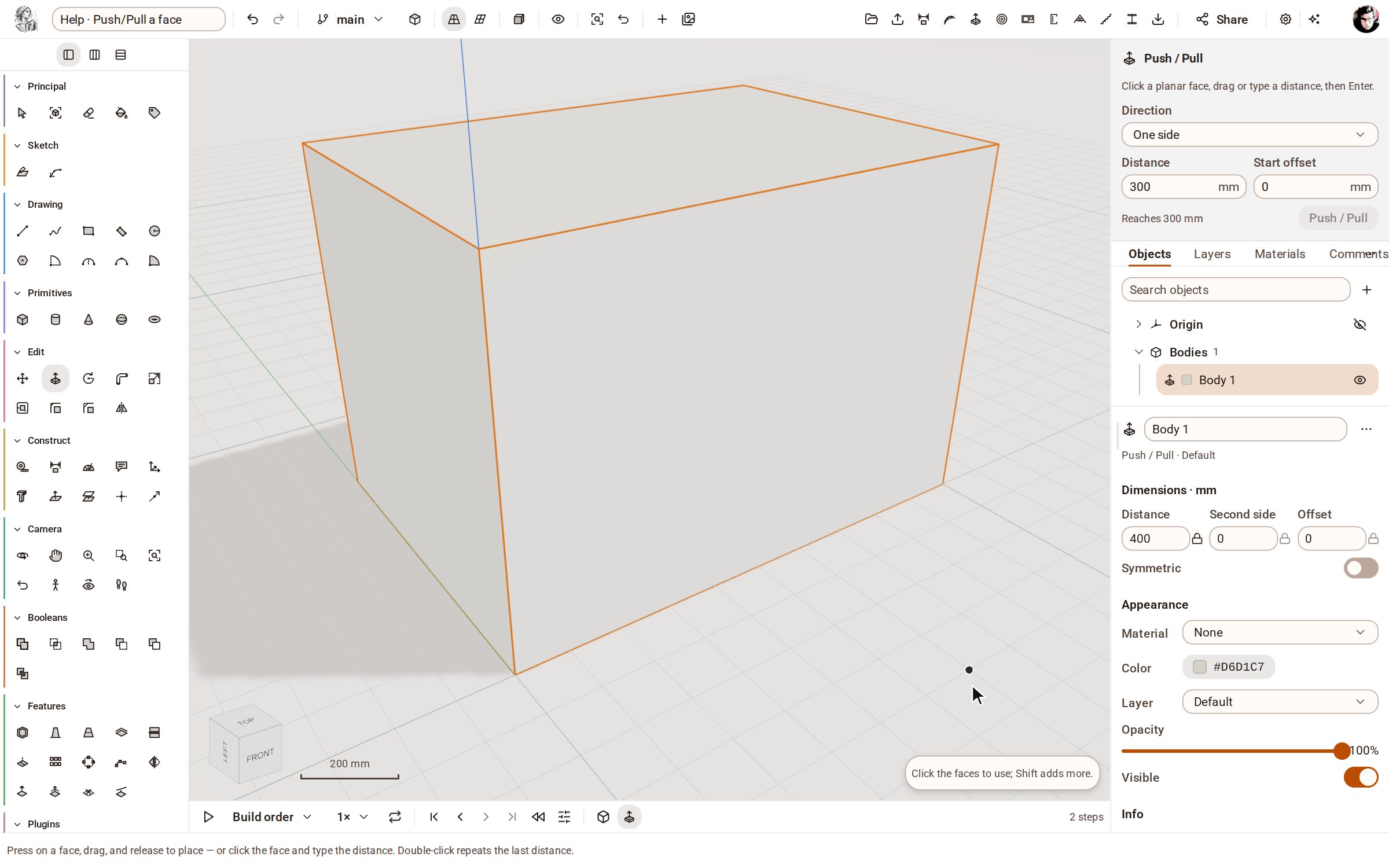
Good to know
- Double-click a face with Push / Pull to repeat the last distance on it.
- The tray's Direction list makes it one-sided or symmetric, and Start offset starts the new solid away from the face.
- The step stays editable: select the body later and change its Distance in the inspector, and everything after it in the timeline rebuilds.
Related
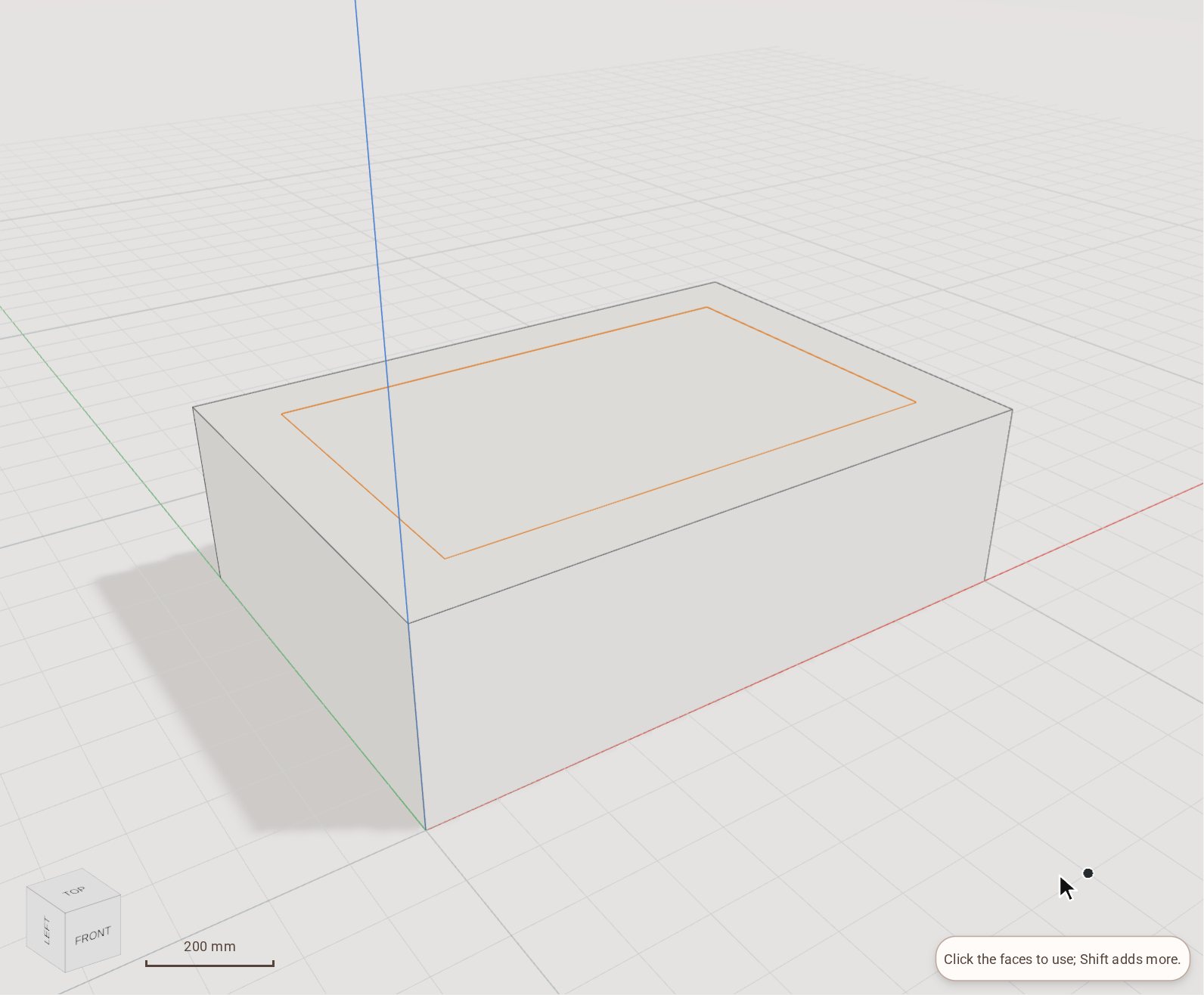 Offset a face's edgesOffset draws a copy of a flat face's outline a set distance inside or outside it, as a new face. Inset the top of a slab, then push the new face down to make a tray or up to make a plinth.
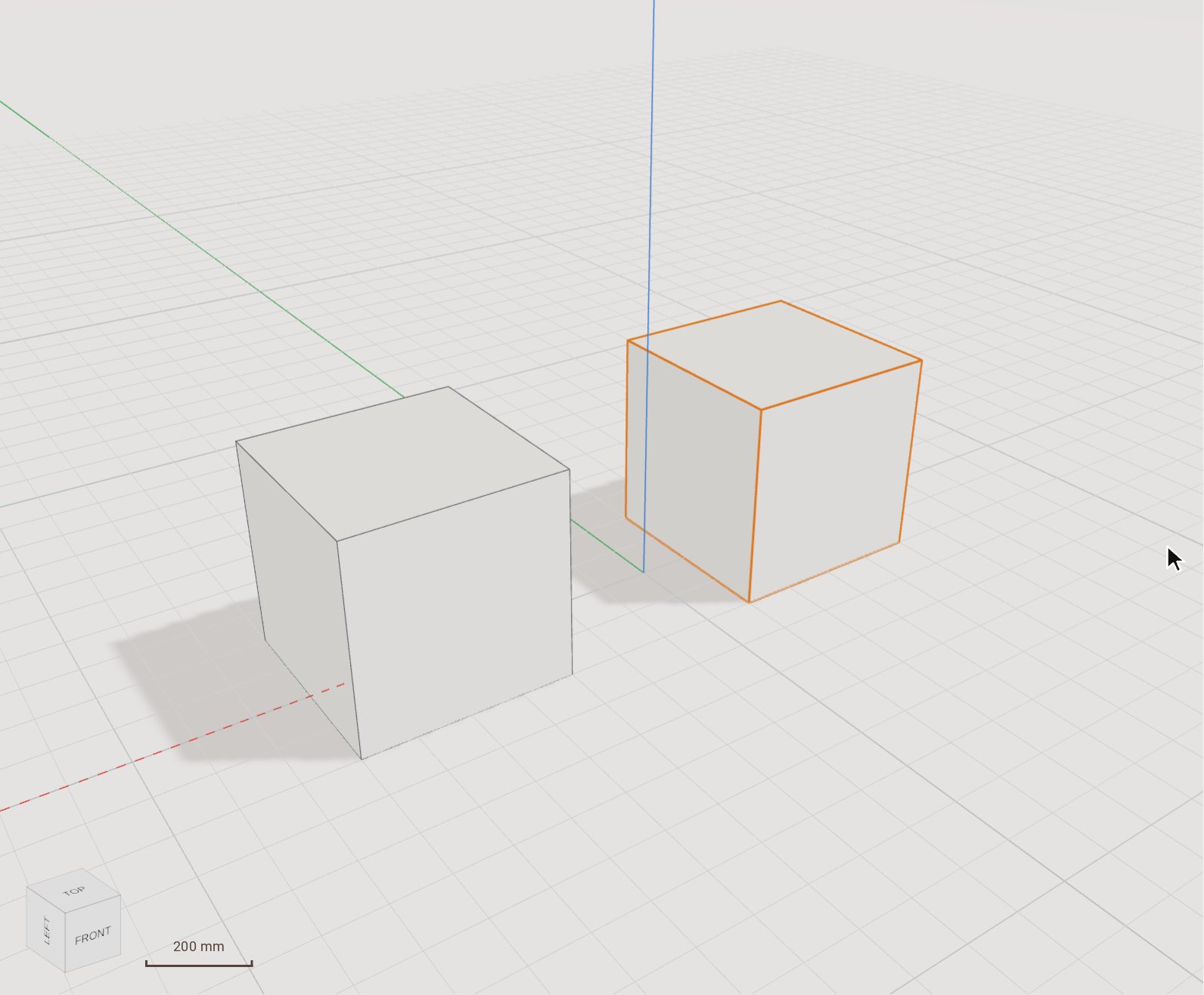 Move (and copy) a bodyMove slides the selected bodies from one point to another, by a pointer gesture or an exact typed distance. Switch on Copy and it leaves the original where it was and places a copy instead.
Recorded in Kozorosa by the help recorder, which checked that the result is in the model.