
Help centreModeling
Rotate a body by a typed angle
Rotate turns the selected bodies about an axis through a pivot you click. Set the angle by moving the pointer, or type it exactly.
-
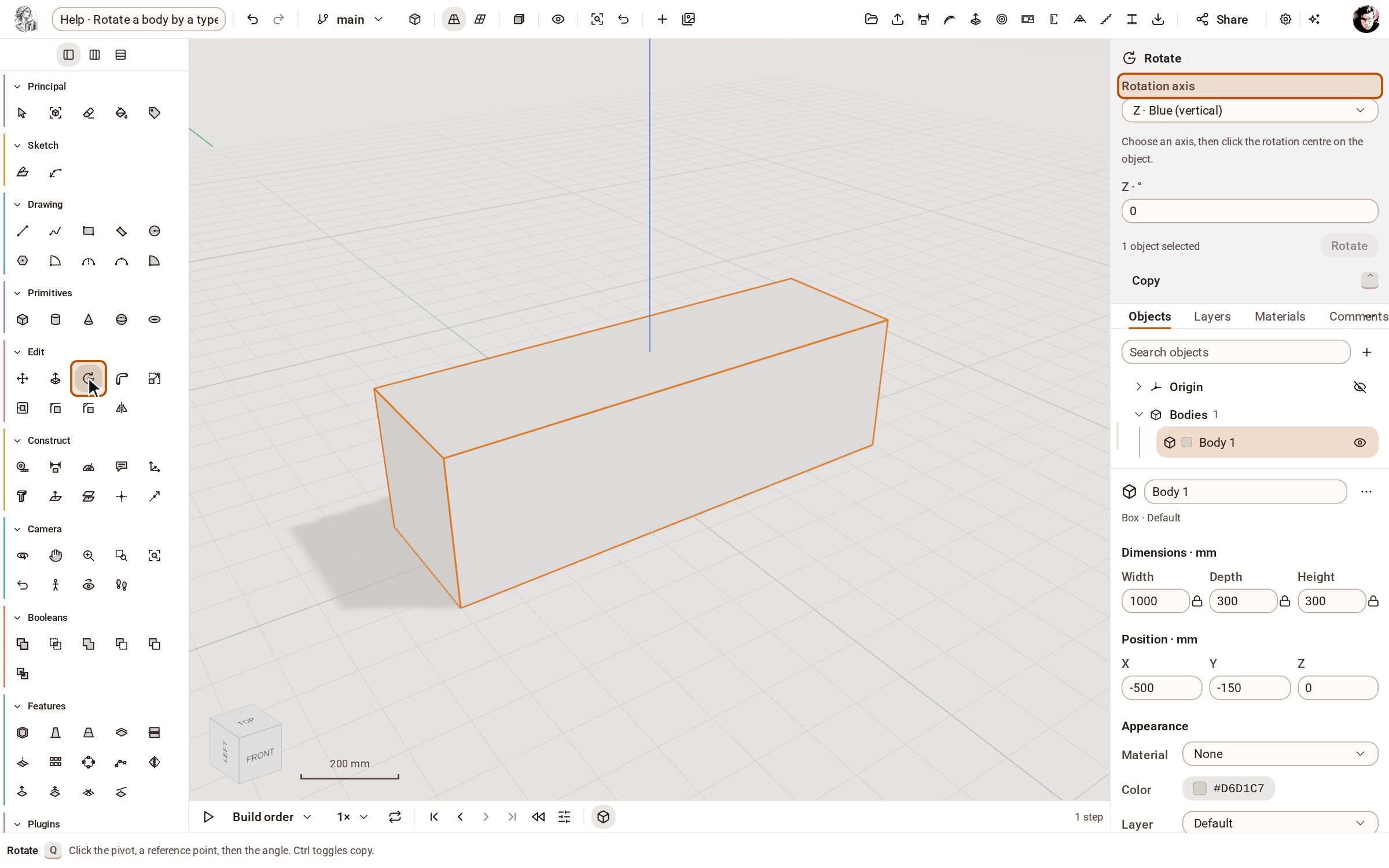
With Select, double-click the body to select it. Then pick Rotate on the rail, or press Q. The tray's Rotation axis starts on Z · Blue (vertical).
-
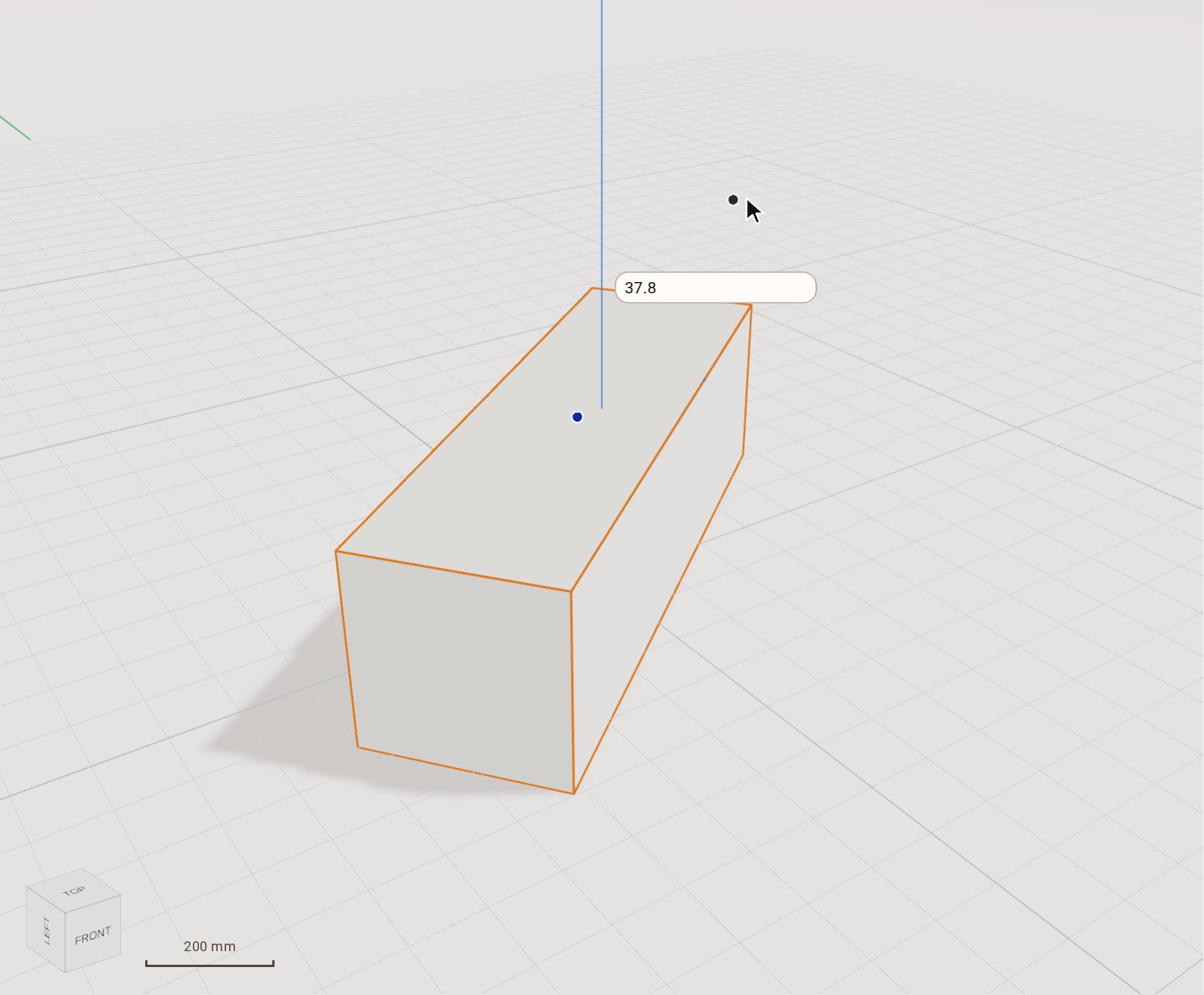
Click the pivot — here the middle of the top face. Then click a second point to set the starting direction, and move the pointer: the body turns with it.
-
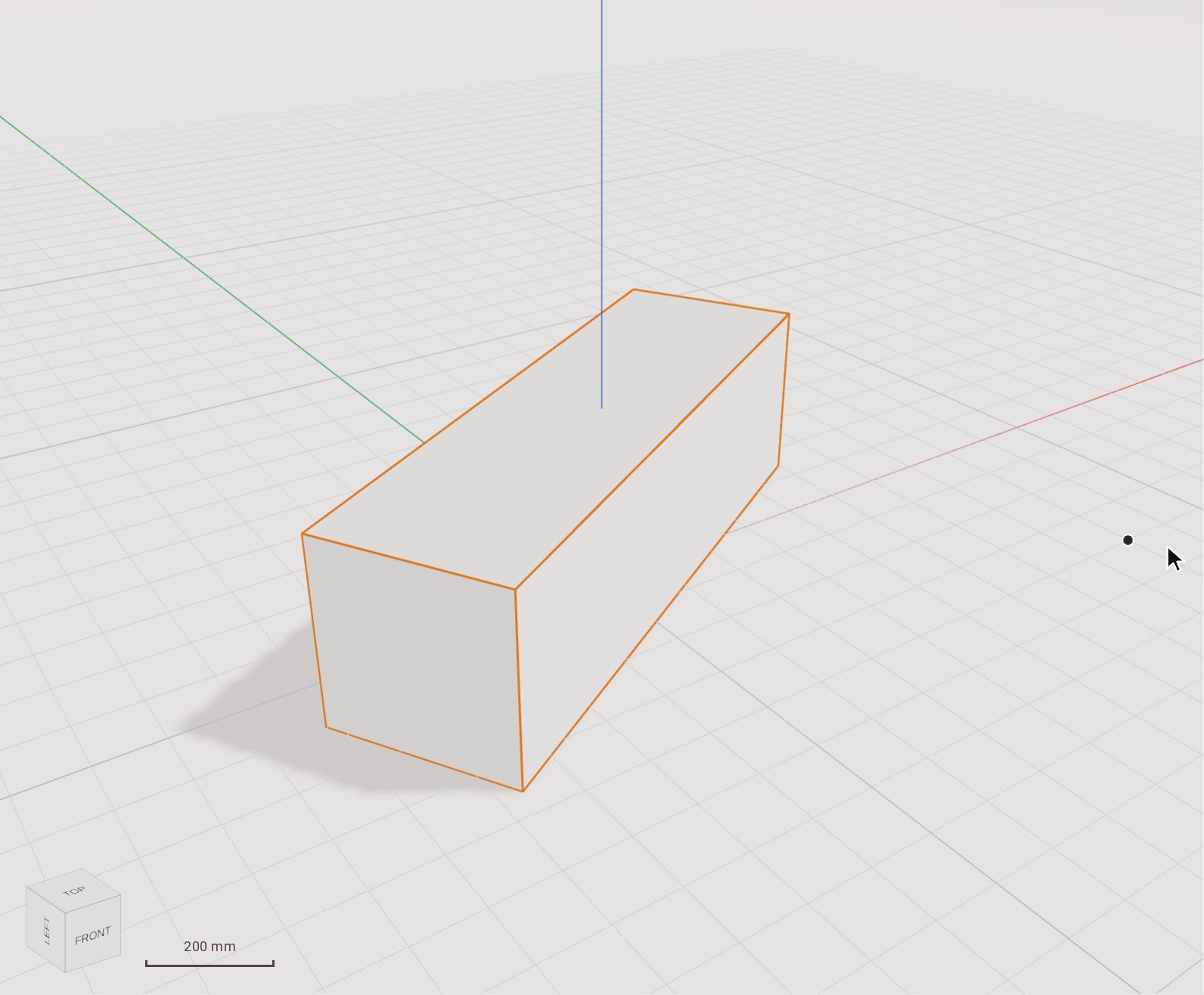
Type the angle, 30, and press Enter. The body turns exactly 30° about the pivot.
Good to know
- The arrow keys choose the rotation axis while Rotate is active: Right for X, Left for Y and Up for Z. The Rotation axis list in the tray does the same.
- Tap Ctrl, or click Copy in the tray, to leave the original and rotate a copy. With Copy on, the Copies field makes several copies, each turned by the same angle.
Related
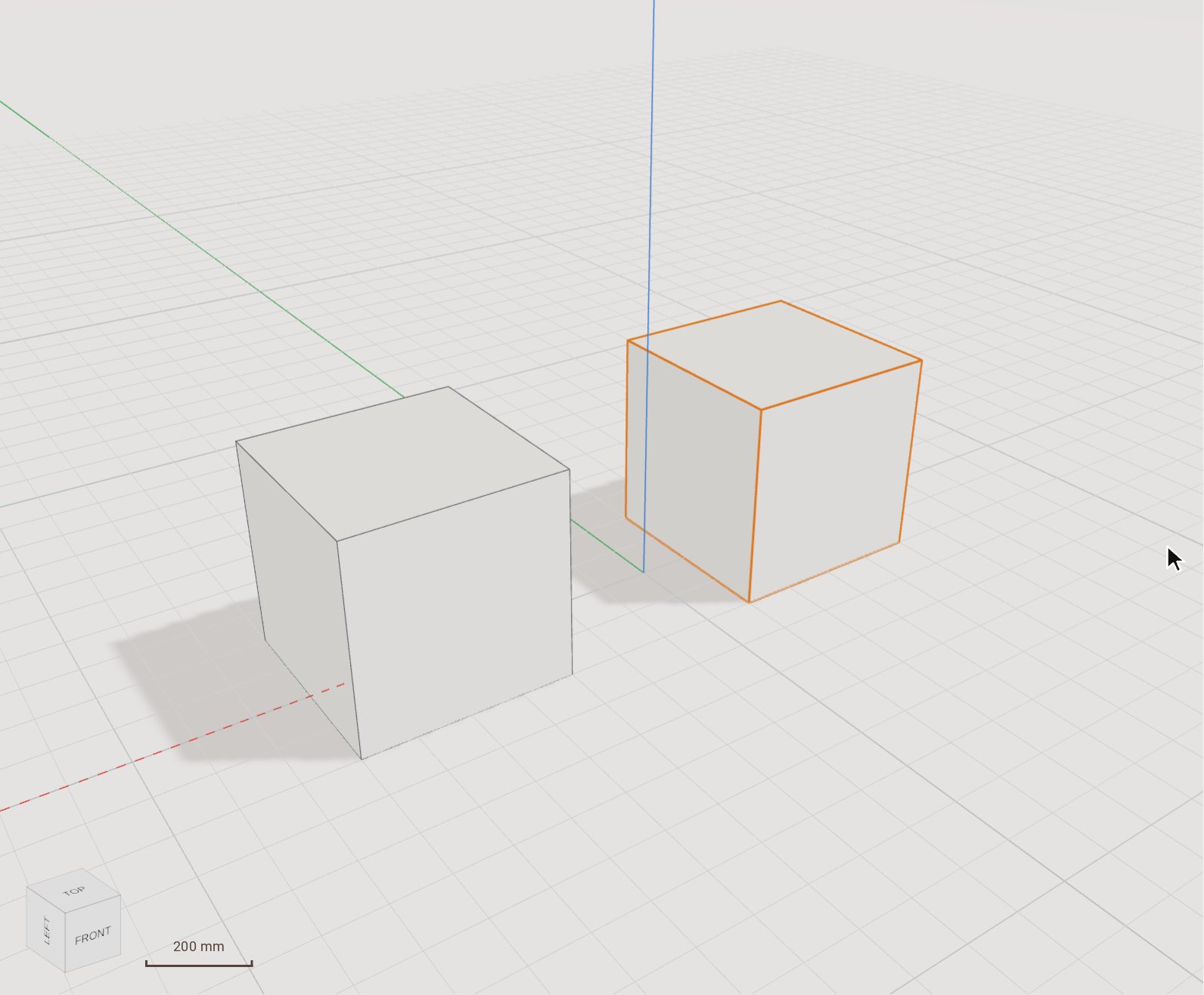 Move (and copy) a bodyMove slides the selected bodies from one point to another, by a pointer gesture or an exact typed distance. Switch on Copy and it leaves the original where it was and places a copy instead.
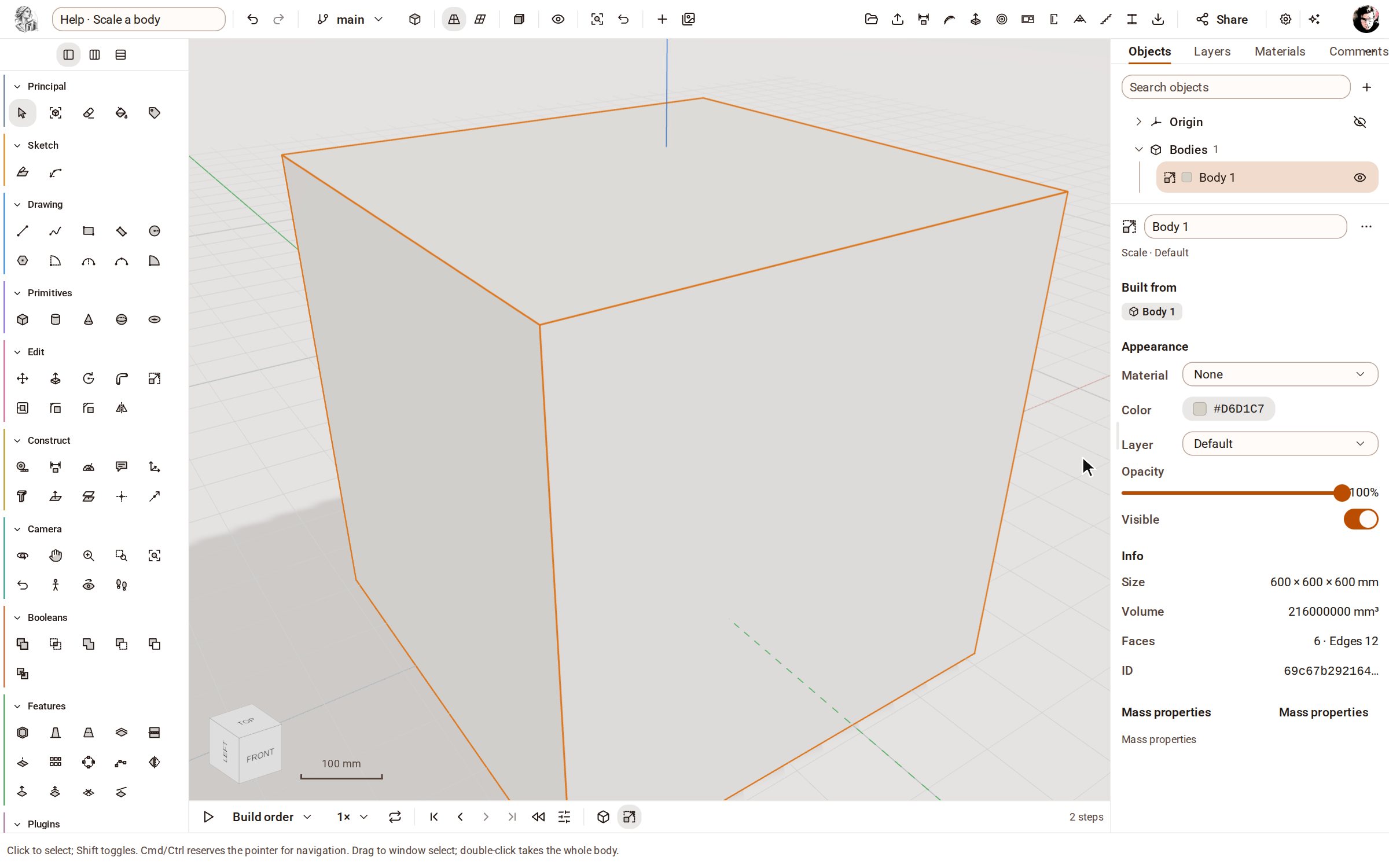 Scale a bodyScale makes the selected bodies bigger or smaller by a factor, uniformly or along one axis at a time.
Recorded in Kozorosa by the help recorder, which checked that the result is in the model.