
Help centreModeling
Place a box, cylinder or sphere
The Primitives group places ready-made solids — box, cylinder, cone, sphere and torus — with a few clicks or typed sizes.
-
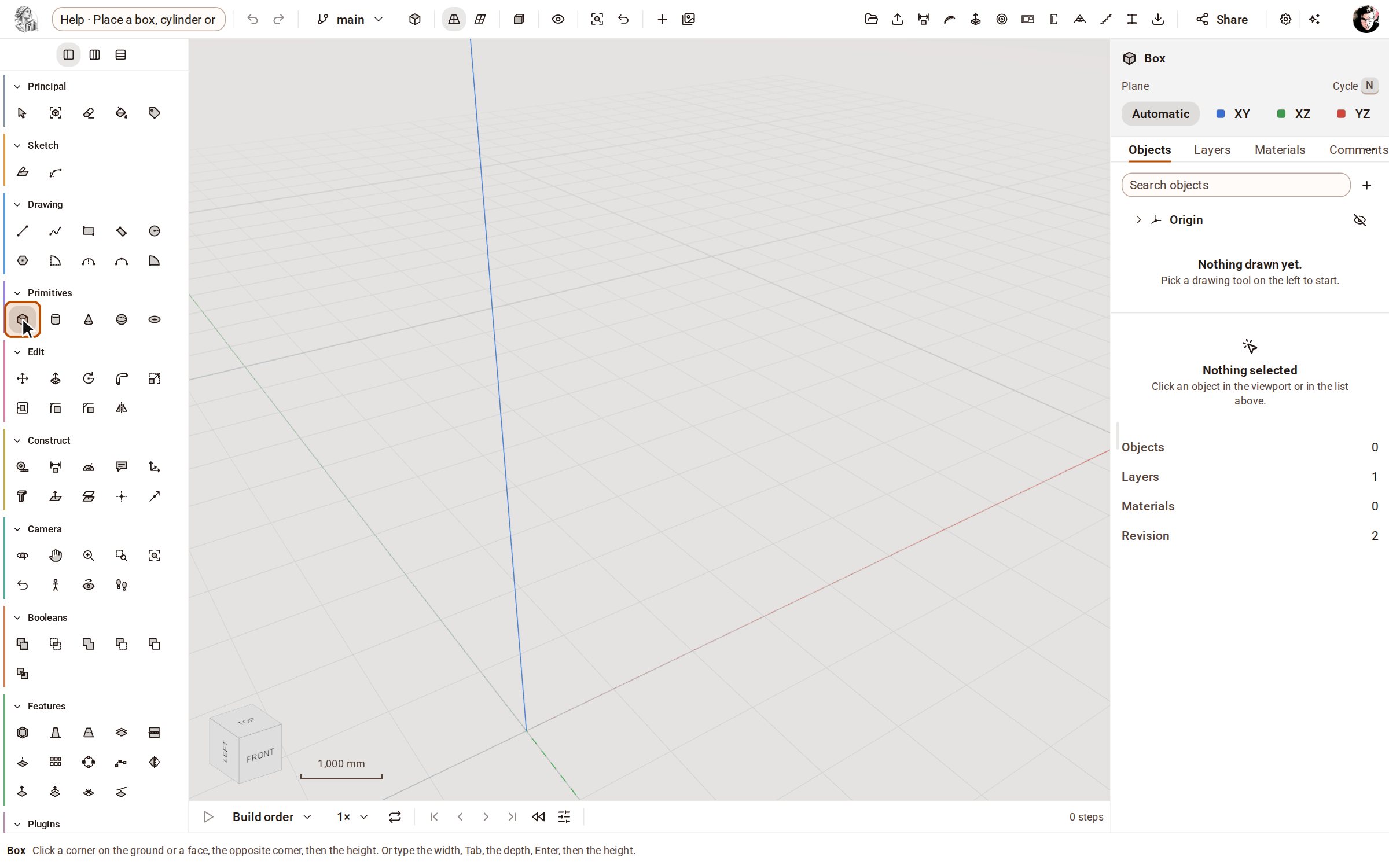
Pick Box in the Primitives group of the rail.
-
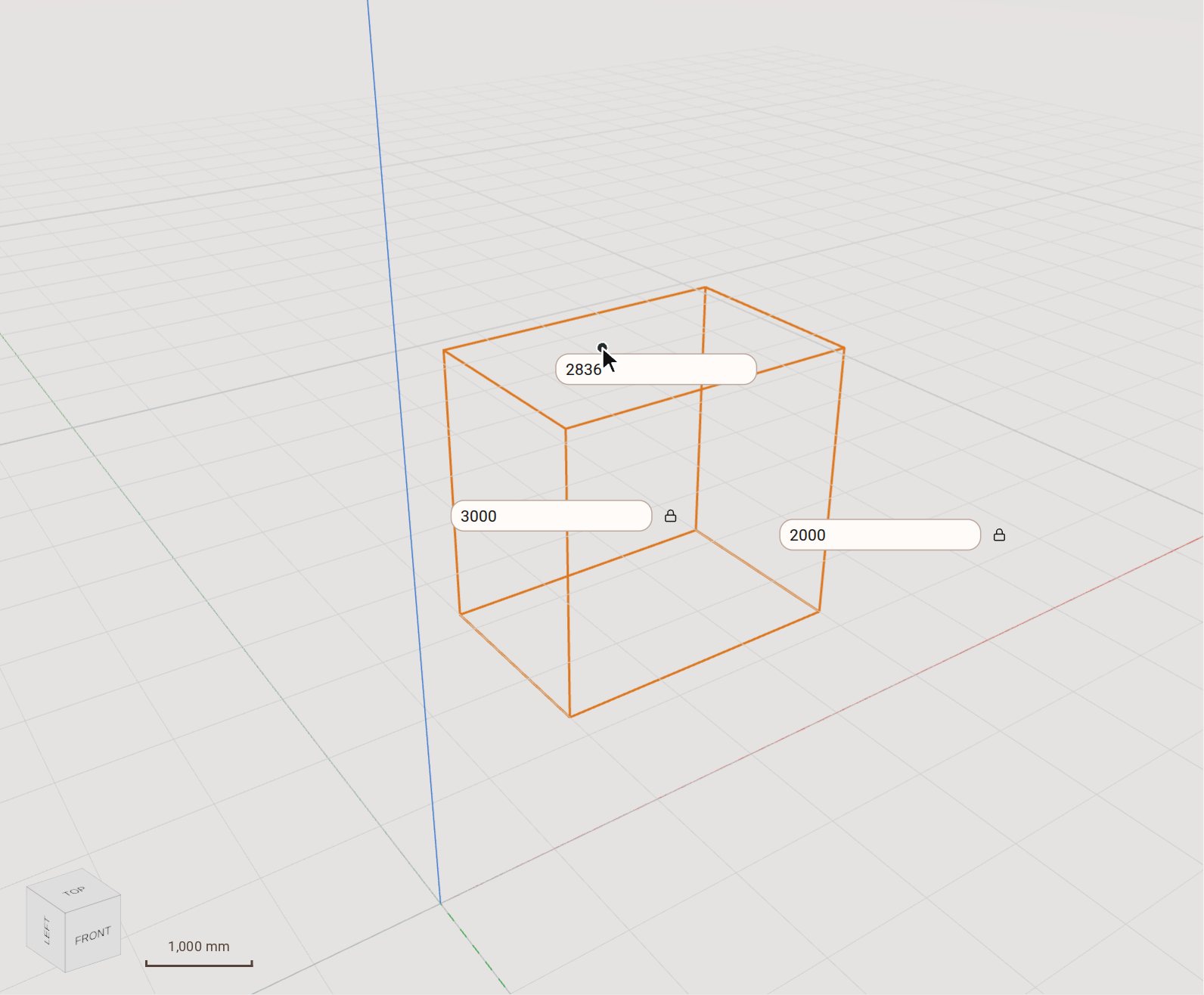
Click a corner on the ground. Type the width, 3000, press Tab, type the depth, 2000, and press Enter; then move the pointer up and the height follows it.
-
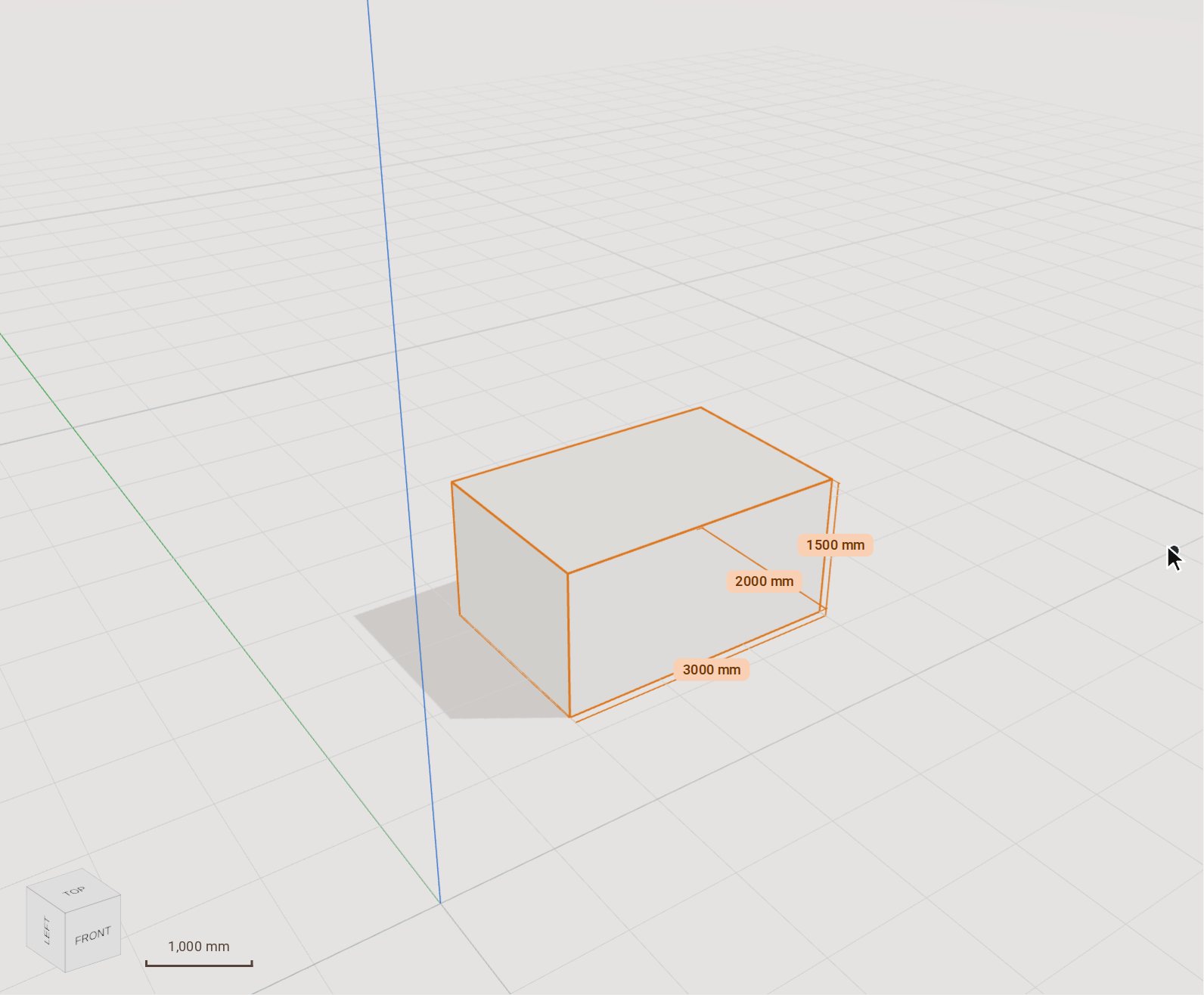
Type the height, 1500, and press Enter. The box is placed.
-
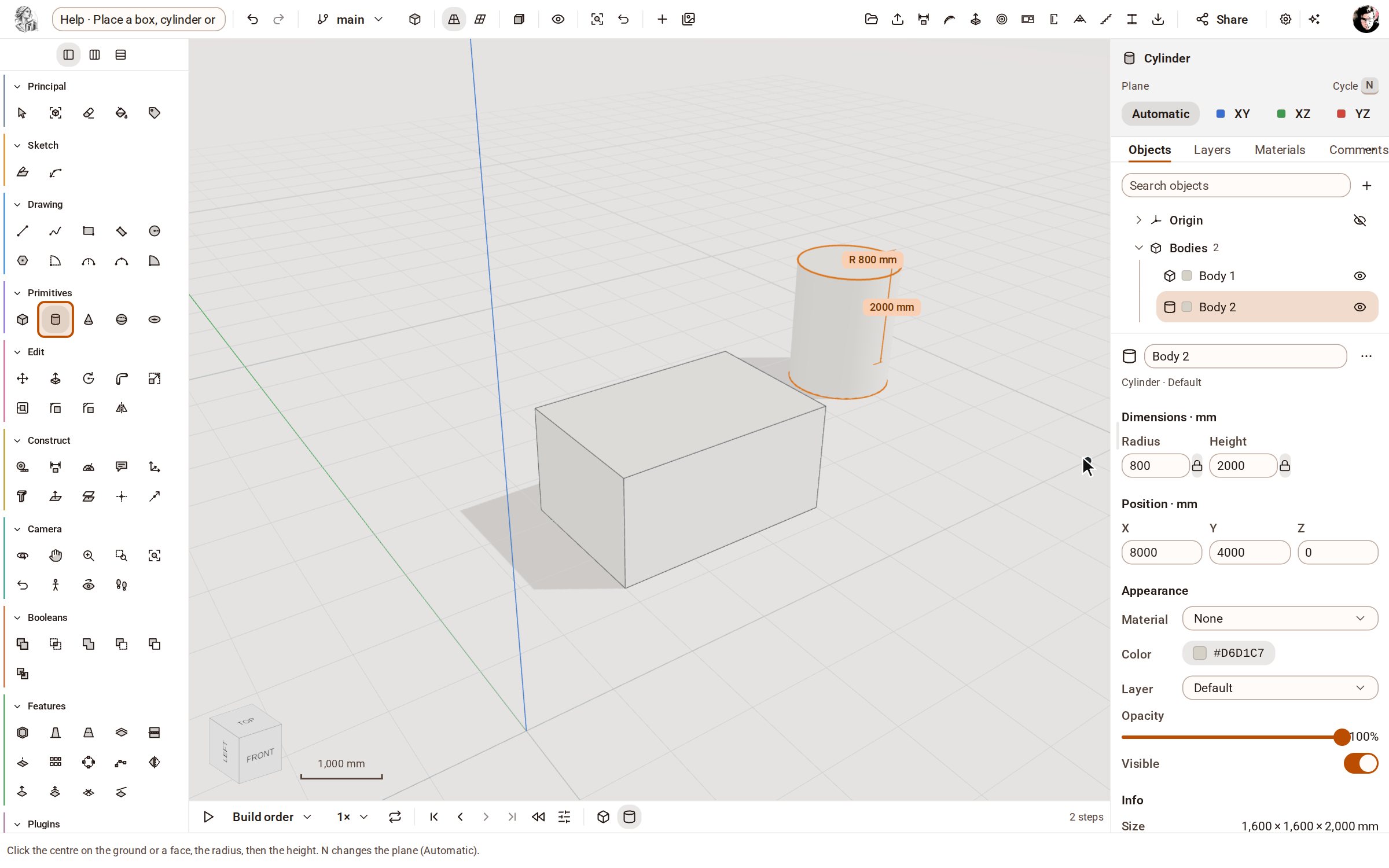
A cylinder works the same way: pick Cylinder, click its centre, type the radius, 800, and press Enter, then type the height, 2000, and press Enter. Sphere takes just a centre and a radius.
Good to know
- Start on a face of a solid instead of the ground to place the new one on that face.
- Each primitive keeps its sizes: select it and change Width, Depth or Height in the inspector.
- Press N, or use the Plane buttons in the tray, to choose the plane the base is drawn on.
Related
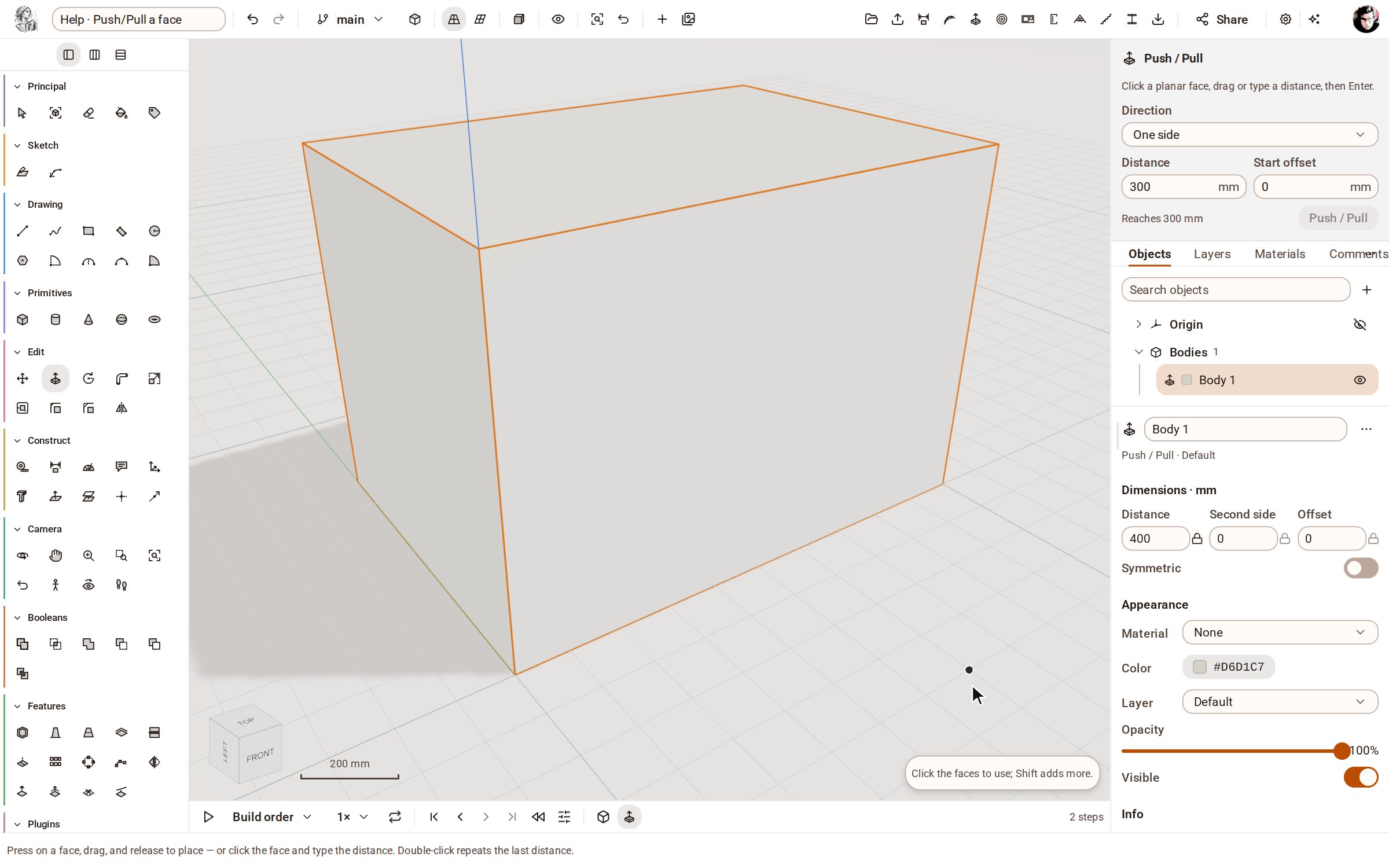 Push/Pull a facePush/Pull extrudes any flat face of a solid by a distance: raise a slab into a block, sink a pocket, or thicken a wall — and the solid stays a clean B-rep.
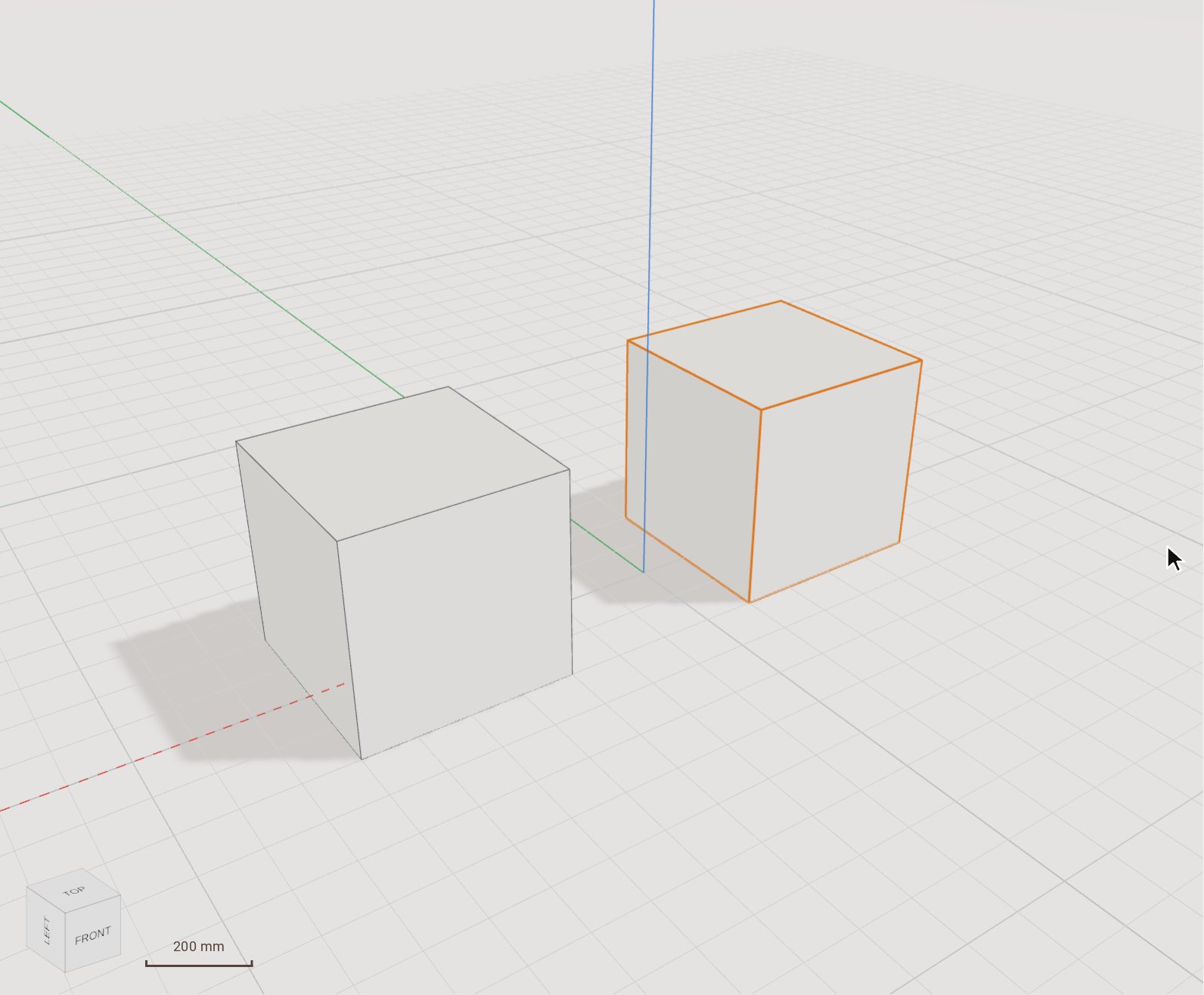 Move (and copy) a bodyMove slides the selected bodies from one point to another, by a pointer gesture or an exact typed distance. Switch on Copy and it leaves the original where it was and places a copy instead.
Recorded in Kozorosa by the help recorder, which checked that the result is in the model.