
Help centreModeling
Move (and copy) a body
Move slides the selected bodies from one point to another, by a pointer gesture or an exact typed distance. Switch on Copy and it leaves the original where it was and places a copy instead.
-
With Select, double-click the box to select the whole body. Then pick Move on the rail, or press M.
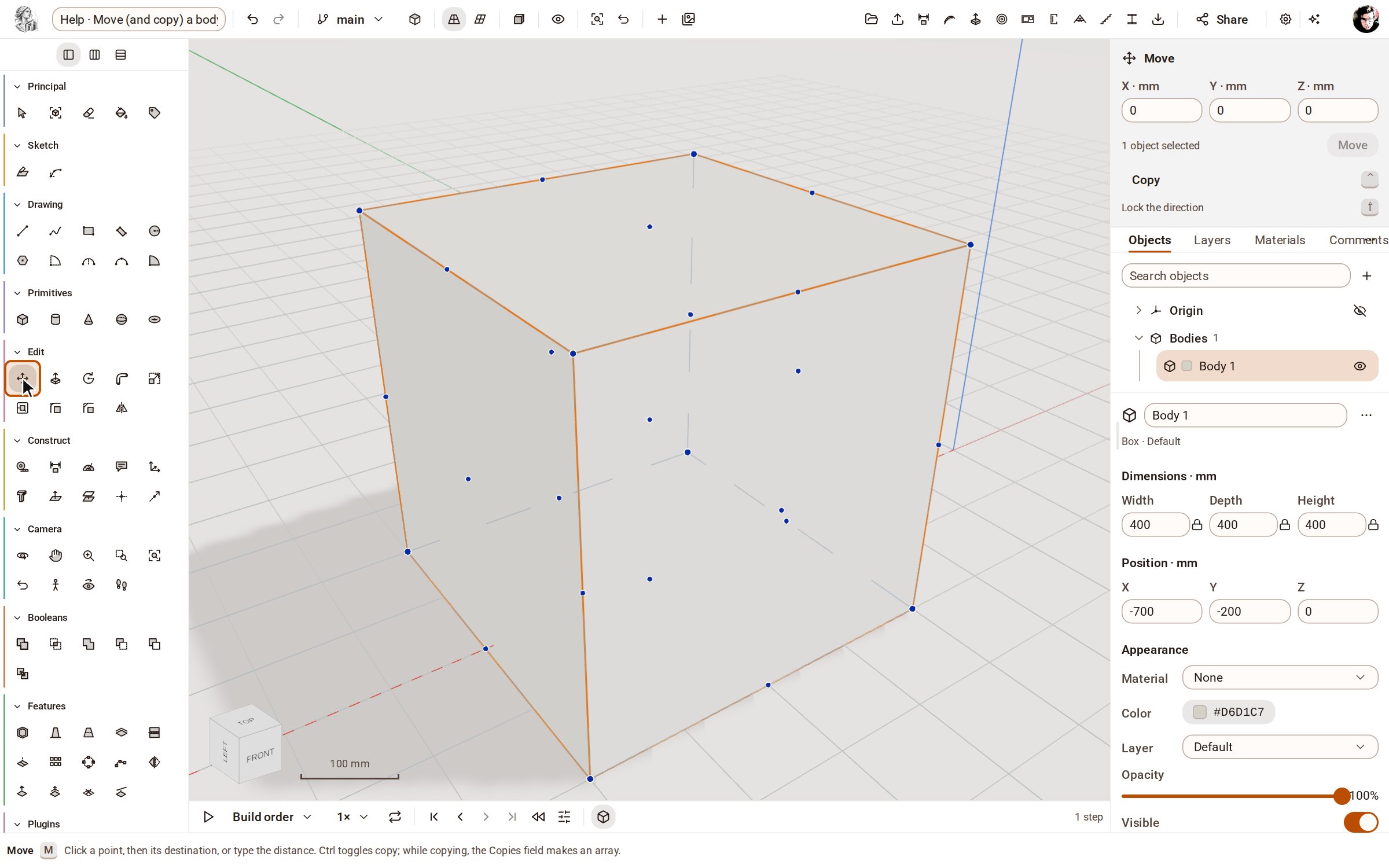
-
To keep the original, tap Ctrl or click Copy in the tray. Copy stays lit while it is on.
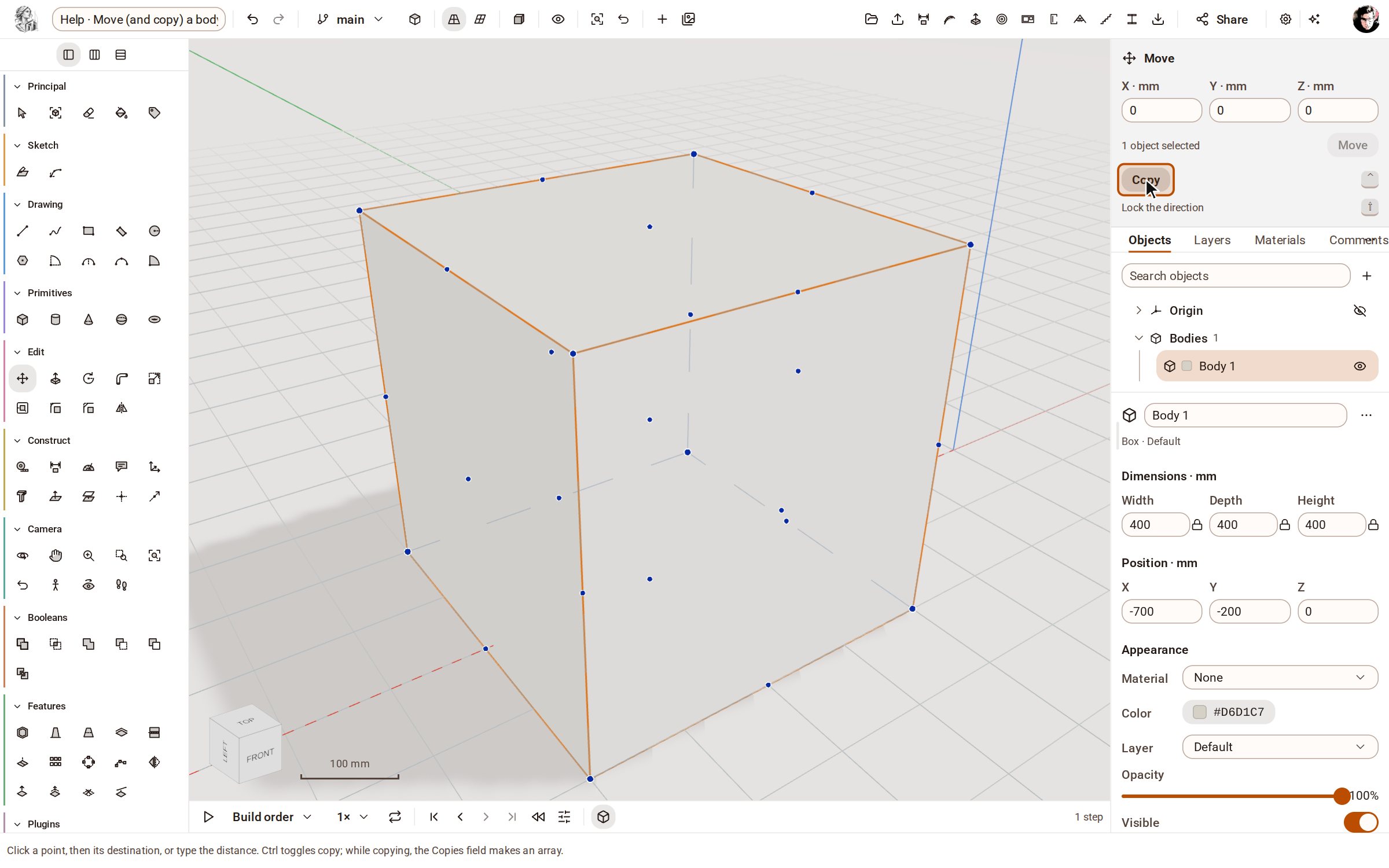
-
Click a point on the box to pick it up and move the pointer. Press the Right arrow key to lock the move to the red axis.
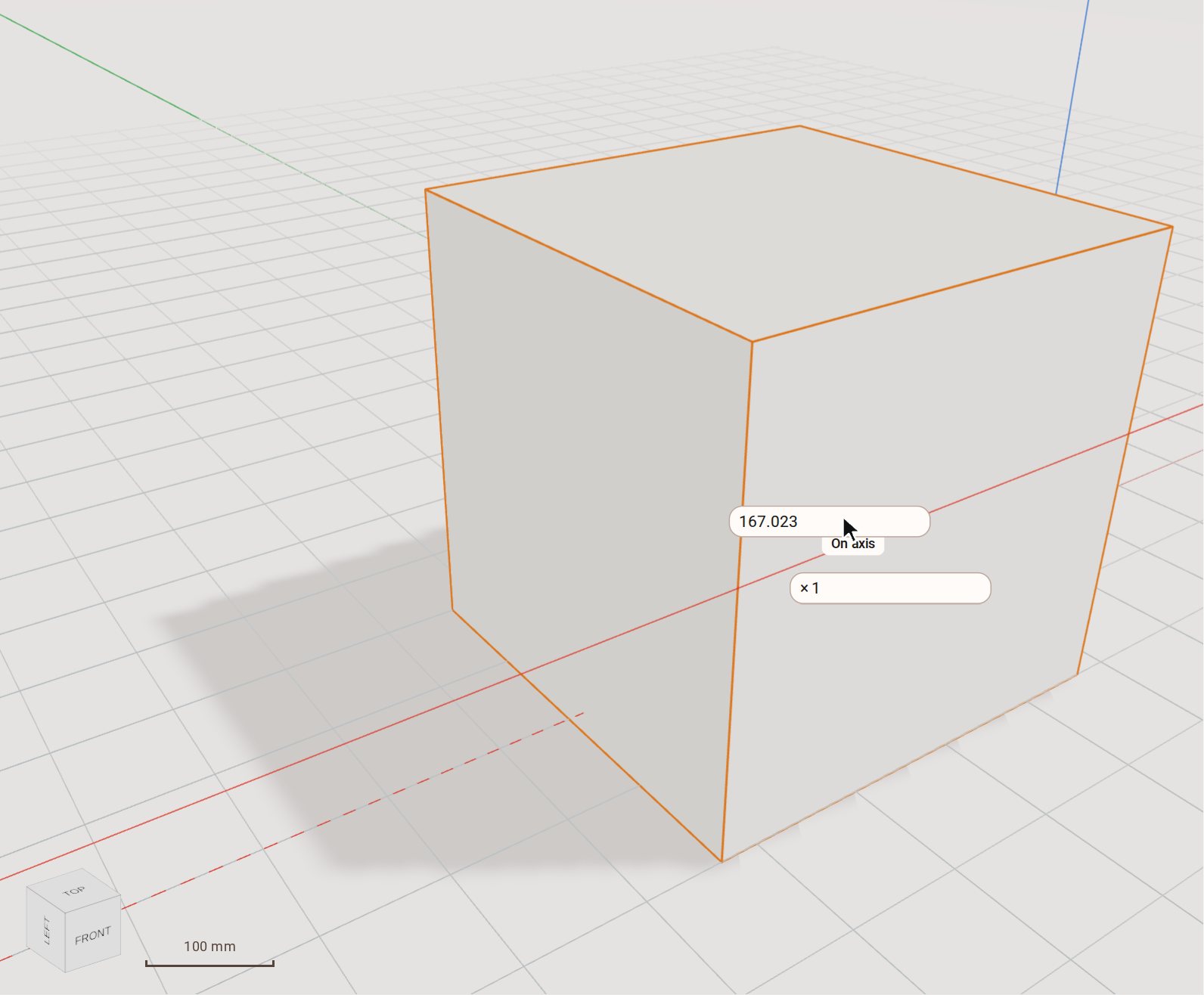
-
Type the distance, 800, and press Enter. The copy lands exactly 800 mm along the red axis and the original stays put. Zoom Extents (Shift+Z) frames them both.
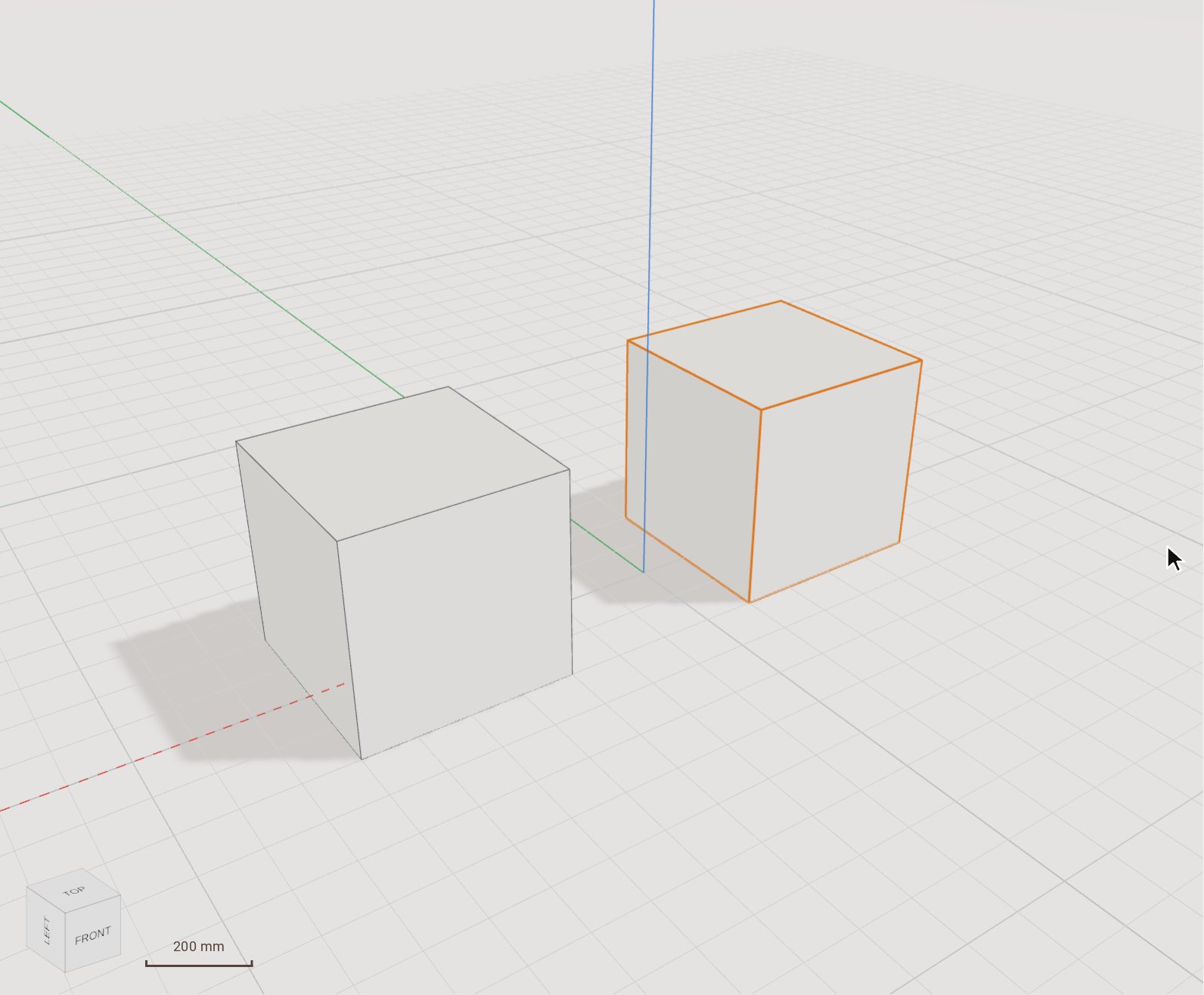
Good to know
- Without Copy, the same steps move the body itself and leave a Transform step in the timeline.
- Right arrow locks the move to the red axis, Left arrow to the green axis and Up arrow to the blue axis; Down arrow releases the lock. Holding Shift locks whatever direction the pointer is inferring.
- With a selection, type a vector in the tray's X, Y and Z fields and click Move in the tray to move it without touching the canvas.
- The tray's X, Y and Z fields move the selection by an exact vector.
- With Copy on, type how many in the Copies field before you finish: the copies land one step apart, as a row.
Related
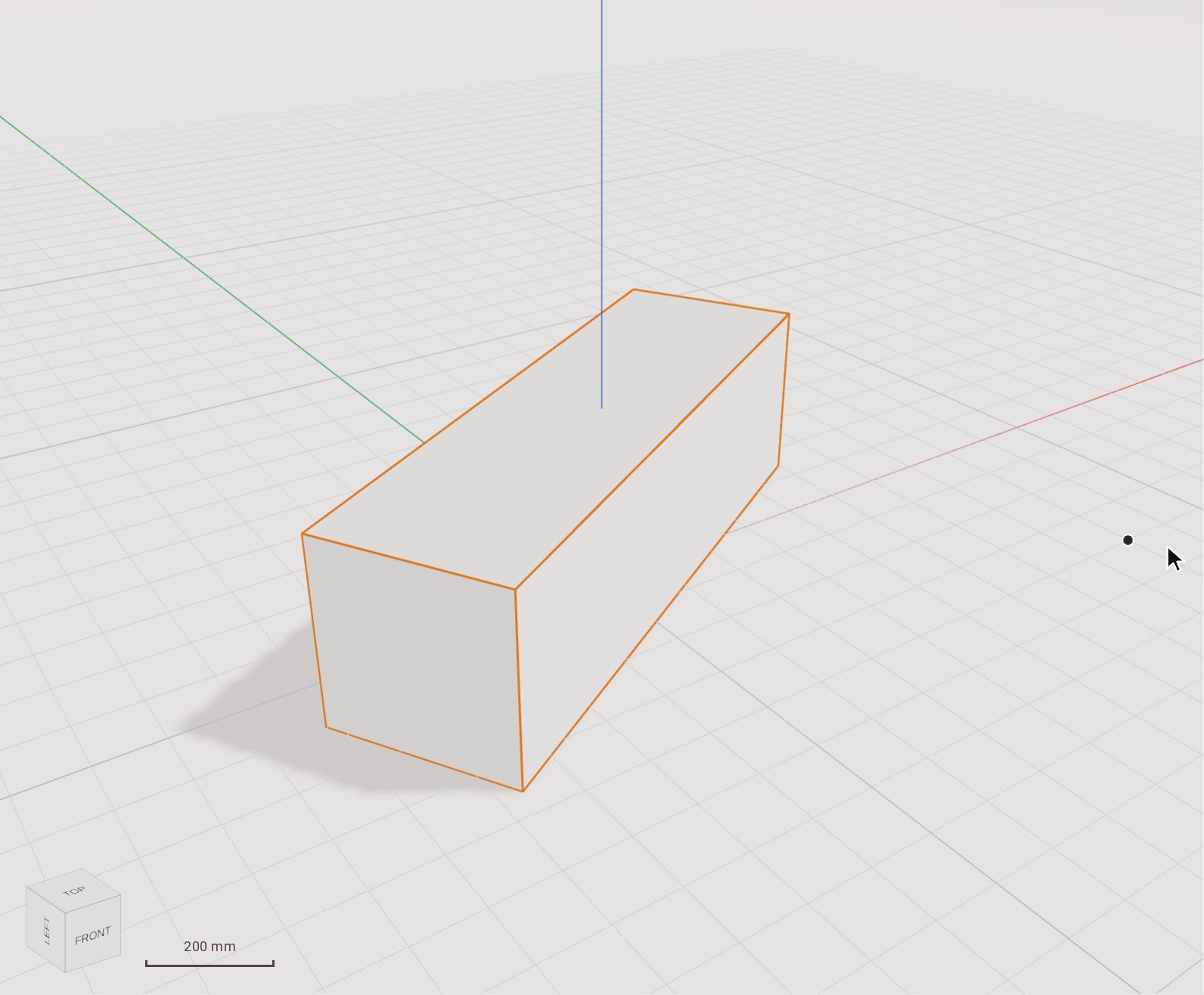 Rotate a body by a typed angleRotate turns the selected bodies about an axis through a pivot you click. Set the angle by moving the pointer, or type it exactly.
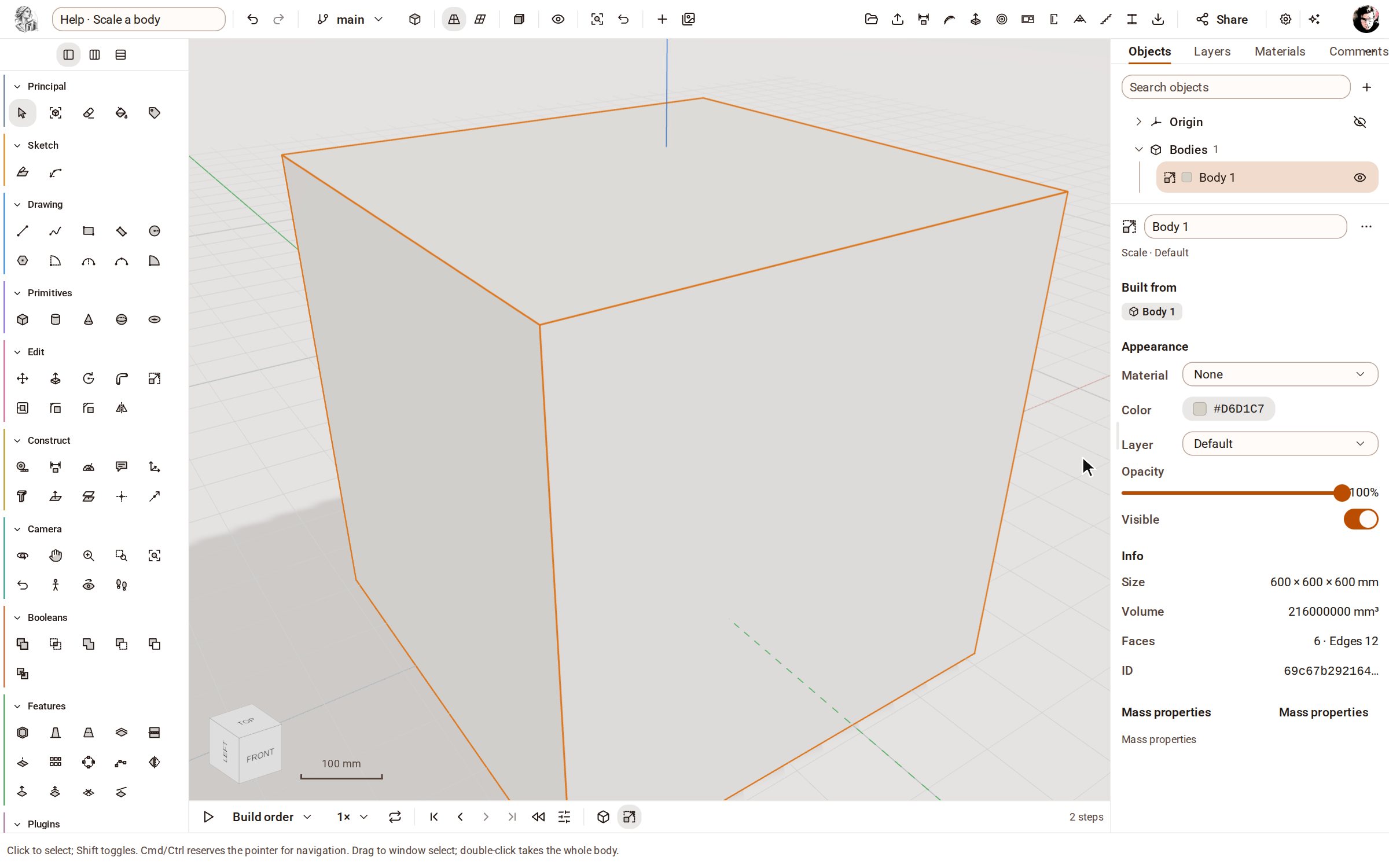 Scale a bodyScale makes the selected bodies bigger or smaller by a factor, uniformly or along one axis at a time.
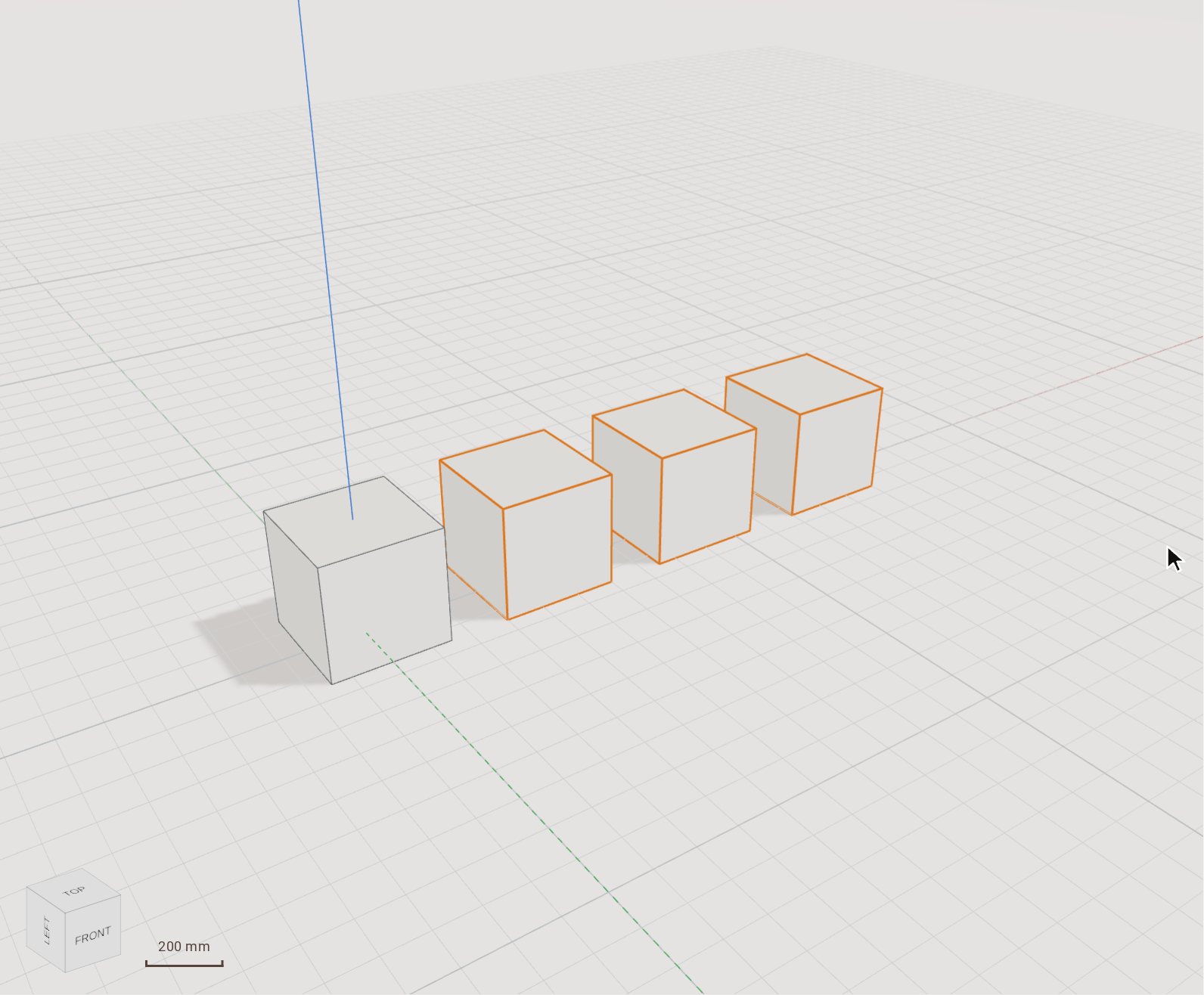 Repeat a body in a linear patternRectangular Pattern repeats bodies in a row, or in a grid with a second direction, at an even spacing. Use it for anything that comes in equal steps: posts, shelves, holes in a plate.
Recorded in Kozorosa by the help recorder, which checked that the result is in the model.