
Help centreModeling
Scale a body
Scale makes the selected bodies bigger or smaller by a factor, uniformly or along one axis at a time.
-
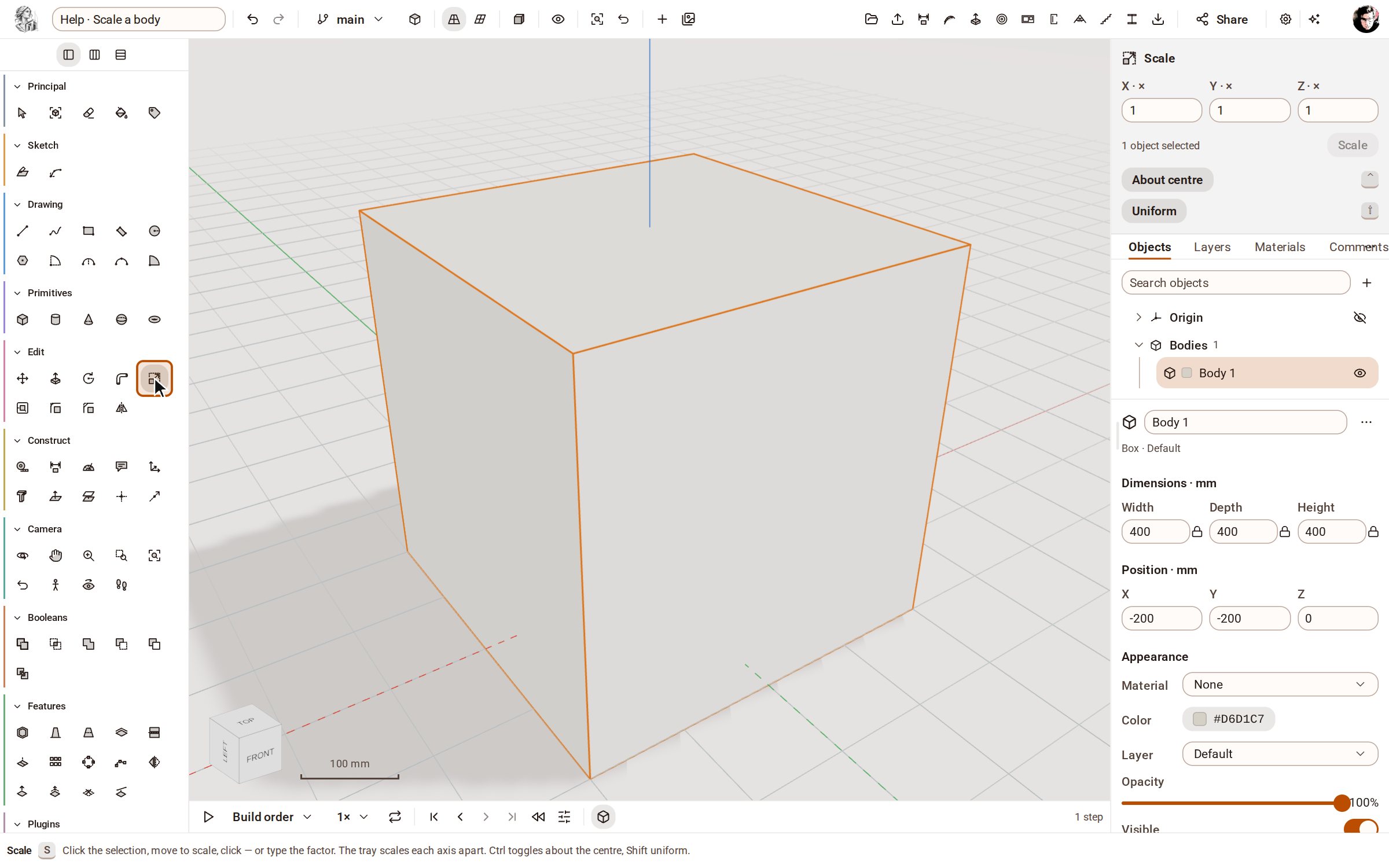
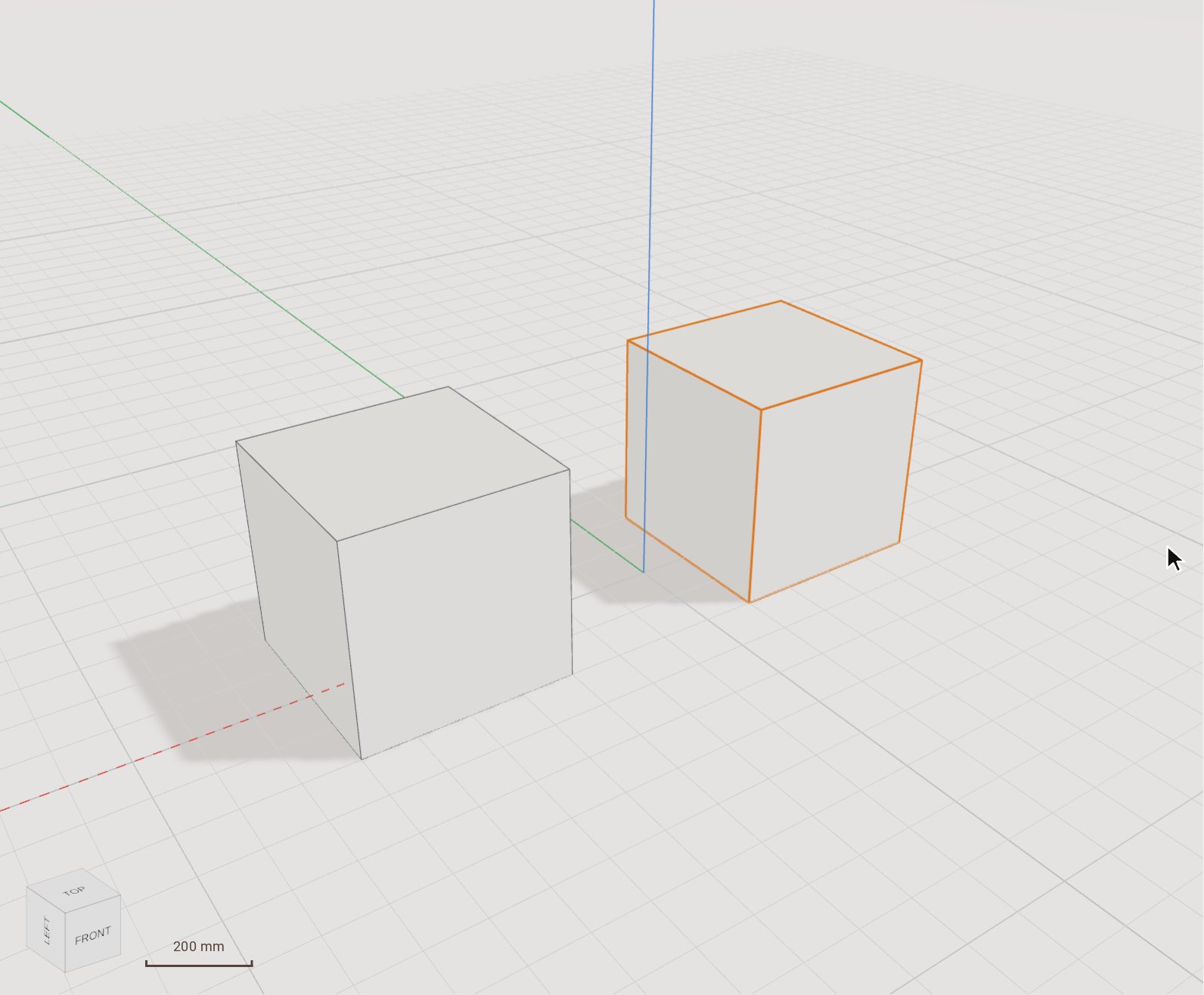
With Select, double-click the box to select it. Then pick Scale on the rail, or press S.
-
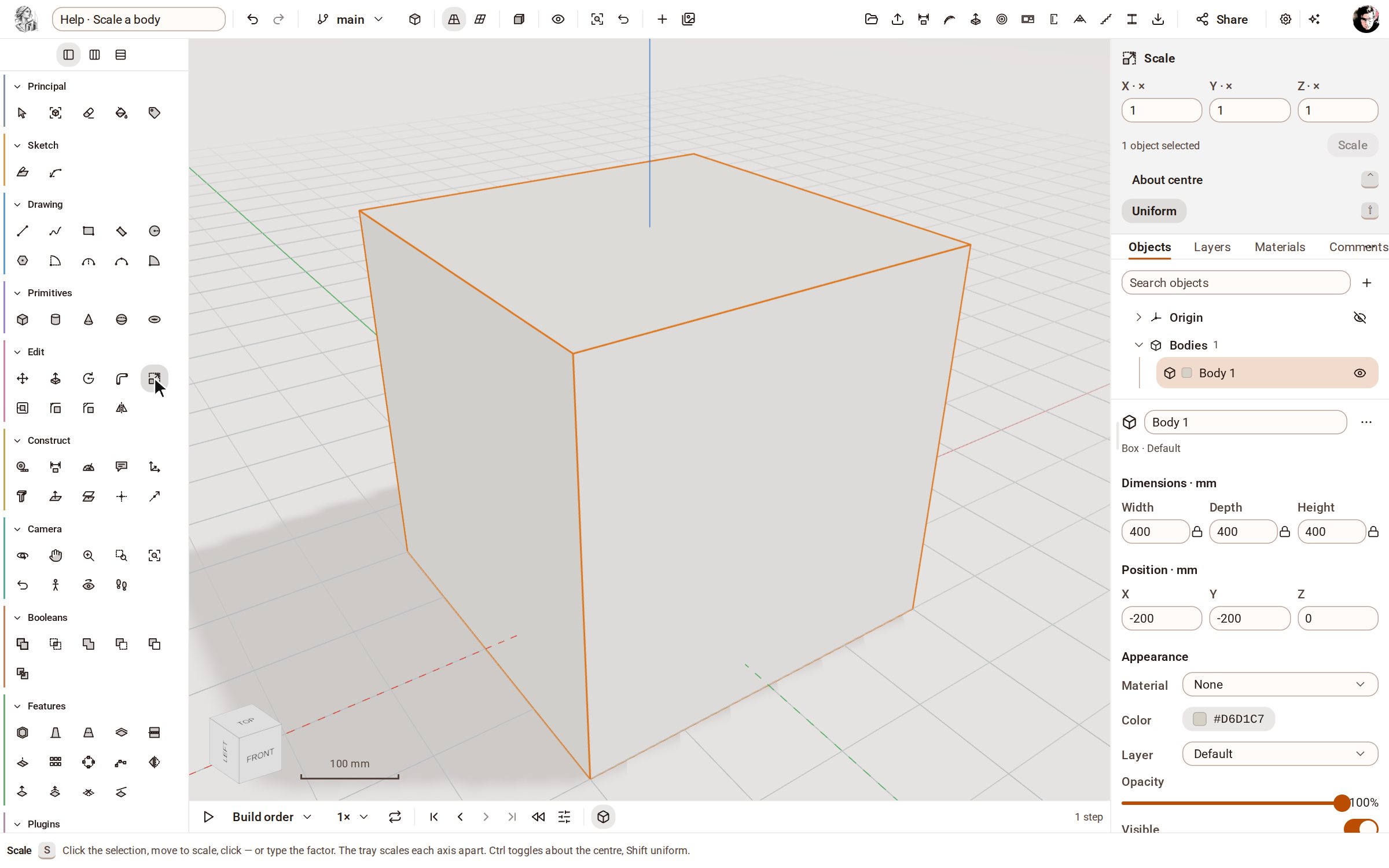
Scale works about the selection's centre while About centre is lit in the tray. Tap Ctrl, or click About centre, to switch it off: the point opposite the one you grab then stays fixed, so the box keeps its place on the ground.
-
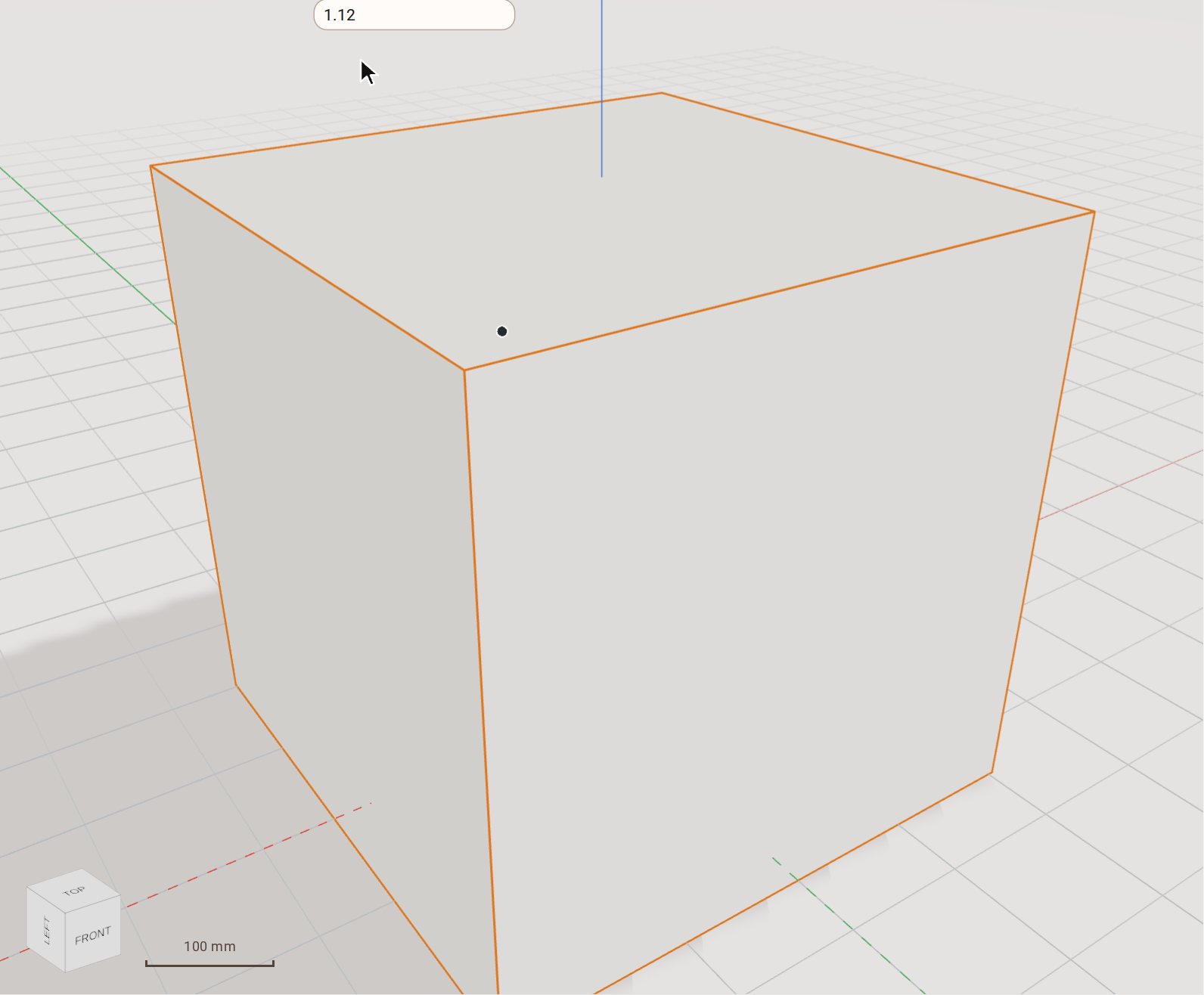
Click a point near the top front corner of the box and move the pointer away from the box. The preview grows with the pointer.
-
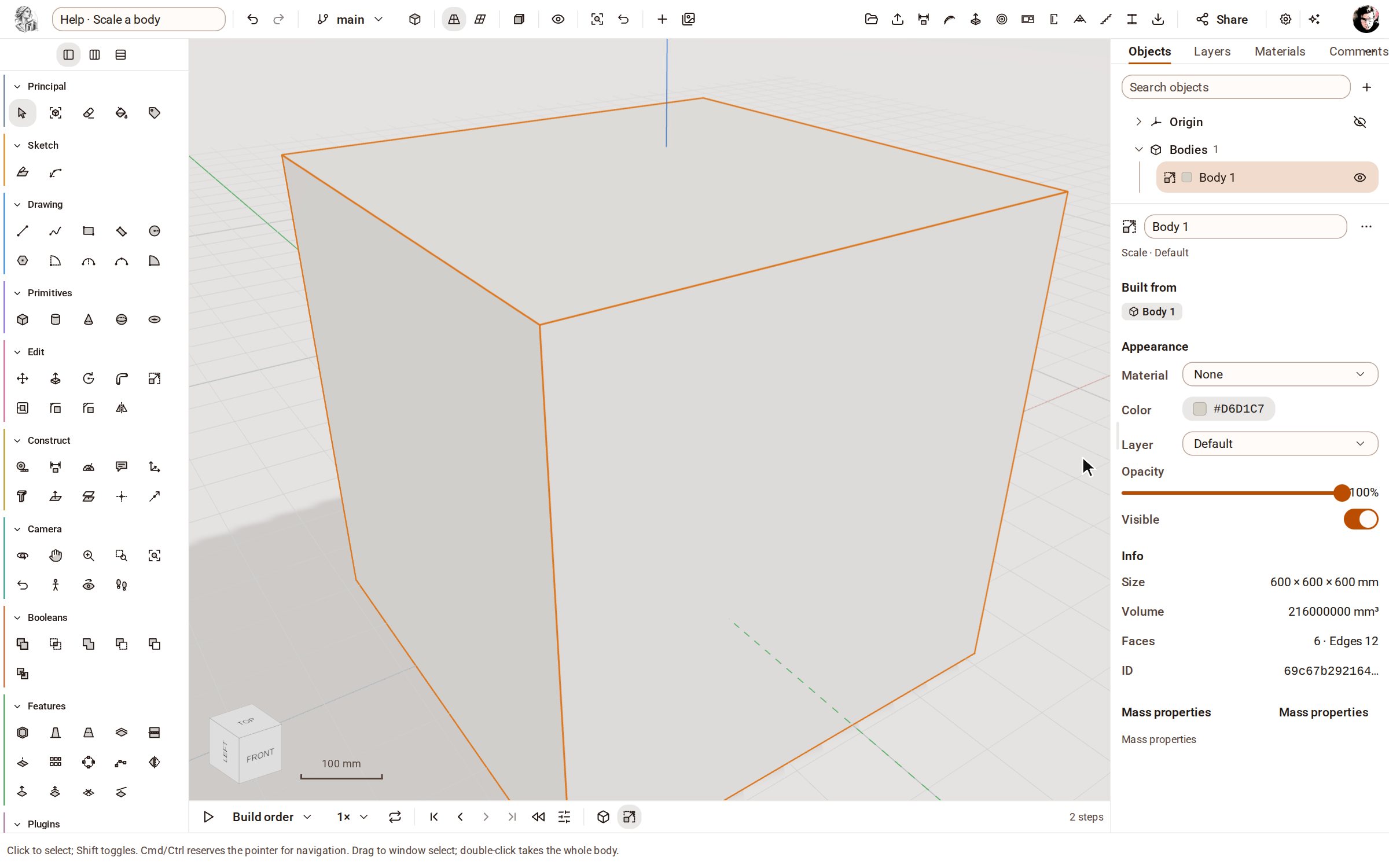
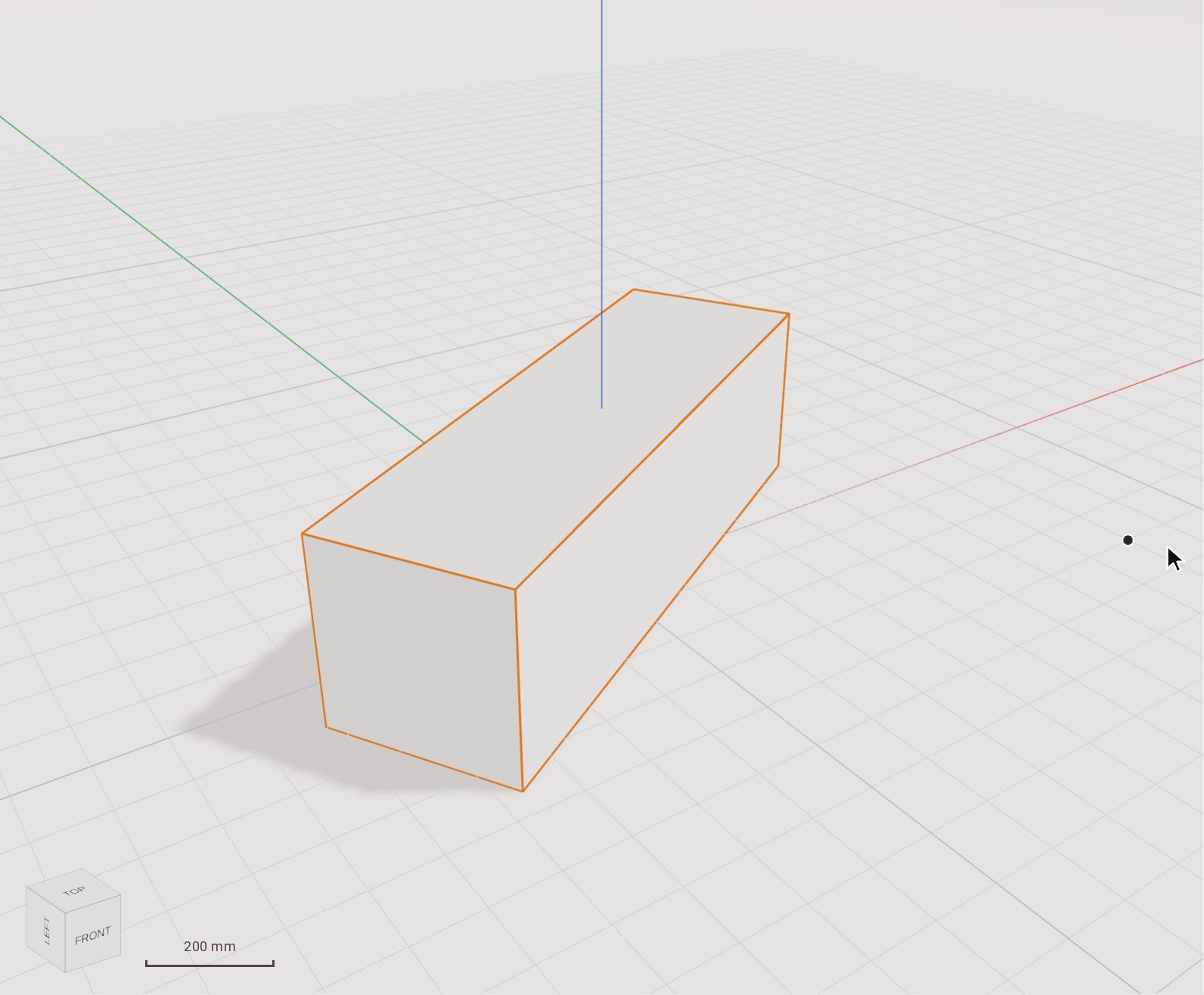
Type the factor, 1.5, and press Enter. The box grows to one and a half times its size — the Info section of the inspector reads 600 × 600 × 600 mm — and a Scale step joins the timeline.
Good to know
- The tray's X, Y and Z factors stretch the selection along one axis only.
- Shift toggles Uniform: with it off, the pointer scales each axis on its own.
- With a selection, type factors in the tray's X, Y and Z fields and click Scale in the tray to scale it about its centre.
Related
 Move (and copy) a bodyMove slides the selected bodies from one point to another, by a pointer gesture or an exact typed distance. Switch on Copy and it leaves the original where it was and places a copy instead.
 Rotate a body by a typed angleRotate turns the selected bodies about an axis through a pivot you click. Set the angle by moving the pointer, or type it exactly.
Recorded in Kozorosa by the help recorder, which checked that the result is in the model.