Help centreModules
Cut and split timber elements
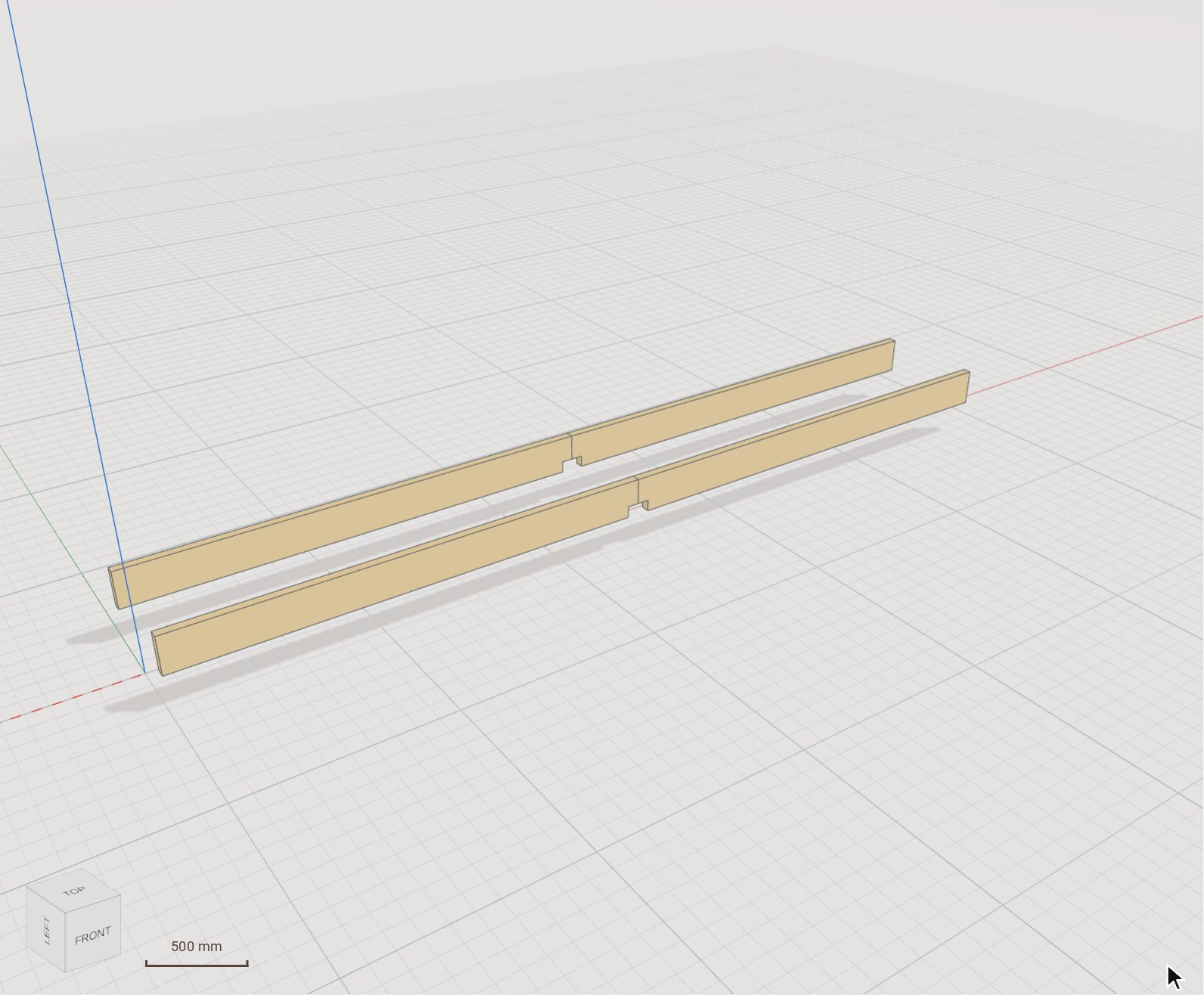
Timber elements are cut the way a carpenter cuts them: Split saws an element in two along a line you draw (or into equal parts), and Cut by volume cuts elements by whatever meets them — a joist notched over a beam, a rafter trimmed by a purlin. Here two 45×195 joists are split over a glulam beam, then notched over it.
-
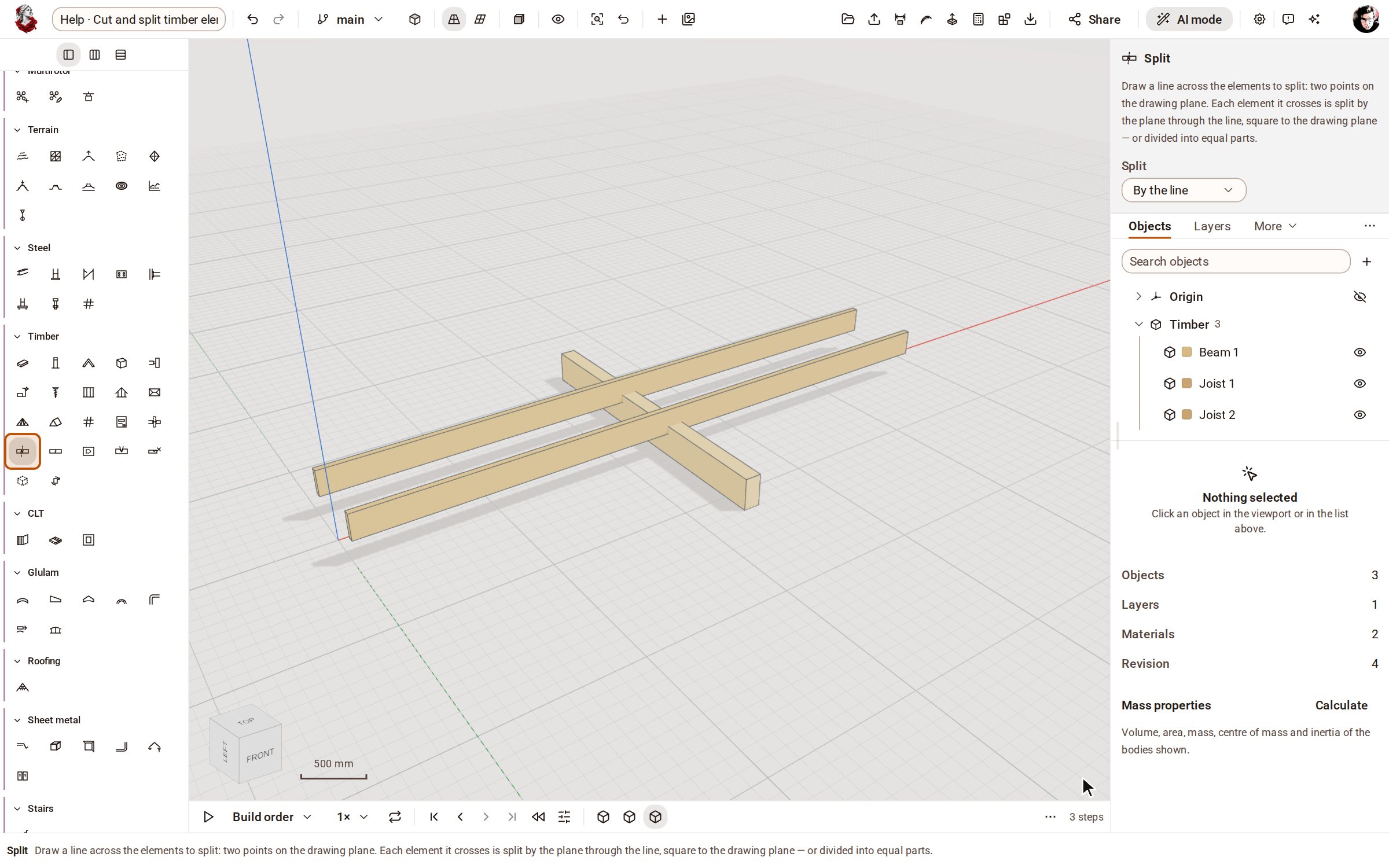
Start from the timber to cut — here two 45×195 joists, 4.8 m long, resting 60 mm into a glulam beam. Open the Timber group on the rail and pick Split; leave the tray's Split on By the line.
-
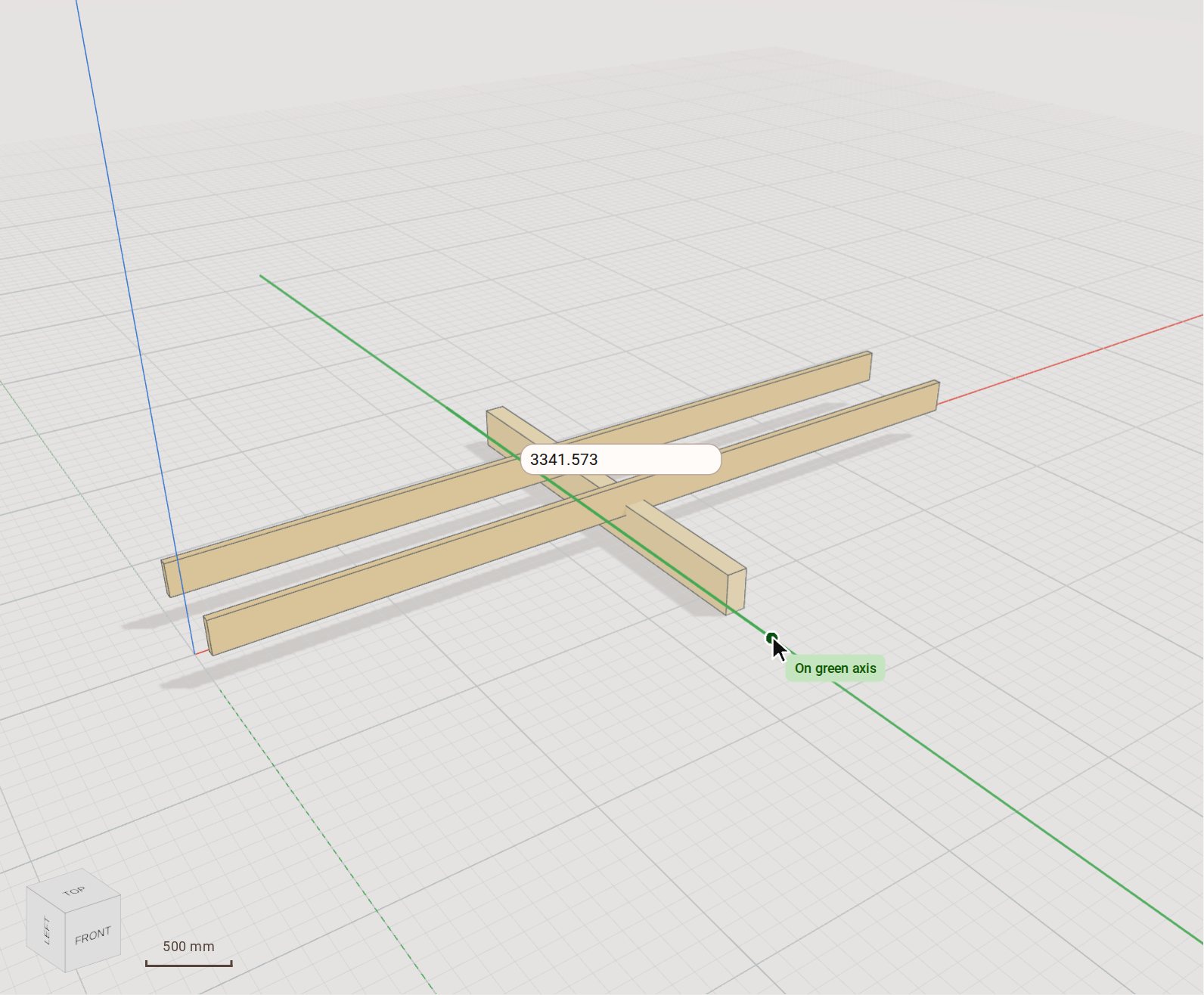
Click a point on the ground on one side of the joists, where you want them cut — here past the end of the beam, on its centre line — and move straight across them: a line follows the pointer.
-
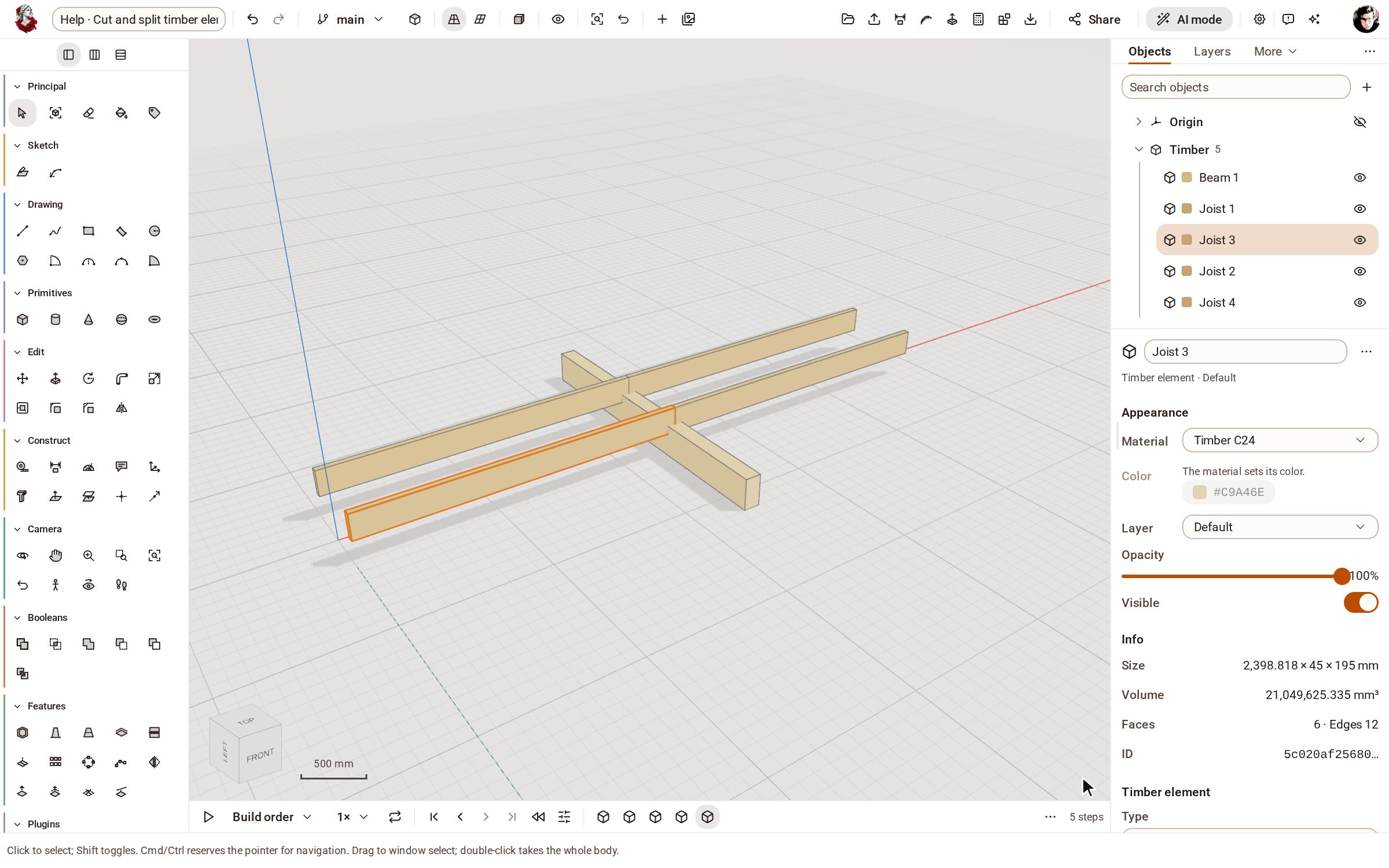
Click on the other side. Each joist the line crosses is split by the plane through the line, square to the ground: four joists now, each ending on the beam's centre line. Double-click one to see it alone.
-
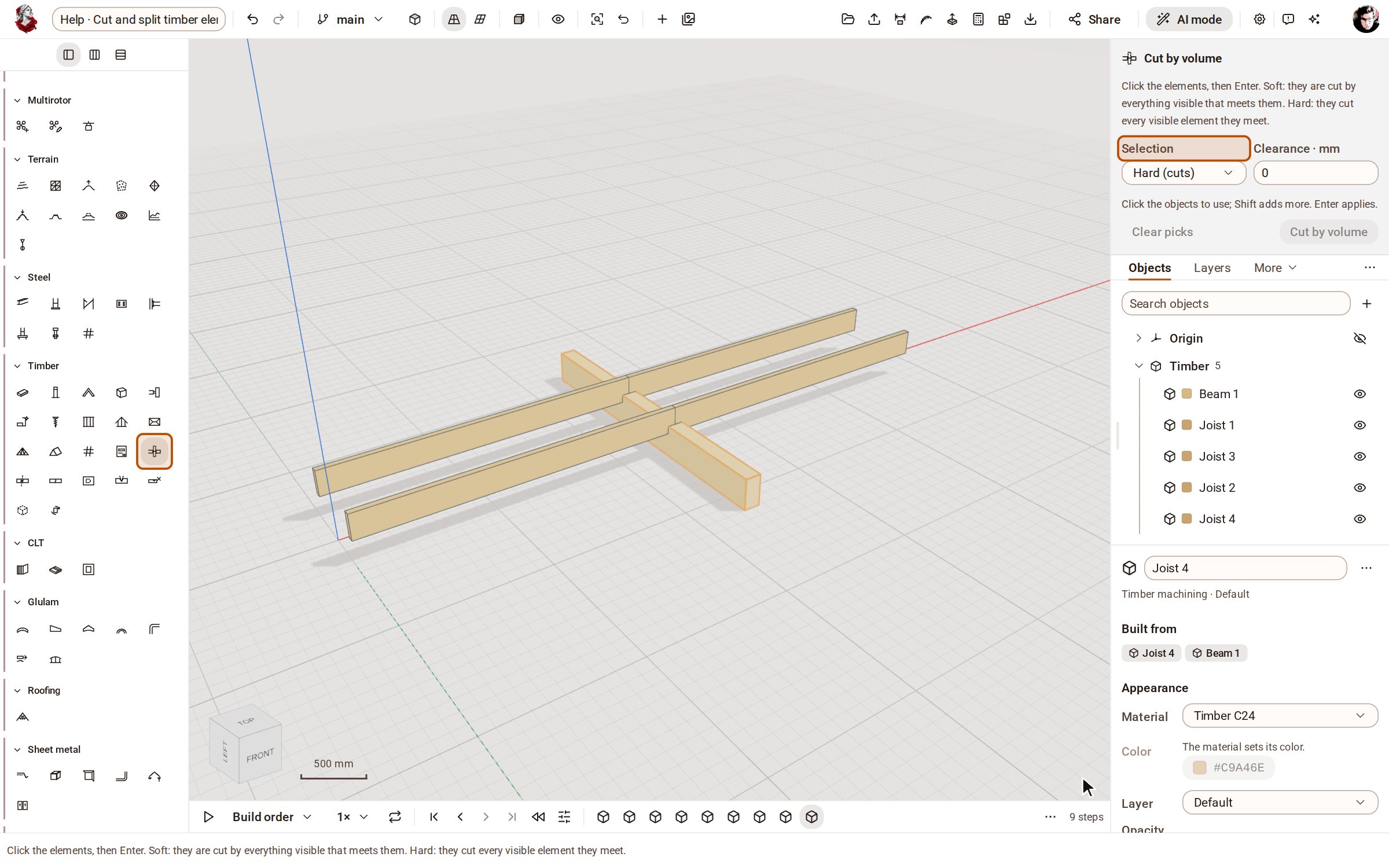
Now the notches. Pick Cut by volume and set Selection to Hard (cuts): what you pick cuts every visible element it meets. Click the beam and press Enter.
-
Hide the beam to see the result (select it, then Hide in Entity Info's Actions menu): each joist end has a 60 mm housing where it sat in the beam, one step in the timeline per cut.
Good to know
- Split's Into equal parts divides each element the line crosses into Parts equal parts; Parts no longer than divides it into the fewest equal parts no longer than Longest part.
- Draw the line at an angle for a skew cut: each part keeps the whole oblique end face.
- Soft (is cut) works the other way round: the elements you click are cut by every visible element or solid that meets them — a rafter trimmed by a purlin, or by a plain solid drawn as a cutting volume.
- Only timber elements are cut or split: Cut by volume will not take a plain solid as a pick, and Split passes through anything that is not a timber element. Hidden elements neither cut nor are cut.
- Clearance grows the cutting element all round for an oversize housing; it works with timber elements only.
- Remove processings takes the cuts off the elements you click (Everything, joints too: their joints as well), and Weld puts split parts back together — in line, they become one bar again.
- With the cadwork keyboard preset (Keyboard settings, Preset), C D splits by a line, C Shift+T into parts, C W cuts soft, C W H hard, D welds and Ctrl+D removes the cuts.
Related
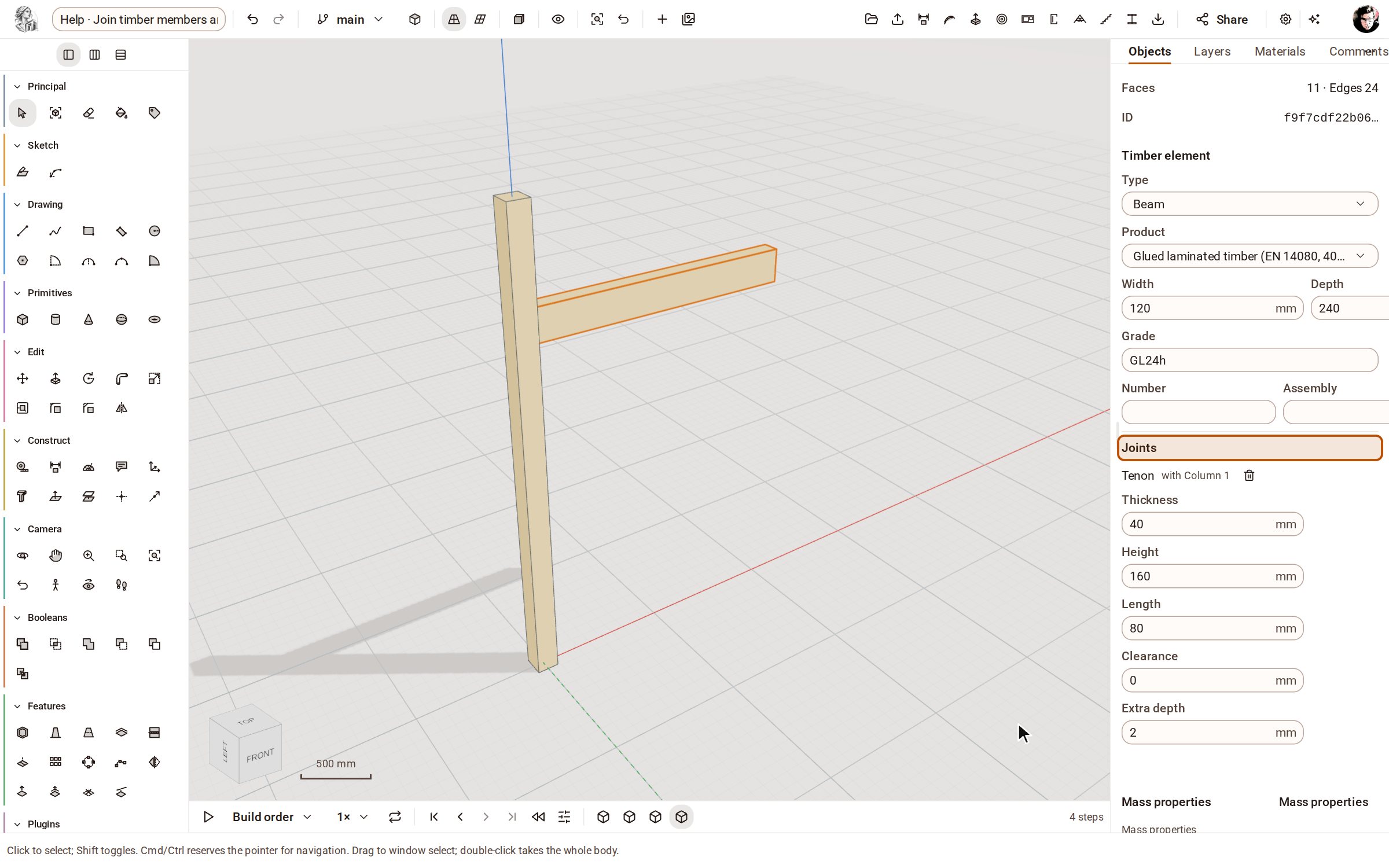 Join timber members and get the cutting listThe Joint tool cuts a carpenter's joint — tenon and mortise, dovetail, half lap, birdsmouth and more — into two timber members in one edit, and the cutting list and BTLx file carry every cut to the saw and the joinery machine.
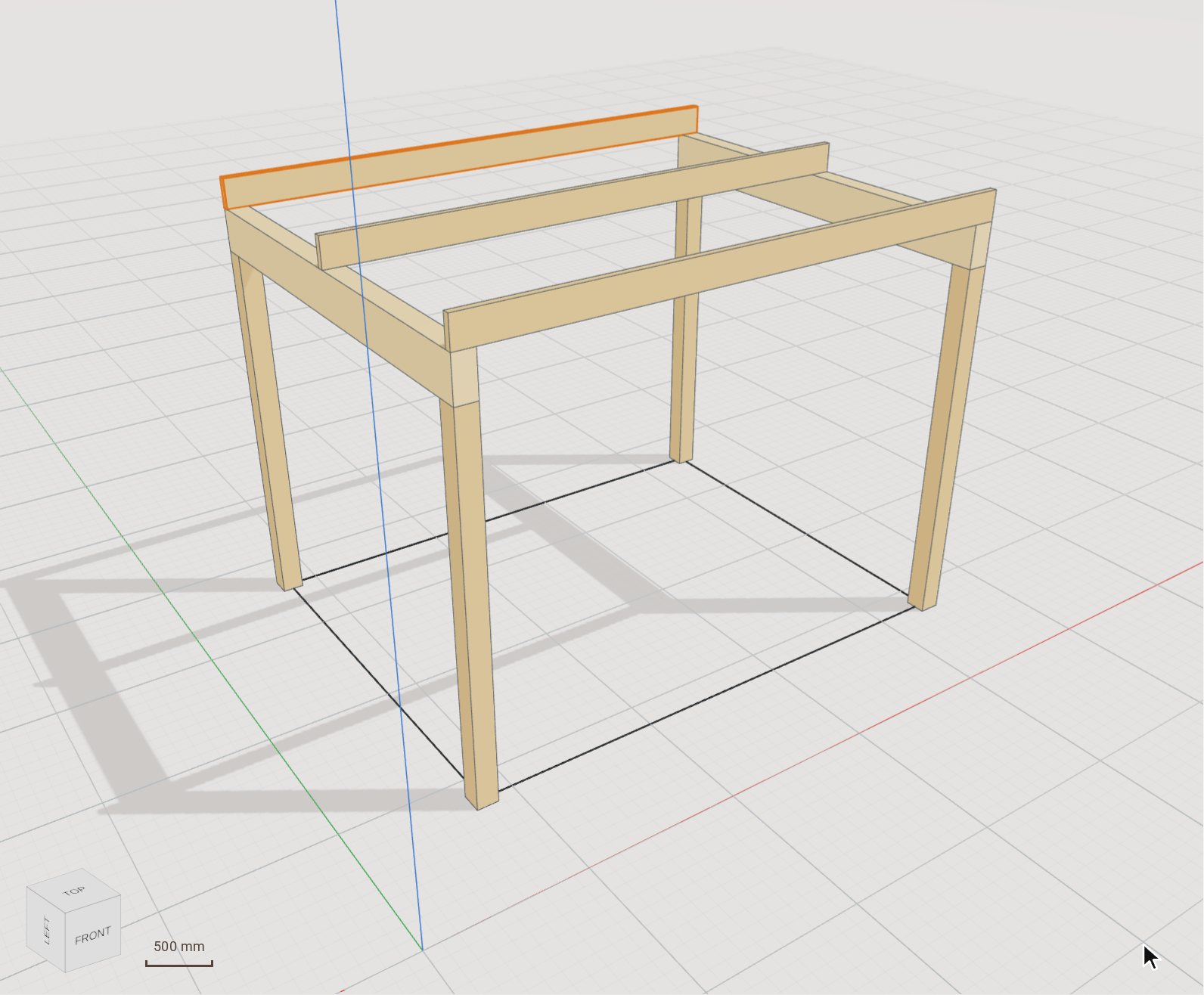 Place timber beams and columns from the catalogueThe Timber group's Column and Beam tools draw elements with real products from your market's catalogue — solid, KVH, Duo/Trio, glulam, LVL — so every element knows its section, grade and length for the lists. Here they frame a 3.6 × 2.8 m pergola: four posts, two glulam beams and three joists.
Recorded in Kozorosa by the help recorder, which checked that the result is in the model.